 Rayo PDF GO
How to Organize Your Digital Documents as PDFs (Guide)
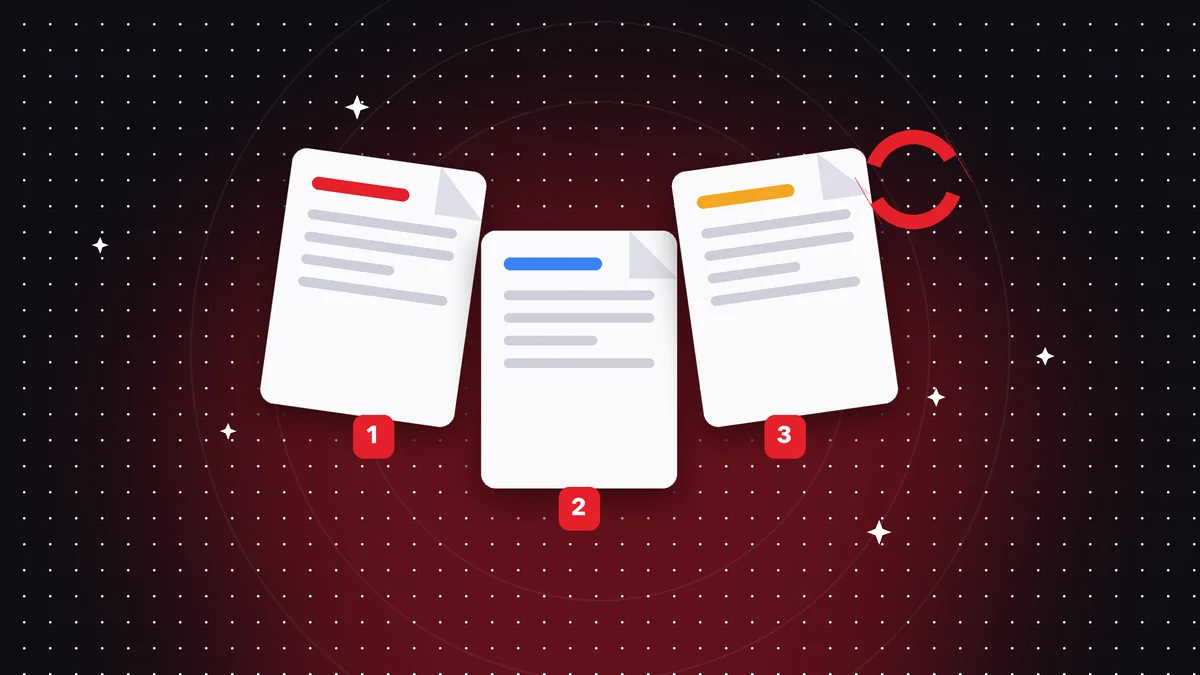
When you need your lease, your employment letter or the receipt for an appliance under warranty, it's never where you think. It's in your photo gallery, in an old email, in a folder called “New folder (3)”. Organizing your digital documents doesn't require a complicated system, just a few consistent rules: simple folders, names that explain themselves and PDFs with the pages in the right order. In this guide you'll see a practical method you can set up in an afternoon and maintain with five minutes a week.
Try it now: Organize PDF
Choose your file and continue in the app. It is processed on your device, never uploaded to a server.
Why documents get messy
Disorder starts with the way documents arrive: by email, by messaging, phone photos, bank downloads, office scans. Each channel saves them in a different place under an automatic name that says nothing. Over time, nobody knows which is the final version or where it ended up.
Another factor is that we save everything with the idea of organizing it later, and that moment never comes. The cost shows up at the worst times: when an official procedure demands a document by a deadline, when the bank asks for supporting papers or when a warranty claim depends on a receipt you can't find.
The solution isn't buying another program, but deciding in advance where each thing goes and what it's called. With a fixed rule, filing a new document takes thirty seconds. The hard part is the first cleanup; after that, keeping things in order is a small habit that almost sustains itself.
Design a simple folder structure
Less is more. A structure of five to eight main folders is usually enough: ID, Home, Work, Education, Health, Finances and taxes, Vehicle and Warranties. Inside each one, create subfolders by year or topic only when you have many files. Too many levels make things harder to find.
Adapt the categories to your life. A student will have Courses and University paperwork; a freelancer, Clients, Invoices and Contracts; a family, School, Health and Household. What matters is that when you think of a document you immediately know which folder it belongs to, without hesitating between two options.
Avoid a “Misc” or “Other” folder: it turns into a junk drawer. If a document doesn't fit, you probably need another category or have one distinction too many. And keep the same structure on your computer and in cloud storage, so you don't have to remember two different systems.
File names that explain themselves
A good name answers three questions: what it is, whose or what it's about, and when. A useful pattern is year-month-day, type and description: “2026-10-15-receipt-samsung-fridge”. Starting with the date in year-month-day format makes the folder sort itself chronologically, with no extra effort.
Avoid accents, multiple spaces and symbols like slashes or question marks, because some official platforms reject those characters. Use hyphens. And drop names like “final”, “final2” or “definitive”: when the file really changes, add the version with a number, like “v2”, and keep only the one that counts.
Fix the automatic names too: “IMG_4521”, “Scan_001” or “Untitled document” are no use. Renaming when you save is the habit that saves the most time in the long run. If you have a big backlog, start with the most recent and most important items, and work backward without trying to solve it all in a single day.
Convert and group: one topic, one PDF
Much of the clutter is loose files on the same subject: five photos of your ID, three pages of a contract, one certificate as a JPG and another in Word. The tidy approach is for each procedure or document to live in a single PDF. The conversion and merge tools in Rayo PDF GO are for exactly that.
1) Turn photos into PDF with Images to PDF or, if you use your phone, with Scan to PDF. 2) Convert Word, Excel or PowerPoint documents with Office to PDF. 3) Merge related pieces with Merge PDF, in logical order. The free plan lets you merge up to 3 PDFs at a time; Premium removes that limit.
An example: your vehicle file. Merge the registration card, the insurance, the inspection and the latest tax payment into a single PDF, named with the year. When someone asks for them at a checkpoint or for an official procedure, you open one file and that's it, instead of hunting for four separate ones in your gallery.
Organize pages: order, rotation and cleanup
Even a single PDF can be disorganized: sideways pages, a repeated sheet, an appendix at the beginning instead of the end, a fax cover sheet that adds nothing. The Organize PDF tool lets you see thumbnails and move, rotate or remove pages visually, without going through the whole document. Organize PDF is a Premium feature.
If you only need to remove pages, Delete pages is more direct. If you want to flip the whole document around, Reverse pages does it in one step. If a single sheet is crooked, Rotate PDF fixes it. And if you need room for a signature or a stamp, Insert blank pages handles that case.
When the document is long, add page numbers with the corresponding tool; it makes it easier to say “page 12” in a conversation. And if you need to separate parts to share them by topic, Split PDF is the reverse of merging. With these pieces you can rework any file until it's exactly how you need it.
A realistic maintenance rhythm
Organizing once isn't enough: you need a habit. Pick a fixed time, like Sunday night or the first day of the month, and spend ten minutes going through downloads, emails and the gallery. Convert, rename and file what's new. If you do it often, the work is minimal and never piles up.
For urgent things, apply the two-minute rule: if it takes less than two minutes to save a document properly, do it right away. The invoice you just paid gets renamed and filed on the spot, before it gets buried among a hundred downloads. It's easier than coming back to it weeks later.
Once a year, do a cleanup: delete what no longer has value and gather the previous year's documents in a closed folder. Some papers must be kept for years for legal or tax reasons; check how long applies to your case with a professional or the relevant agency before deleting anything important.
Backup and security for your documents
A tidy system is useless if you lose everything with a broken phone. Follow a simple rule: keep your important documents in at least two places, for example your device and external or cloud storage. Check from time to time that the files open, because a backup that has never been tested is no guarantee.
Documents with sensitive data deserve an extra layer. You can protect them with a password using Protect PDF, a feature available depending on the plan, and store the password in a separate manager, never in the same place or in the file name. If you must share only part of a file, use Split PDF or Redact PDF to hand over nothing more than what's needed.
Rayo PDF GO processes files on your device and doesn't upload them to any server. The web version requires a connection to load the page and create the free account, but the work with your documents is local, just like in the apps for iPhone, iPad, Android, Mac and Windows, which are in preparation or under store review.
Alternatives and wrap-up
Some people prefer document management apps with tags and advanced search. They work well, but they usually mean uploading everything to a service and learning another system. A simple method of folders, clear names and grouped PDFs works on any device, without depending on a subscription or on a service continuing to exist.
If you have a large volume of papers, as in a small business, you can add a shared convention: who saves what, under what name and where. A short, one-page rules document keeps everyone from inventing their own system and keeps information accessible when someone is away or changes roles.
Start with what hurts the most: the documents you're asked for most often, like ID, certificates and receipts. Organize them first, turn them into clean PDFs and name them well. That alone will make a difference, and you can add the rest without pressure, as it arrives or when you need to find it.
Frequently asked questions
How do I organize digital documents in a simple way?
Use a few folders by topic, names with a date and description, and group the pages of the same subject into one PDF.
How do I change the page order of a PDF?
With the Organize PDF tool you can move, rotate and remove pages while viewing thumbnails. It's a Premium feature.
How should I name PDF files properly?
Start with the date in year-month-day format, add the type and a short description, and avoid accents, double spaces and symbols.
Can I merge several documents into one PDF?
Yes, with Merge PDF. The free plan allows up to 3 PDFs at a time and Premium removes the limit.
Are my documents uploaded to any server?
No. Rayo PDF GO processes files on your device and never uploads them to any server.
Keep reading
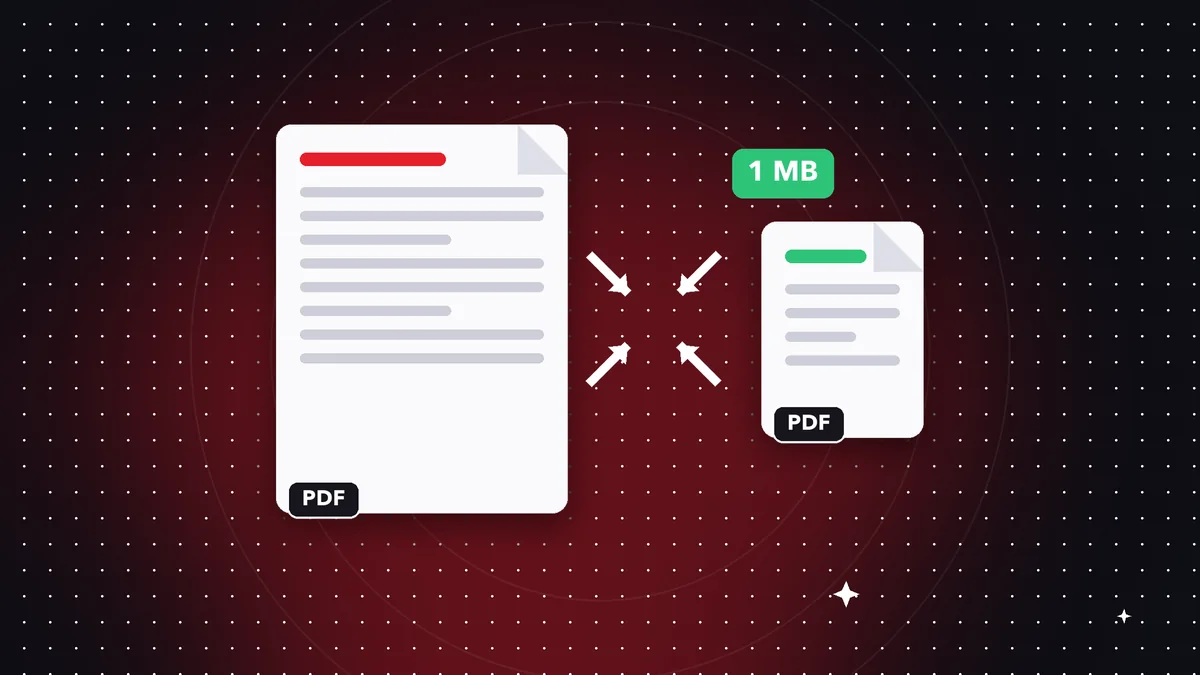 GuideHow to Prepare Documents for an Online Application (1 MB PDF)
Get documents ready for an online application: a light, legible, well-named PDF. Convert, merge and compress t…
Read article ›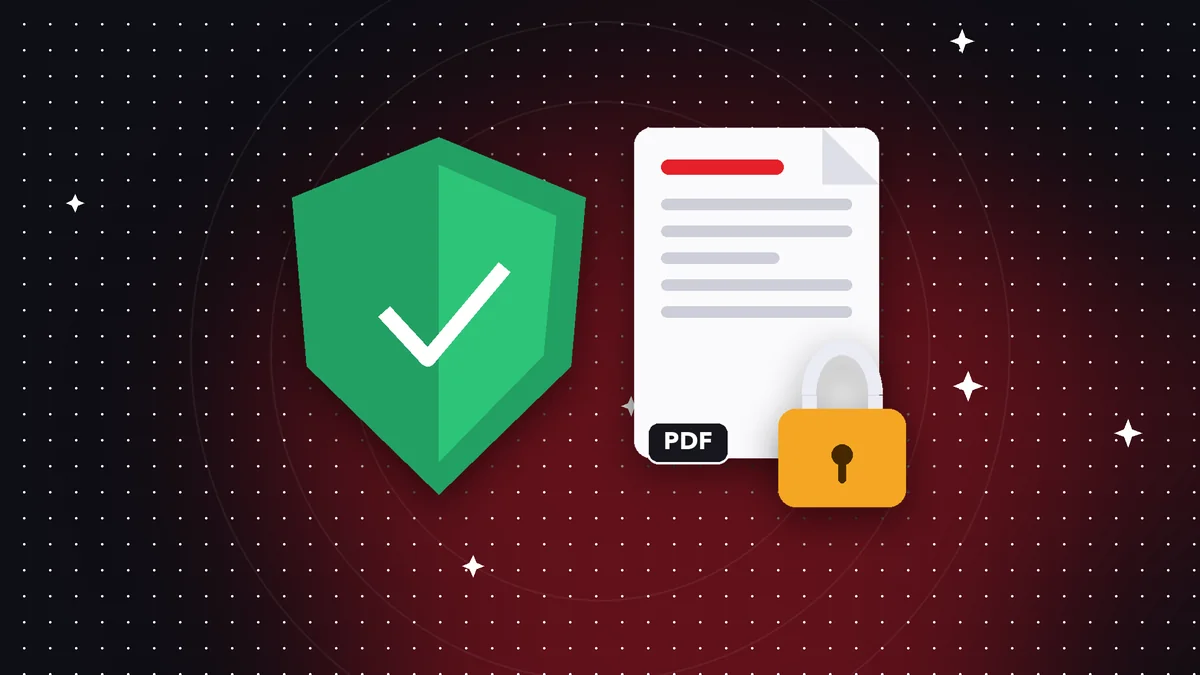 GuideHow to Work With PDFs Without Uploading Them Online
What working with PDFs without uploading them really means: on-device processing, what needs a connection and …
Read article › GuideHow to Create a Strong Password for Your PDF Step by Step
Learn how to pick a strong password and lock a PDF in Rayo PDF GO without uploading the file anywhere. Include…
Read article ›