 Rayo PDF GO
How to Prepare Documents for an Online Application (1 MB PDF)
You reach the last step of the application, upload the document and the portal replies: invalid format, file too large, file name contains illegal characters. It's frustrating, especially with a deadline looming and a system that doesn't explain what went wrong. Most of these rejections can be avoided by preparing your files properly before you open the form. This guide shows you how to convert, merge, compress and check your documents so they get through on the first try, using Rayo PDF GO and without uploading them to any server while you prepare them.

Try it now: Compress PDF
Choose your file and continue in the app. It is processed on your device, never uploaded to a server.
Start with the requirements, not the file
Before touching a document, find the upload conditions on the portal. They usually state the accepted format, which is almost always PDF, the maximum size per file, the number of files allowed and sometimes the resolution or orientation. Write them down in a short list to consult while you work.
Pay attention to details that seem minor: some portals accept only one file per requirement, others will ask for each document separately and others a single PDF with everything. They may also prohibit passwords, layered signatures or special characters in the name. A well-made file can still be rejected for breaking a rule you didn't know existed.
If the portal doesn't explain the limits, look for the procedure guide or the agency's user manual. And if the page is ambiguous, it's better to aim for the strictest size you'll commonly see, around 1 MB, than to find out after three attempts that the maximum was 500 KB. Prepare with a margin, not right at the exact limit.
Convert everything to PDF first
Applications often ask for documents that you have in very different formats: photos of your ID taken with your phone, certificates in Word, receipts downloaded as images. The first step is to unify the format. A PDF looks the same on any device, and it's what almost every agency expects.
For photos, use Images to PDF; for Word, Excel or PowerPoint documents, Office to PDF. If you're going to photograph original papers, the Scan to PDF tool in the phone app straightens and cleans up the background, which greatly improves legibility. Take the time to capture with good light and no shadows.
If something is already a PDF but has crooked, extra or out-of-order pages, fix it before going on. Rotate PDF corrects sideways ones, Delete pages removes extras and Organize PDF lets you reorder, although Organize PDF may require Premium depending on the plan. With clean material, the compression afterward goes a lot further.
Merge the documents if they ask for a single file
When the form allows only one file per requirement, gather everything into one PDF: for example, your ID front and back, a utility bill and the signed application. Ideally, follow the order in which the portal lists them, so the reviewer finds each item where they expect it.
1) Open Merge PDF at rayopdfgo.com/app or in the app. 2) Add the files in the right order. 3) Merge and save the result with a clear name. The free plan lets you merge up to 3 PDFs at a time; if you have more pieces, you can merge them in batches or use Premium, which removes the limit.
If the portal requires separate files, don't merge them: upload each one where it belongs. Mixing too much is another way to get rejected. And if you need the opposite, a single long document divided into parts, Split PDF lets you separate the file by page ranges without changing its content or sharpness.
Compress to 1 MB without losing legibility
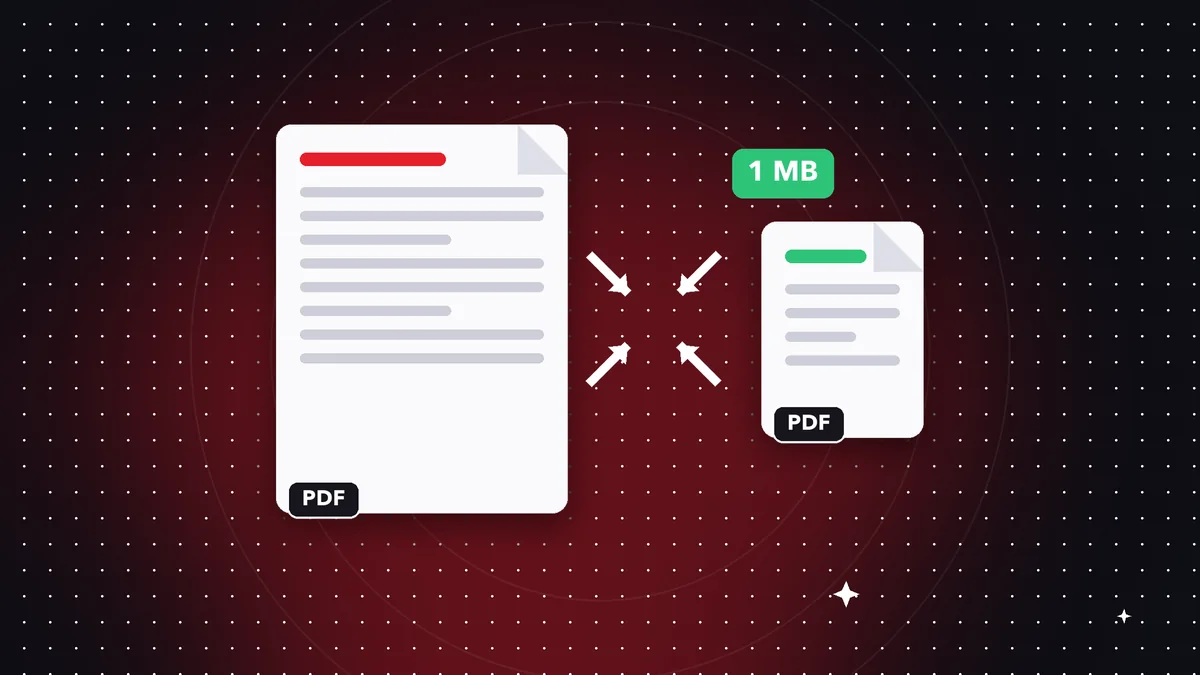
A PDF made from phone photos can weigh 10 MB or more. To get down to 1 MB, use Compress PDF. Start with medium compression, check the new size and, if it's still over, repeat from the original with a stronger level. Avoid compressing the same already reduced file several times, because each pass degrades the images further.
After compressing, zoom in on the critical parts: document numbers, dates, stamps and signatures. If they read clearly when enlarged, the file works. If not, neither the portal nor the official will be able to read them. Remember that compression isn't magic: a twenty-page color document has a weight floor that's hard to get under.
To make the job easier, cut the size at the source. Scan in black and white if the document allows it, avoid maximum-resolution photos and delete blank pages. If some images are very heavy, run them through Compress image or Resize image first. That way you reach the limit with less quality loss in the result.
Names, orientation and page order
Many portals reject names with accents, special letters, spaces or symbols. To be safe, use only letters without accents, numbers and hyphens: “id-juan-perez.pdf”. If the portal specifies a naming pattern, follow it to the letter. A wrong name can invalidate the upload even if the content is perfect.
Check the orientation and order of each page. A sideways ID or an upside-down receipt raises doubts for the reviewer and can get your application sent back. If the document has several sheets, make sure they're complete and in sequence. If you find it useful, add page numbers so everything can be cited without confusion.
Take care of the margins too: if you scanned with dark edges or a finger in the corner, trim it with the Crop PDF tool. A clean file conveys order and reduces the chance of rejection. It's an aesthetic detail, but in an official procedure the look of the document influences the reviewer's confidence.
Signatures, stamps and sensitive data
If the procedure requires a signature, you can sign the PDF from Rayo PDF GO. Keep in mind that the tool lets you place your signature on the document, but it doesn't guarantee legal validity by itself: that depends on what the agency accepts. Check whether the portal requires a scanned handwritten signature, a certified digital signature or another mechanism.
When a document includes data the procedure doesn't need, such as an account number on a statement, consider permanently hiding it with Redact PDF, a Premium feature. Drawing a black rectangle on top doesn't always remove the original text underneath; permanent redaction does. Hand over only what they ask for.
If you must email sensitive documents instead of uploading them to a portal, you can protect them with a password using the Protect PDF tool, available depending on the plan, and share the password through another channel. It's a reasonable precaution for IDs, medical certificates or financial information that shouldn't be left in plain view.
Final check and privacy
Before uploading, do a review as if you were the official. Open each PDF from another device if you can. Check the size, the name, the number of pages, that none is missing and that everything is the right way up. Also verify that the document is the current one and not an old version left in the folder.
Keep a copy of what you submitted, along with the receipt or filing number the portal gives you. If there's a dispute later, you'll have the exact evidence of what was presented. Name that folder with the procedure and the date, and keep the original uncompressed version in case they ask for better quality.
As for privacy, Rayo PDF GO works on your device: files are never uploaded to any server. To use the web version you need a connection to load the page and create the free account, but the processing is local. In the apps for iPhone, iPad, Android, Mac and Windows, which are in preparation or under store review, it is local too.
Frequent mistakes and how to avoid them
The most common rejections are predictable: file too heavy, text unreadable after compressing too much, incomplete pages, a name with illegal characters and the wrong format, like uploading a photo when they asked for a PDF. Almost all of them are caught with a two-minute check before sending.
Another mistake is waiting until the last day. Portals get overloaded near the deadline, and an upload failure can cost you the opportunity. Prepare your files ahead of time, upload them early and keep the confirmation. If the portal fails, you'll have time to retry or contact the agency without the pressure of the deadline.
Finally, don't rely on low-quality copies of official documents. If a file comes out blurry or cropped, rescan the original instead of trying to fix it. A good starting point saves steps and avoids surprises. With a simple routine of converting, merging, compressing and checking, every online application stops being a source of stress.
Frequently asked questions
How do I reduce a PDF to under 1 MB?
Use Compress PDF starting at a medium level; if that isn't enough, repeat from the original with a stronger one. Check that the text, numbers and stamps are still legible.
Why does a portal reject my PDF?
Common causes are excessive size, the wrong format, a name with illegal characters or more files than allowed. Read the requirements before uploading.
Can I merge several documents into one PDF for the application?
Yes, with Merge PDF. The free plan allows up to 3 PDFs at a time and Premium removes the limit.
Is my PDF signature legally valid?
Rayo PDF GO lets you place your signature, but legal validity depends on what the agency accepts. Check its requirements.
Are my documents uploaded to a server while I prepare them?
No. Everything is processed on your device and files are never uploaded to any server.
Keep reading
 GuideHow to Work With PDFs Without Uploading Them Online
What working with PDFs without uploading them really means: on-device processing, what needs a connection and …
Read article › GuideHow to Create a Strong Password for Your PDF Step by Step
Learn how to pick a strong password and lock a PDF in Rayo PDF GO without uploading the file anywhere. Include…
Read article › GuideHow to Send Confidential Documents as a PDF Securely
A practical guide to emailing contracts, personal data, or sensitive information as a PDF: prepare the file, p…
Read article ›