 Rayo PDF GO
How to Password Protect a PDF: Step-by-Step Guide
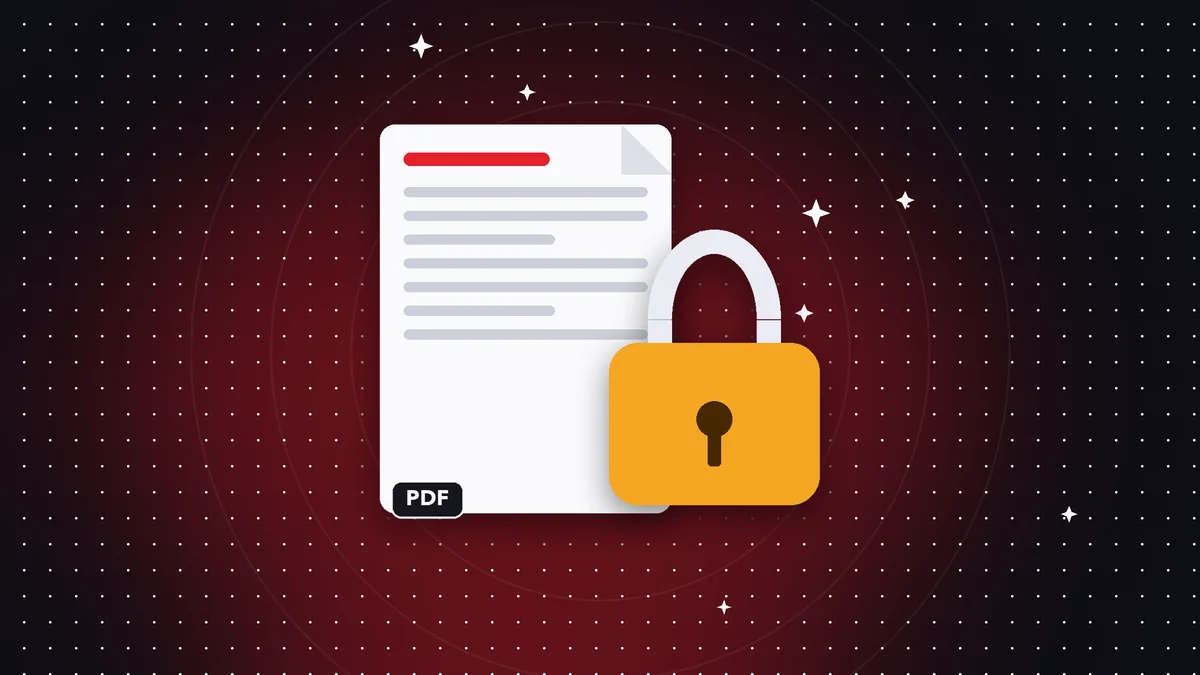
Contracts, medical records, financial statements: some documents shouldn't be opened by just anyone. Encrypting them with a password is the simplest and most effective safeguard.
How to choose a good password
Use at least 12 characters, mix words, numbers, and symbols, and avoid personal details. A password manager helps you keep track of it.
Step by step
Open Protect PDF, select the file, type the password twice, and save the encrypted copy.
How to share the password
Never send the PDF and its password through the same channel. Email the file and send the password another way, such as a phone call or a separate message.
Which documents should you protect
Any file with personal, financial, or health data: résumés, tax returns, contracts, medical records, quotes with confidential pricing, or photos of ID documents.
Think about what happens if you lose your device, too: an encrypted PDF can't be opened without the password, even if someone has the file.
How to create a strong password and remember it
A phrase of four or five unrelated words (“cloud-shoe-radio-lemon”) is stronger and easier to remember than a short password full of symbols. Avoid dates, family names, and any password you use on other services.
If you juggle a lot of passwords, a password manager is the best option.
Sharing the file and the password securely
Never send both together. Email the file and give the password through a different channel, like a phone call or a separate message. If you trust the recipient and the file is very sensitive, agree on the password in advance.
Frequently asked questions
Can I recover the password if I forget it?
No. Keep it in a safe place.
What encryption does it use?
Standard PDF password encryption.
Is it free?
It's a Premium feature.
What encryption does it use?
128-bit AES, the standard for password-protected PDFs.
Can I change the password later?
Remove the current one with “Remove password,” then protect the file again with a new one.
Keep reading
 GuideHow to Edit a PDF for Free: Text, Images, Shapes and Annotations
Learn how to add text, highlight, insert images and fix content in a PDF without installing heavy software.…
Read article › GuideWhat Is OCR and How to Make a Scanned PDF Searchable
OCR explained simply: turn scans into text you can select, copy, and search. When you need it and how to use i…
Read article › GuideHow to Scan Documents With Your Phone and Save Them as PDF
Turn photos of documents into a clean PDF with filters. Tips for clear, lightweight scans.…
Read article ›