 Rayo PDF GO
What Is OCR and How to Make a Scanned PDF Searchable
A scanned PDF is really just a photo of a sheet of paper: you can't search for words or copy text. OCR (optical character recognition) fixes that.
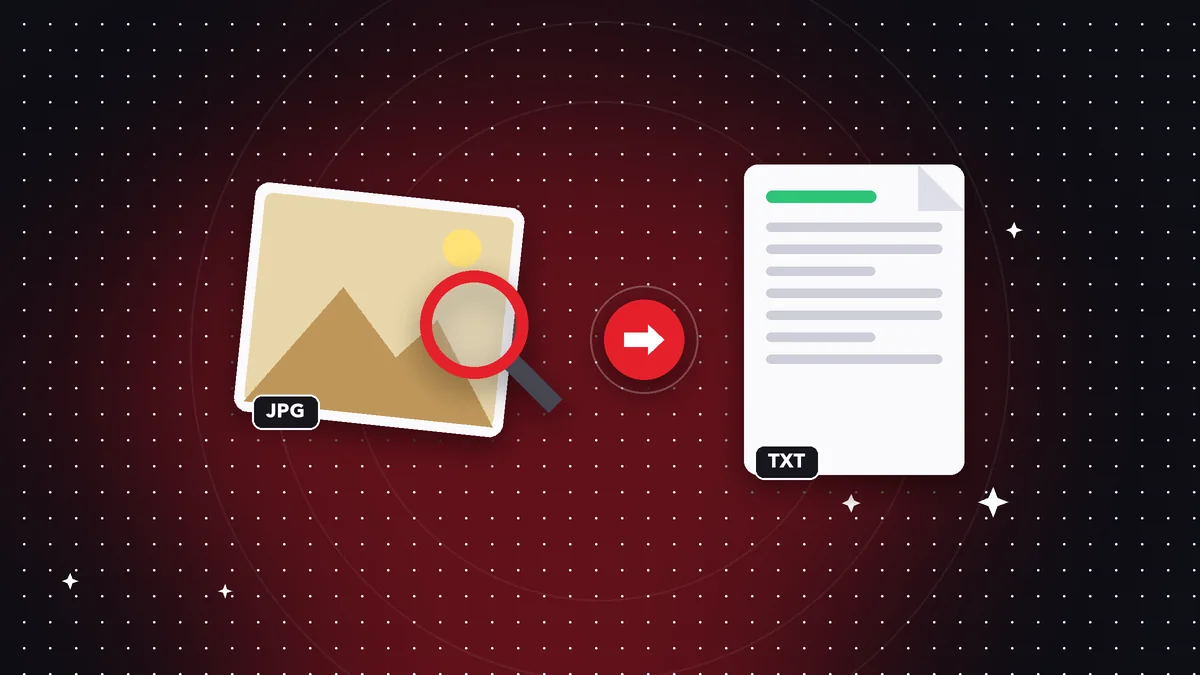
How OCR works
The software analyzes the image of each page, detects the letters, and converts them into real text, which is then layered over the document.
When you need it
When you want to search for a word in a scan, copy paragraphs, or convert the document to Word or Excel with editable text.
Tips for better results
Scan in good light with no shadows, keep the sheet straight, and use a resolution of at least 200 dpi.
What OCR actually does
When you scan a sheet, you get a photograph. OCR (optical character recognition) analyzes that image, identifies the shapes of the letters, and converts them into text a computer understands. That text is added to the PDF invisibly, so it looks like an image but behaves like a digital document.
Thanks to that, you can search for a word with Ctrl+F, copy a paragraph, or convert the file to Word.
How to get better results
Scan quality is what matters: use even light with no shadows or glare; keep the sheet flat and straight; and scan at 200-300 dpi. Documents with very small print, handwriting, or a colored background are the hardest.
If the result has errors, double-check figures, names, and dates, which are the most sensitive.
Privacy of text recognition
On iPhone, iPad, and Mac, the system's text engine is used; on Android, Google's ML Kit with the model included in the app. In every case, recognition happens on your device, without sending the document to servers.
Frequently asked questions
Is OCR perfect?
Not always: double-check important names and figures.
Does it work in the browser?
OCR is available in the phone and desktop apps.
Is it free?
It's a Premium feature.
Does it recognize several languages?
Yes, the main languages with a Latin alphabet, including Spanish and English.
Does it work offline?
Yes, recognition happens on the device.
Keep reading
 GuideHow to Scan Documents With Your Phone and Save Them as PDF
Turn photos of documents into a clean PDF with filters. Tips for clear, lightweight scans.…
Read article › GuideHow to Redact Sensitive Information in a PDF (Permanently)
Covering text with a black box isn't enough. Learn how to permanently remove confidential data from a PDF.…
Read article › GuideHow to Rotate and Reorder Pages in a PDF
Fix sideways or upside-down scanned pages and rearrange the order of your pages with just a few taps.…
Read article ›