 Rayo PDF GO
How to Redact Sensitive Information in a PDF (Permanently)
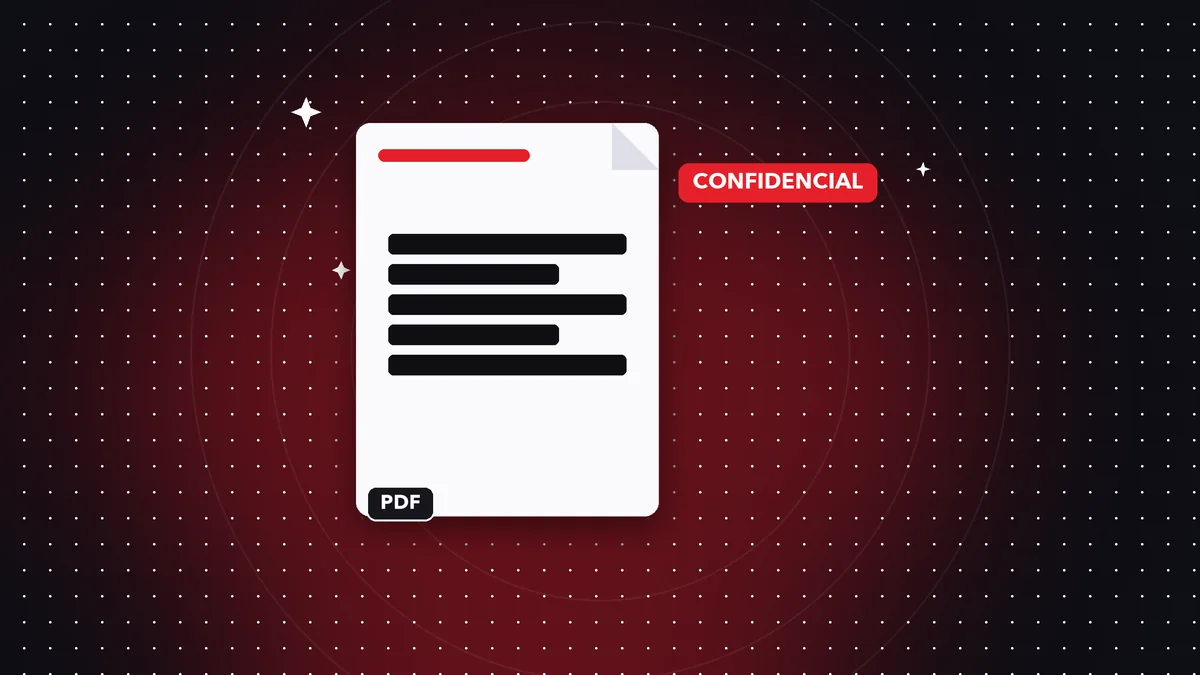
A common mistake is drawing a black box over sensitive data. Underneath, the text is still there and anyone can copy it. Real redaction means removing the content.
Why a black box isn't enough
PDFs store text in layers. A rectangle on top only hides it visually; when you select or copy, the text shows up again.
How to do it right
Use the Redact PDF tool: mark the areas, apply, and save. The pages are regenerated without the covered content, so nothing is left underneath.
Always verify
After redacting, try to select and copy the covered text, and open the file in another viewer to confirm it's gone.
Why so many “redactions” fail
Official documents have leaked because someone drew black boxes over the text and published the PDF. The text was still underneath: all you had to do was select and copy it. PDFs are made of layers, and a visible layer doesn't erase another one.
The rule is simple: if the data has to disappear, it must be removed from the file, not covered up.
What data should you redact
ID documents, bank account and card numbers, addresses, phone numbers, email addresses, signatures, medical data, and the names of minors. Think about metadata too: author, company, and dates can reveal more than you expect.
Checklist before sharing
Redact the content; save under a different name; open the result in another viewer; try to select and copy the covered text; use search to look for the data; and clean the metadata. Only share it if everything is clean.
Frequently asked questions
Is it reversible?
No. Keep the original.
What data should I redact?
ID numbers, bank accounts, addresses, phone numbers, and signatures.
Is it free?
It's a Premium feature.
Is it reversible?
No, which is why you should save under a different name and keep the original.
Can I redact multiple areas?
Yes, as many as you need before applying.
Keep reading
 GuideHow to Rotate and Reorder Pages in a PDF
Fix sideways or upside-down scanned pages and rearrange the order of your pages with just a few taps.…
Read article › GuideHow to Add Page Numbers to a PDF
Number your documents by choosing position, format, and starting number. Ideal for papers, contracts, and repo…
Read article › GuideHow to Add a Watermark to a PDF
Protect and personalize your documents with a text watermark: confidential, draft or your name.…
Read article ›