 Rayo PDF GO
How to Add a Watermark to a PDF
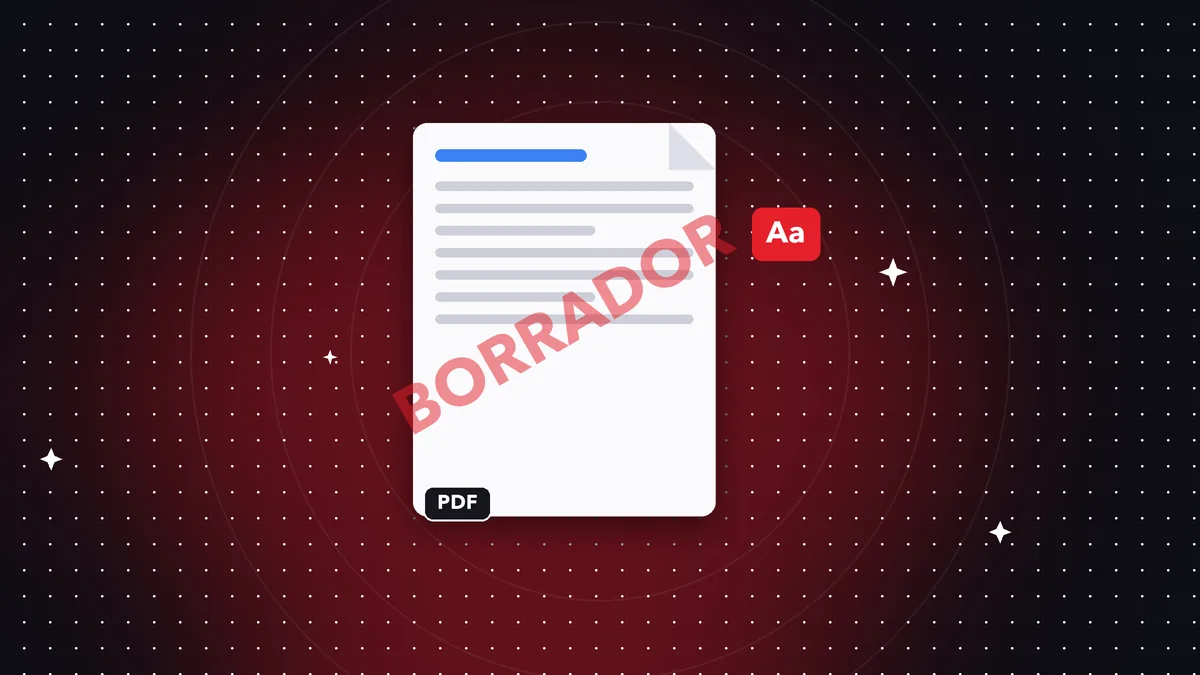
A watermark shows the status of a document and discourages unauthorized use. It's common on drafts, proposals and internal documents.
What text to use
'CONFIDENTIAL', 'DRAFT', the recipient's name or your brand. Avoid long text that makes the page harder to read.
Step by step
Open Watermark, type your text, adjust opacity and position, and apply it to all pages.
Recommendations
Use low opacity so the content stays readable, and keep an unmarked copy for internal use.
What a watermark is for
It shows the document's status (draft, uncontrolled copy), discourages unauthorized use and makes the origin of a proposal or quote obvious. On brand materials, it reinforces identity.
How to choose opacity and size
The mark should be noticeable without covering the content. An opacity of 20-30% and a large diagonal size work well; on images and blueprints, prefer a small mark in a corner.
Limitations
A watermark discourages misuse, but it doesn't stop someone from cropping out the content. For truly sensitive information, combine a watermark with a password and limit who you send the file to.
Frequently asked questions
Can I adjust the opacity?
Yes.
Can it be removed later?
It's embedded in the pages; keep the original.
Is it free?
It's a Premium feature.
Can I use an image as the watermark?
Currently text is supported.
Is it applied to all pages?
Yes, to every page in the document.
Keep reading
 GuideHow to Repair a Corrupted PDF That Won't Open
What to do when a PDF shows errors or won't open: common causes and how to try to recover it.…
Read article › GuideAre Online PDF Tools Safe? What You Need to Know
Many PDF sites upload your files to their servers. How it works, what the risks are and why processing on your…
Read article › GuideHow to Convert a PDF to Word Without Losing Formatting (and What to Expect)
An honest guide to turning a PDF into editable Word: what's kept, what changes, and how to get the best result…
Read article ›