 Rayo PDF GO
How to Convert a PDF to Word Without Losing Formatting (and What to Expect)
You receive a contract, a report, or a table as a PDF and need to change it. Converting it to Word is the fastest way, but it helps to know what can be preserved and what can't, so there are no surprises.
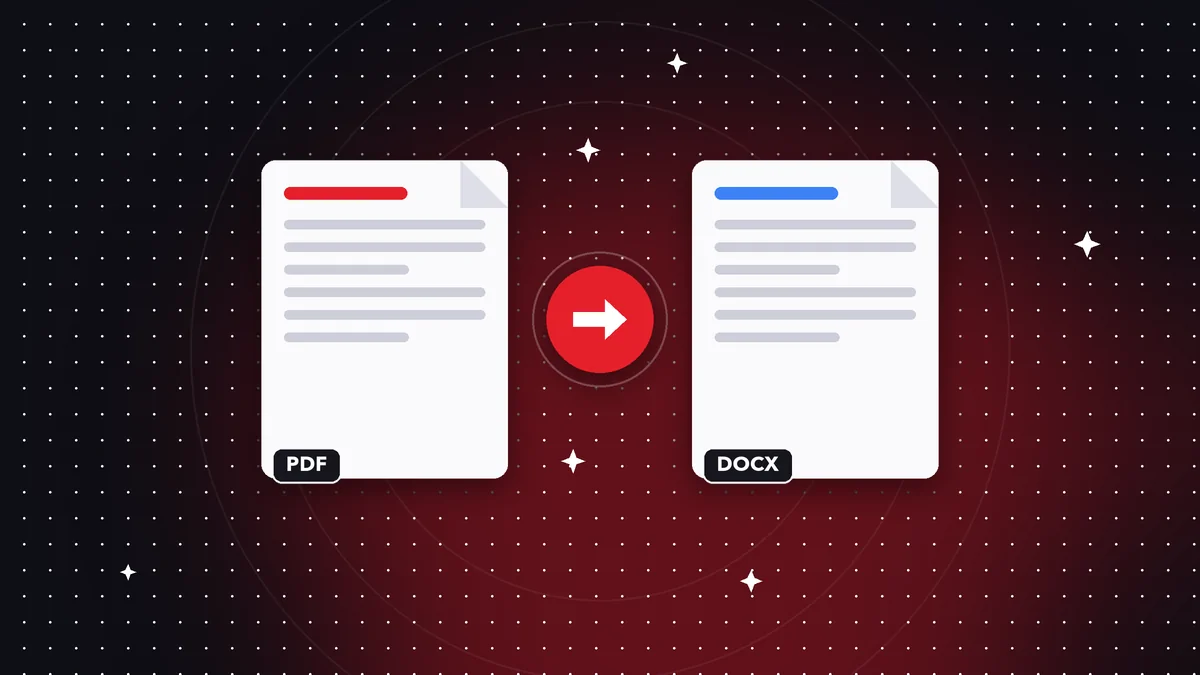
What is kept when you convert
Text, headings, and lists transfer without problems. Simple tables do too, and you can edit them normally in Word.
What can change is the exact layout: complex columns, special fonts, image layers, and advanced styles aren't always reproduced identically. No honest converter promises a perfect copy.
Step by step in Rayo PDF GO
Open the PDF to Word tool, choose the file, and select Word as the format. The .docx file is created on your device, without uploading it to the internet.
Review the result, especially tables and numbers, and adjust whatever is needed. If you need Excel or PowerPoint, the same flow works by changing the output format.
When the PDF is a scan
A scanned PDF is just an image: it has no text to convert. First you need to recognize the text with OCR, a feature available in the phone and desktop apps.
For new documents, always ask for the original PDF (the one generated from Word), because the conversion is much cleaner.
Do it on your device: your files are never uploaded to any server.
Convert PDF to Word
Frequently asked questions
Is converting PDF to Word free?
Converting PDF to Office is a Premium feature of Rayo PDF GO; Word to PDF is free.
Is the layout preserved?
Text, headings, and simple tables are kept; the exact layout may vary.
Are my files uploaded?
No: everything is processed on your device.
Keep reading
 GuideHow to Convert Photos to PDF on Your Phone (Several in One Document)
Turn photos from your gallery into one PDF on iPhone or Android: order, quality and tips so your documents rea…
Read article › GuideHow to Reduce a PDF to Under 1 MB for Portals and Online Forms
Steps and tips to shrink a PDF to 1 MB or less without making it unreadable. Ideal for applications, universit…
Read article › GuideHow to Convert WebP to JPG (and Why Downloaded Images Come Out as WebP)
What the WebP format is, why it won't open in some programs and how to turn it into JPG or PNG in seconds, wit…
Read article ›