 Rayo PDF GO
How to Convert Photos to PDF on Your Phone (Several in One Document)
Many procedures ask for documents as PDF and all you have are photos. The solution is to combine those photos into a single, ordered, readable file in a couple of minutes, with no computer.
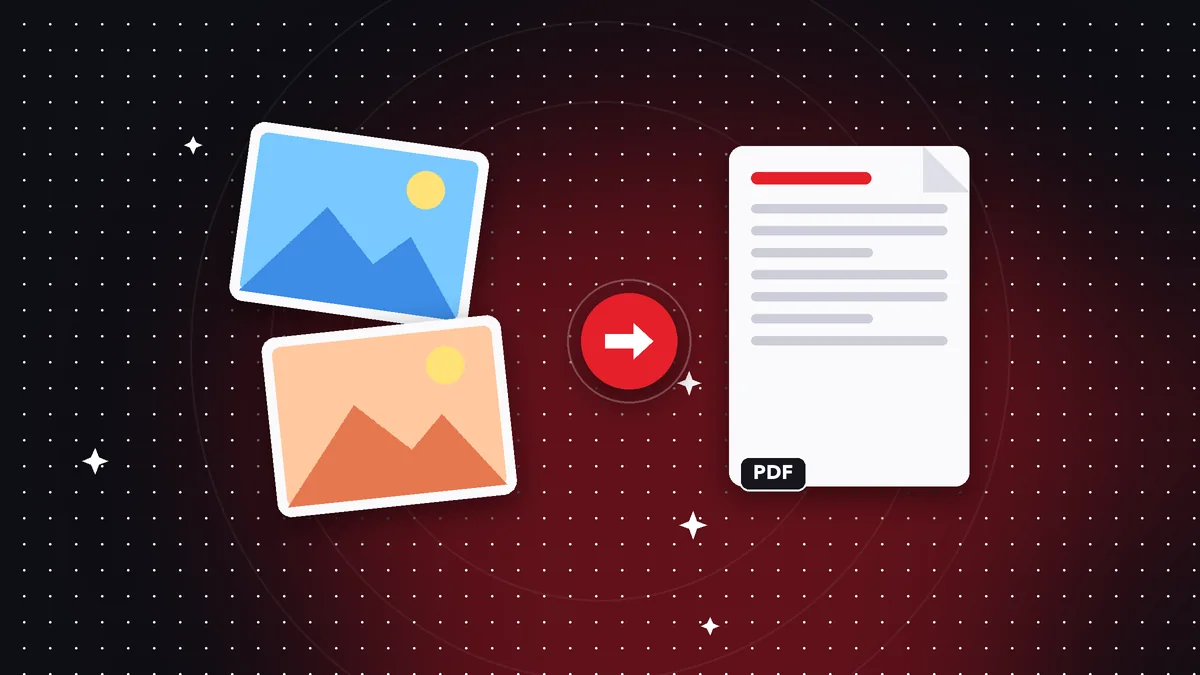
Before converting: take good photos
Photograph each sheet straight on, with even light and no shadows. Rest the document on a flat surface and frame the full edges.
A sharp photo takes up more space but reads better; you can compress the PDF afterwards if needed.
Convert and arrange
Pick the photos from your gallery, arrange them and convert them to PDF. Each image becomes one page of the document.
If you want a scanned look, use Scan to PDF to apply a filter that brightens the background and sharpens the text.
Send the result
If the file is too big for WhatsApp or email, run it through Compress PDF. For procedures that ask for a maximum of 1 MB, try medium compression and check that the text is still readable.
Do it on your device: your files are never uploaded to any server.
Convert photos to PDF
Frequently asked questions
Can I convert several photos at once?
Yes, and a multi-page PDF is created in the order you choose.
Which image formats are supported?
JPG, PNG, WebP, GIF, BMP and TIFF.
Are my photos uploaded?
No, the conversion happens on your device.
Keep reading
 GuideHow to Reduce a PDF to Under 1 MB for Portals and Online Forms
Steps and tips to shrink a PDF to 1 MB or less without making it unreadable. Ideal for applications, universit…
Read article › GuideHow to Convert WebP to JPG (and Why Downloaded Images Come Out as WebP)
What the WebP format is, why it won't open in some programs and how to turn it into JPG or PNG in seconds, wit…
Read article › GuideHow to Sign a PDF on Your Phone With Your Finger, Without Printing
Draw your signature once and place it on any PDF from iPhone or Android. How valid it is and when you need a c…
Read article ›