 Rayo PDF GO
How to Scan Documents With Your Phone and Save Them as PDF
Your phone is a powerful scanner. With good light and a few filters you can get PDFs almost identical to those from an office machine.
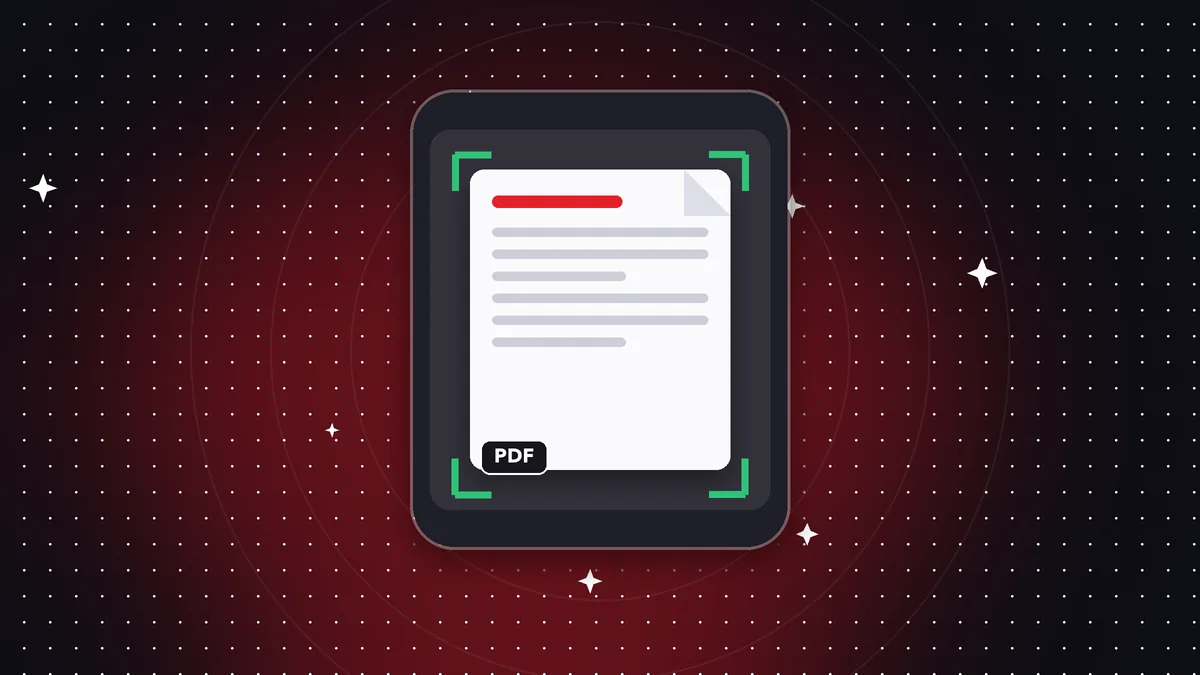
Before you scan
Place the document on a flat, contrasting surface, with even lighting and no glare.
Step by step
Open Scan, take a photo of each page, apply the filter (document, black and white or grayscale), arrange the pages and save the PDF.
How to avoid heavy files
If the result is too big, apply compression. A PDF with just a few pages shouldn't exceed a few megabytes.
Prepare the document and your setup
Lay the sheet on a flat surface in a different color from the paper (a dark table works very well). Stay away from windows that cause glare and keep your own shadow from falling on the page.
Hold the phone parallel to the sheet so the corners don't look distorted.
Filters: which one to use and when
The document filter improves contrast and whites, ideal for text. Black and white greatly reduces file size and removes color stains, perfect for contracts. Grayscale keeps soft shadows, useful for documents with stamps or photos.
From scan to final PDF
Arrange the pages, check that none are cut off and create the PDF. If you later need to search the text or convert it to Word, run it through OCR. And if it's going by email, apply compression so it stays under the attachment limit.
Frequently asked questions
Do I need another app?
No: the scanner is built into Rayo PDF GO.
Are my photos uploaded?
No.
Is it free?
Yes.
How many pages can I scan?
As many as you need; they're all combined into a single PDF.
Are the edges cropped automatically?
Not yet; you can crop afterwards with the crop tool.
Keep reading
 GuideHow to Redact Sensitive Information in a PDF (Permanently)
Covering text with a black box isn't enough. Learn how to permanently remove confidential data from a PDF.…
Read article › GuideHow to Rotate and Reorder Pages in a PDF
Fix sideways or upside-down scanned pages and rearrange the order of your pages with just a few taps.…
Read article › GuideHow to Add Page Numbers to a PDF
Number your documents by choosing position, format, and starting number. Ideal for papers, contracts, and repo…
Read article ›