 Rayo PDF GO
How to Insert a Blank Page in a PDF (and Why You'd Want To)
A blank sheet may seem minor, but it solves real problems: separating chapters, leaving room for notes, or making each section start on an odd page when printing.
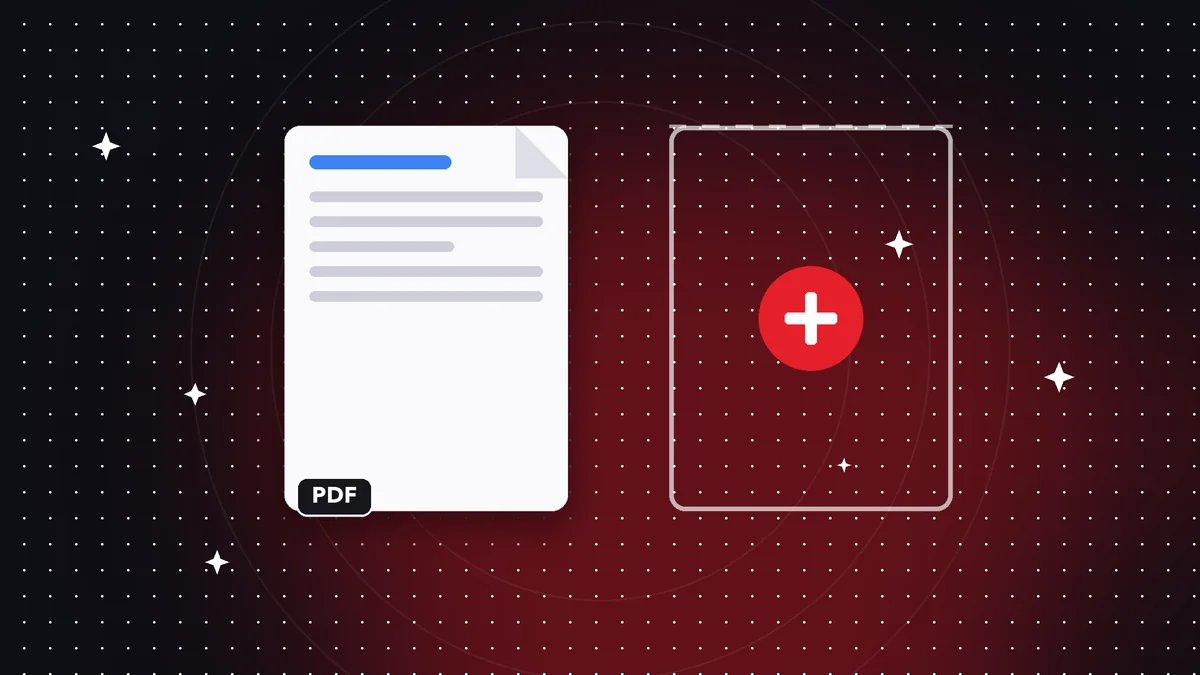
What a blank page is useful for
Separating sections of a manual or report. Leaving a gap for handwriting when you print. And preparing for double-sided printing: if each section has to start on an odd page, you sometimes need to slip in a blank sheet.
Step by step in Rayo PDF GO
Open the Blank pages tool, choose the PDF, and decide where they go: at the start, at the end, or after a specific page. Set how many to add, up to 10 per operation.
The new pages copy the size of the neighboring page, so the document doesn't mix formats. Nothing else is touched.
Tips
To remove extra pages later, use Delete pages. If you need more than 10, repeat the operation.
Do it on your device: your files are never uploaded to any server.
Insert blank pages
Frequently asked questions
How many pages can I add?
Up to 10 per operation, and you can repeat it.
What size are they?
The same as the adjacent page.
Are my files uploaded?
No, everything happens on your device.
Keep reading
 GuideHow to Print a PDF in Black and White and Save Ink
Convert a PDF to grayscale before printing: better contrast, less color ink used and no need to upload your do…
Read article › GuideHow to Reverse the Page Order of a PDF (and Duplicate the Pages You Need)
Fix a PDF scanned backwards or repeat pages of a form: reverse and duplicate pages in seconds, without uploadi…
Read article › GuideHow to Merge PDF Files Into One (Free, Without Uploading Them)
Learn how to combine several PDF files into one document in under a minute, on your phone or computer, with no…
Read article ›