 Rayo PDF GO
How to Merge PDF Files Into One (Free, Without Uploading Them)
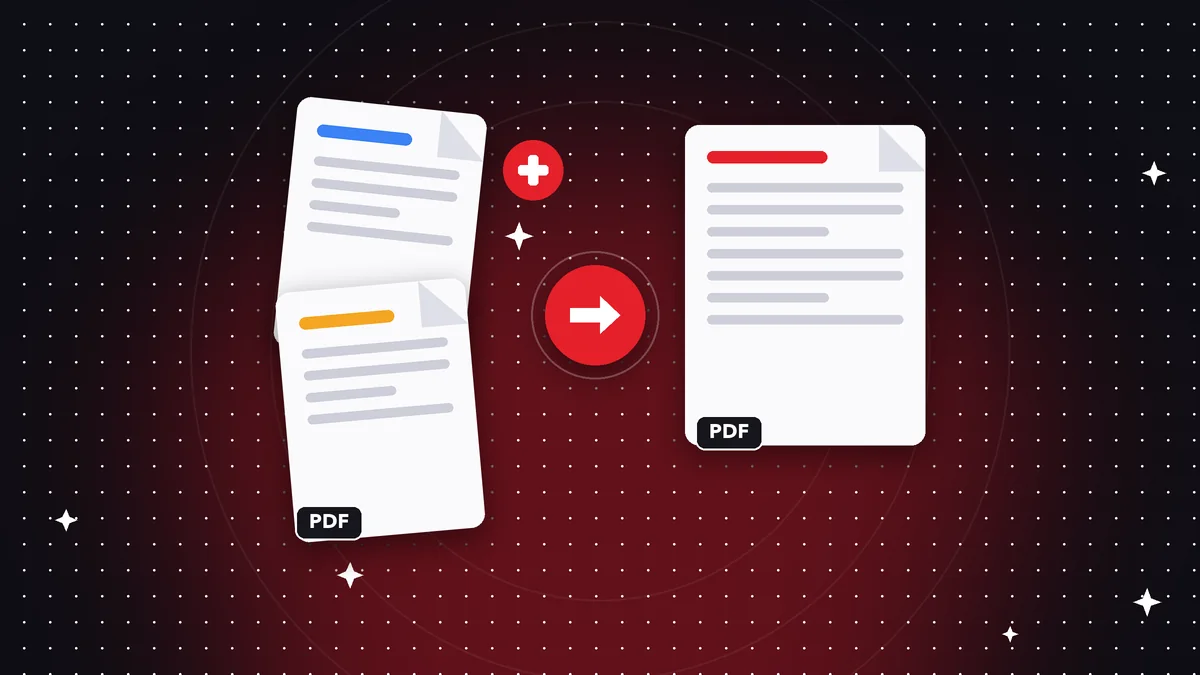
Merging PDFs is one of the most common tasks: combining an invoice with its supporting documents, several contracts in a single email, or your course notes. The good news is that you don't need heavy software or to upload your documents to an unknown server.
When it makes sense to merge PDFs
Combining files cuts the clutter and makes sending easier: one attachment instead of ten. It also keeps anyone from receiving your documents in the wrong order.
It's common for paperwork, bids, monthly reports, and when you turn in homework or school assignments.
Step by step
1) Open Rayo PDF GO and go to the Merge PDF tool. 2) Add the files you want to combine. 3) Drag them to put them in order. 4) Tap Merge and save the result.
Everything happens on your device: your files are not uploaded to any server, so it's faster and more private.
Tips for a good result
Name your files with numbers (01, 02, 03) to sort them faster. Check the result before sending it, and if the file size came out large, run it through the compress tool.
If you only need a few pages from a document, split it first and then merge it with the others.
How to put your files in order before merging
The order in which you merge documents matters more than it seems. Before tapping Merge, think about how the final document will be read: cover page, table of contents, main body, and appendices. If you work with supporting documents, put them right after the main document so whoever receives it doesn't have to hunt for them.
A good habit is to rename files with a numeric prefix (01-contract, 02-appendix, 03-invoice). That way, when you select them, they already come in order, and you save the work of dragging them one by one.
Common mistakes when combining PDFs
The first is merging files with different orientations without checking: a portrait page between several landscape ones looks odd. If that happens, use the rotate tool to fix it afterward.
The second is forgetting that some PDFs have a password. Before merging them, remove the protection with Unlock PDF or the merge will fail. The third is sending the result without reviewing it: open it in the viewer and flip through the pages to confirm everything is in its place.
What happens to the final file size
When you merge, the final size is roughly the sum of the originals. If the result is too big for your email, compress it afterward. Doing it in that order (merge first, then compress) gives better results than compressing each file separately.
Frequently asked questions
Can I merge PDF files for free?
Yes. On the free plan you can merge up to 3 files per operation; with Premium there is no limit.
Is quality lost when merging?
No. Pages are copied as they are, without being recompressed.
Does it work on a phone?
Yes, on iPhone, Android, and also from the browser.
Can I merge PDFs and keep editing them afterward?
Yes, the result is a regular PDF that you can open in the editor, sign, or compress.
How many files can I merge at once with Premium?
There is no limit: you can merge dozens of files in a single operation.
Keep reading
 GuideHow to Compress a PDF to Send on WhatsApp or Email
Reduce PDF file size without visible quality loss. A practical guide to compression levels and tips for making…
Read article › GuideHow to Split a PDF and Extract Only the Pages You Need
Split a PDF by pages or ranges and extract what you need in seconds. Step by step, free, and your file never l…
Read article › GuideHow to Convert a PDF to Word Without Losing Your Mind
Convert a PDF to Word, Excel or PowerPoint and keep your text and tables. What to expect from the conversion a…
Read article ›