 Rayo PDF GO
How to Print a PDF in Black and White and Save Ink
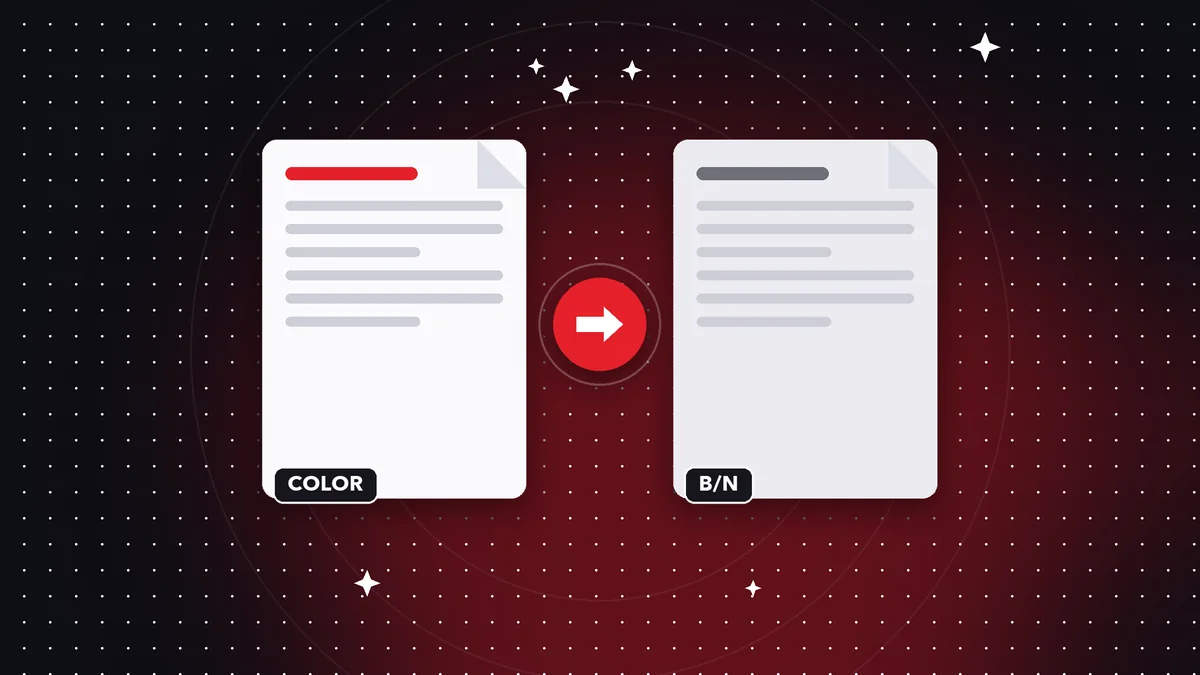
Many printers use color ink even when the document is mostly text. Converting the PDF to grayscale before printing gives a more uniform result and uses less ink.
Why convert to grayscale
A PDF with logos, charts or colored highlights can come out with smudges or hard-to-read tones in black and white, and use color ink unnecessarily. Converting it before printing lets you control the result.
Step by step in Rayo PDF GO
Open the PDF to grayscale tool, choose the file, check the preview and tap Convert. Everything happens on your device.
Each page is regenerated in grayscale as an image, so the text can no longer be selected. If you need it searchable, run the result through OCR.
Reduce the file size too
The conversion doesn't always reduce the size. If you're going to send the file, run it through Compress PDF. And keep the original color version in case you need it later.
Do it on your device: your files are never uploaded to any server.
Convert PDF to grayscale
Frequently asked questions
Can I still select the text?
No; use OCR if you need it.
Does it reduce the file size?
Not necessarily; compress it afterwards.
Are my files uploaded?
No, everything happens on your device.
Keep reading
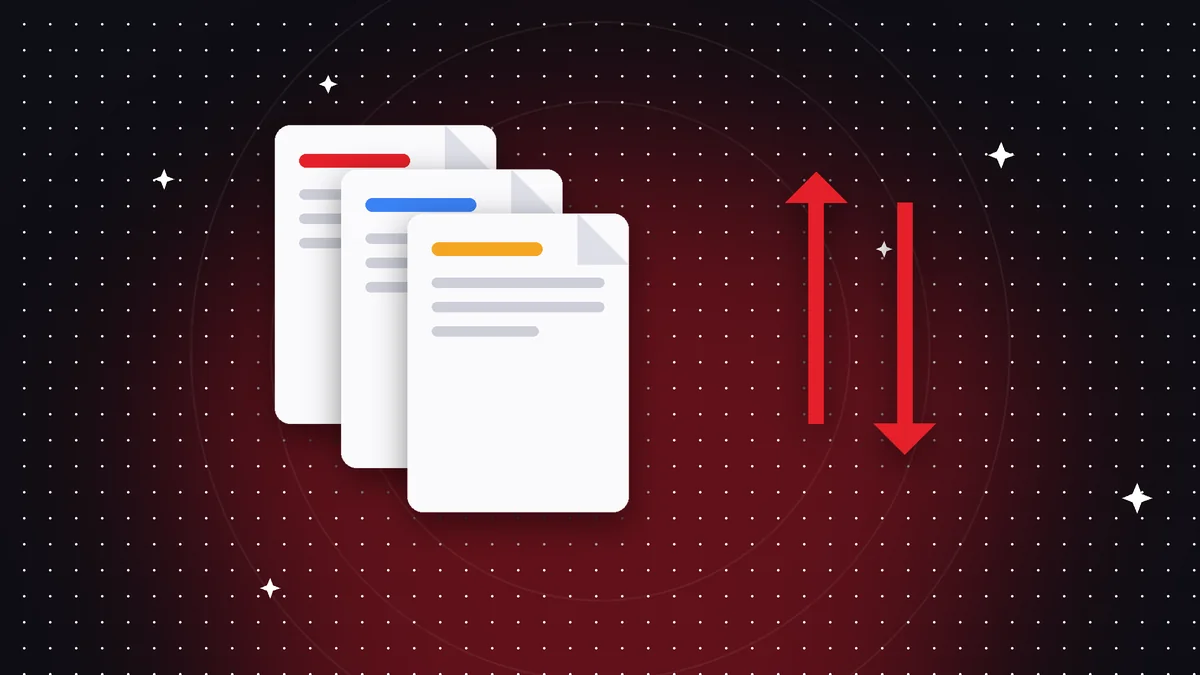 GuideHow to Reverse the Page Order of a PDF (and Duplicate the Pages You Need)
Fix a PDF scanned backwards or repeat pages of a form: reverse and duplicate pages in seconds, without uploadi…
Read article ›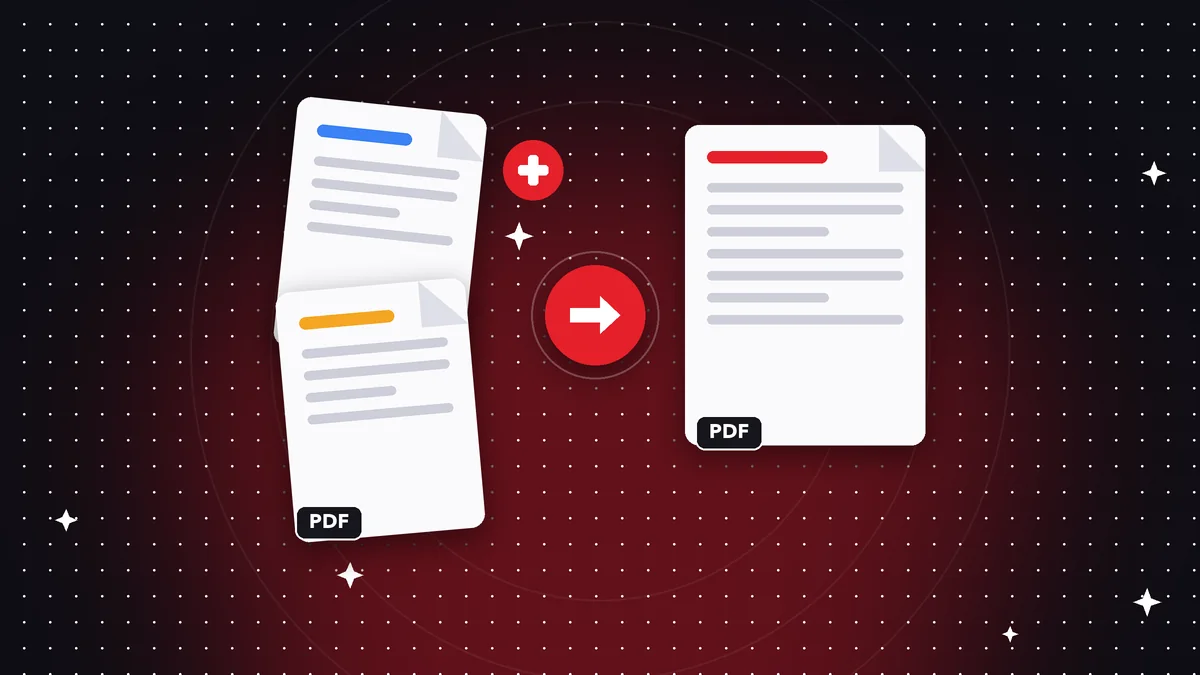 GuideHow to Merge PDF Files Into One (Free, Without Uploading Them)
Learn how to combine several PDF files into one document in under a minute, on your phone or computer, with no…
Read article ›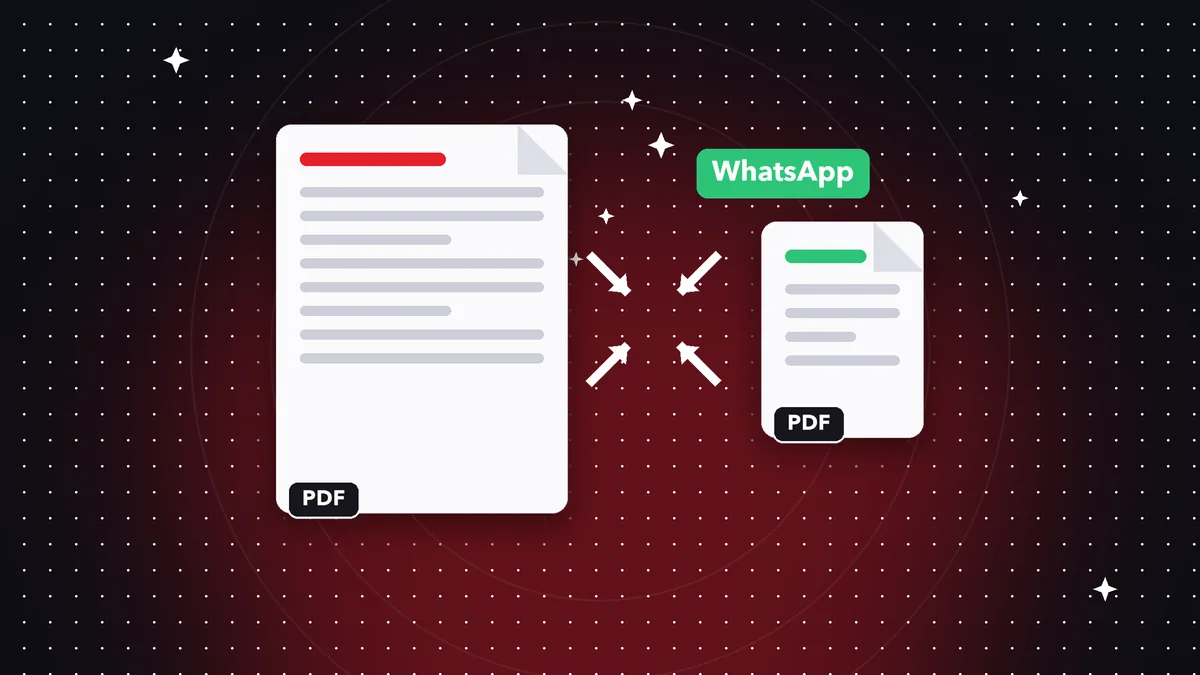 GuideHow to Compress a PDF to Send on WhatsApp or Email
Reduce PDF file size without visible quality loss. A practical guide to compression levels and tips for making…
Read article ›