 Rayo PDF GO
How to Extract Text From a PDF to a .txt File (and What to Do if It's a Scan)
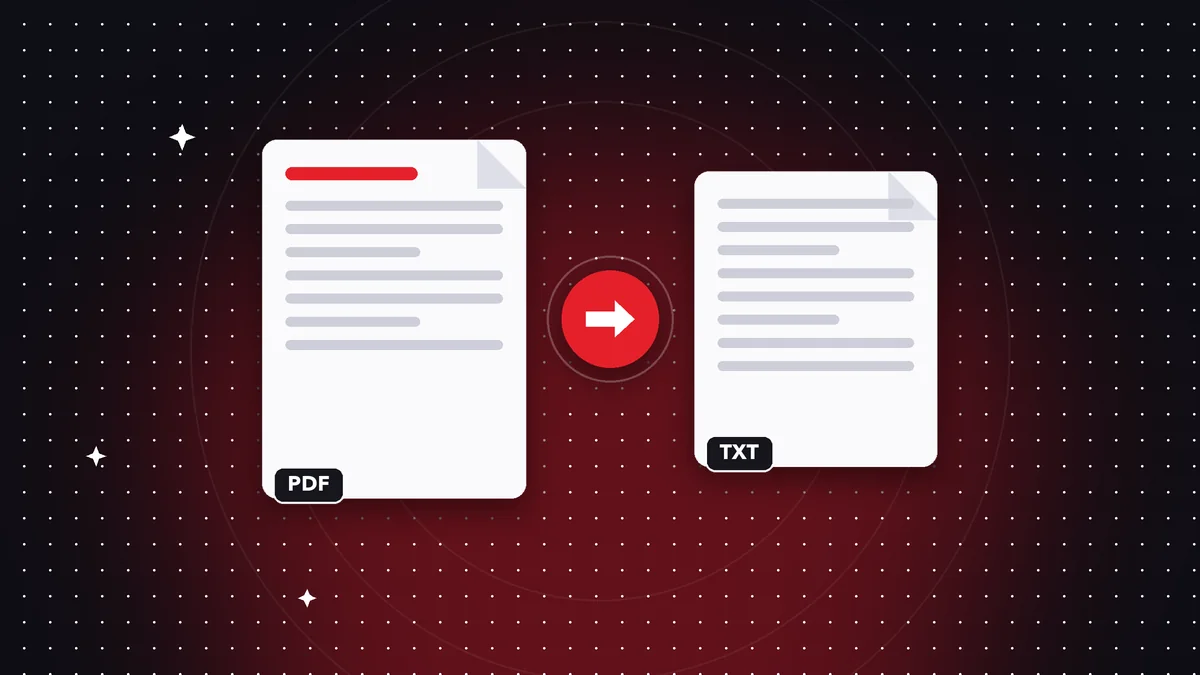
Copying text from a PDF sometimes goes wrong: mixed-up columns, odd line breaks or a selection that cuts off. Extracting all the text at once is cleaner and faster.
When it works
If the PDF was created from Word, a website or a program, it has a real text layer and can be extracted in full. Try selecting a word in the viewer: if it highlights, it works.
The text is saved in reading order, page by page, in a .txt file that any program can open.
When it doesn't work: scans
A scanned PDF is an image of paper: there's no text to extract. The tool will tell you it can't find any text.
The fix is to recognize the text with OCR first. After that, the PDF has a text layer and can be extracted.
Step by step in Rayo PDF GO
Open the Extract text tool, choose the PDF and tap Extract. The .txt file is created on your device, without uploading the document.
Check tables and columns: they come out as plain linear text. If you need to keep the formatting, use PDF to Word.
Do it on your device: your files are never uploaded to any server.
Extract text from a PDF
Frequently asked questions
Does it work with scanned PDFs?
Not directly; OCR is needed first.
Is the formatting preserved?
Only the text in reading order; tables and styles are not.
Are my files uploaded?
No, everything happens on your device.
Keep reading
 GuideHow to Insert a Blank Page in a PDF (and Why You'd Want To)
Add blank pages at the start, end, or between pages of a PDF: separate sections, leave room for notes, or prin…
Read article › GuideHow to Print a PDF in Black and White and Save Ink
Convert a PDF to grayscale before printing: better contrast, less color ink used and no need to upload your do…
Read article › GuideHow to Reverse the Page Order of a PDF (and Duplicate the Pages You Need)
Fix a PDF scanned backwards or repeat pages of a form: reverse and duplicate pages in seconds, without uploadi…
Read article ›