 Rayo PDF GO
How to Convert Screenshots to a Single PDF File Fast
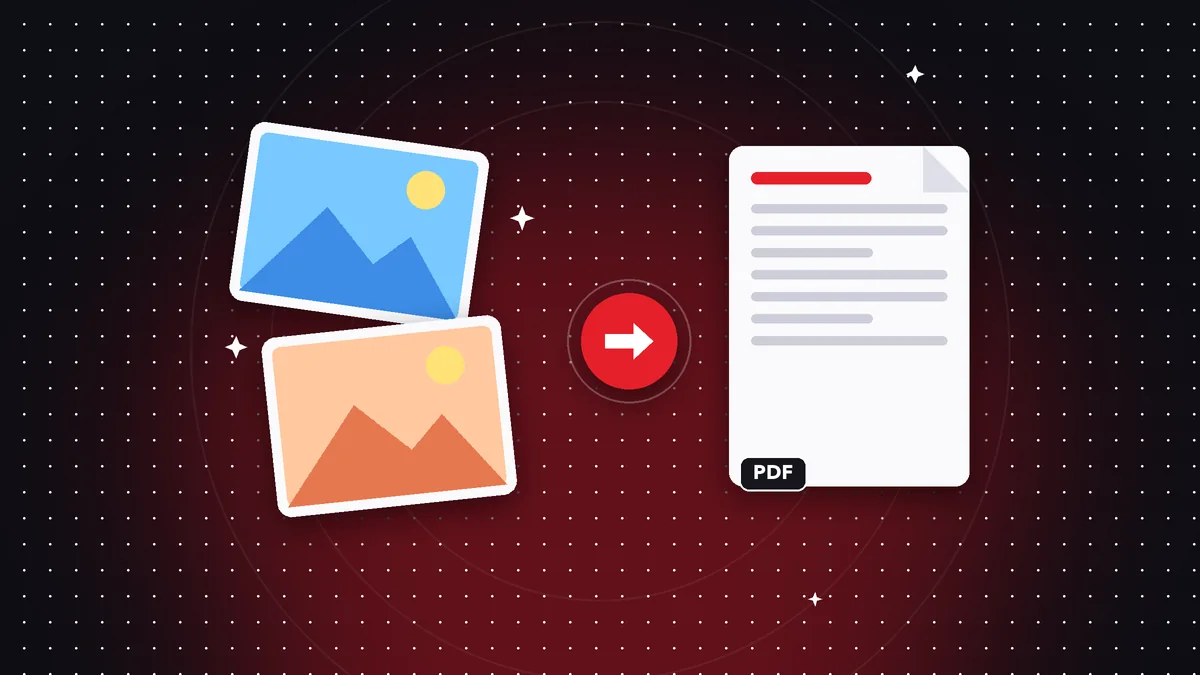
A WhatsApp conversation as proof, a payment receipt, an online order, an error screen for tech support. Screenshots pile up fast, and sending them loose is a mess: they arrive out of order, cropped and mixed in with other images. Turning them into a single PDF puts them in the right order, gives them a professional look and makes them ready to attach. Here you'll learn how to do it with Rayo PDF GO, how to avoid the typical size and order problems, and how to protect the personal information that almost always shows up on a screen.

Try it now: Images to PDF
Choose your file and continue in the app. It is processed on your device, never uploaded to a server.
Why it's worth converting screenshots to PDF
Sharing ten loose screenshots forces the recipient to open them one by one, guess the order and resend them if they need to pass them to someone else. A PDF groups them in a single file, with pages numbered by position, that opens the same on any phone or computer and keeps the order you set.
In official procedures and complaints this carries real weight. Whoever reviews a case appreciates receiving one organized piece of evidence: the conversation, the receipt and the date, in sequence. A single file is also easier to save, to cite in an email and to attach to a form that only accepts one document per field.
On top of that, a PDF is more stable than an image: it isn't automatically recompressed when you forward it through messaging apps, which usually degrades photos and blurs small text. A screenshot passed through several apps can end up unreadable, while the PDF keeps exactly what you saved.
Most common use cases
The first is conversations: messages with a supplier, a landlord or a seller that you want to keep as evidence. The second, receipts: transfers, utility payments, purchase confirmations and bookings. The third, bug reports: the sequence of screens showing what you did and what failed.
It's also used for schoolwork, when the teacher asks for screenshots of an exercise solved in an app, and for presenting results from a platform, such as social media stats or sales dashboards. In every case, an ordered PDF conveys care and avoids misunderstandings about which image comes first and which comes after.
A freelancer, for example, can gather the client's message approvals into a single file before invoicing. A small business can document the delivery of an order with tracking screenshots. In both cases, the PDF works like a short case file, easy to search months later if a dispute arises.
Step by step in Rayo PDF GO
1) Go to rayopdfgo.com/app with your free account, or open the app on your device, and choose the Images to PDF tool.
2) Select the screenshots from your gallery or folder. You can choose several at once.
3) Put them in order: drag or move each image until the sequence makes sense, from oldest to newest if it's a conversation.
4) Adjust any page options the tool offers and generate the PDF. The process runs on your device, without uploading the images to any server.
5) Open the result, go through it completely and save it with a clear name, like “payment-proof-october”. The free plan allows up to 10 images per batch; if you need more, you can do it in several batches and merge them afterward, or use Premium to remove the limit.
Page order, size and quality
Order comes first. Screenshots are saved by date in the gallery, but that order doesn't always match the story you want to tell. Before converting, check the sequence: a conversation read backwards is confusing. If you get it wrong, you can reorder the pages later with Organize PDF, a feature that depends on your plan.
Page size matters too. Phone screenshots are tall and narrow, while computer screenshots are wide. If you mix both, the PDF will have pages of different shapes, which is acceptable for evidence but not very elegant for a report. Try to group the ones from the same device for a more uniform result.
As for quality, screenshots keep the resolution of the screen, which is usually enough to read. Don't zoom in too much or crop too aggressively: every crop loses context. If a screenshot has useless bars, like the status bar, you can crop it first with the image tools and make better use of the page.
Very long screenshots and other special cases
Some phones allow scrolling screenshots of a web page or a long conversation, which produce a very tall image. When converted, the image may look very small if the program fits it to a standard page. Before sending, open the PDF and zoom in on the text to confirm it's still legible.
If it isn't legible, split the long screenshot into shorter sections that overlap slightly, or retake the capture in sections. It's more work, but it keeps the recipient from straining their eyes. For official documents or evidence, legibility matters more than having everything in one continuous image.
Screenshots with transparency or uncommon formats can also cause surprises. PNG, JPG and other common formats usually work without a problem, but if one shows up black or doesn't load, open it and save it again as JPG or PNG from the gallery. Then repeat the conversion without changing anything else.
Privacy: check what your screenshots show
A screenshot reveals much more than you think: your phone number, contact names, balances, notifications that arrived in the meantime, the time, your carrier's name and sometimes full account or card numbers. Before sending a PDF, go through it page by page as if you were a stranger.
If you find data that shouldn't be there, you have two options. You can retake the screenshot without that data, or hide it before converting with the Pixelate tool. For documents that are already PDFs, the Redact PDF function does a permanent redaction, although it requires a Premium plan. A black box drawn on top doesn't always remove the text underneath.
As for the process, Rayo PDF GO works on your device: images are never uploaded to any server. The web version needs a connection to load the page and create your account, but the conversion is local. In the apps, which are under review or in preparation in the stores, processing is also local, which is valuable when the evidence includes private conversations.
Reducing file size and sharing the file
Ten PNG screenshots can add up to several megabytes, even more if they come from high-density screens. If the PDF is too heavy for an email or a form, use Compress PDF at a medium level and check that small text is still legible. If the limit is strict, such as 1 MB, try shrinking each screenshot first with Compress image.
When sharing, think about the recipient. A PDF with a descriptive name, pages in order and a reasonable size opens without problems on any device. Add a line in the email explaining what each page contains, especially if it's evidence: “Pages 1 to 3: conversation; page 4: payment receipt”.
If the file is a complaint or a piece of evidence, also keep the original screenshots in a separate folder, unedited. That way, if someone doubts the authenticity of the PDF, you can show the original images with their creation date. This habit protects you and makes any later review easy without having to reconstruct anything.
Alternatives and mistakes to avoid
You could paste the screenshots into a text document and export it, but it's slow, the images shift around and every version of the program behaves differently. Another option is printing to PDF from the gallery, which works on some phones but gives you little control over order and size. A dedicated tool is more direct.
The most common mistakes are sending the PDF without checking it, leaving a screenshot duplicated or out of order, and forgetting that one screen shows private data. The file name is also underestimated: “Document1.pdf” says nothing. A name with the topic and date will save you time when you need to find it again.
Make this a small routine: capture, order, convert, check, compress if needed and send. In five minutes you go from a handful of loose images to a single document you can show with confidence. And if you ever need to separate or reorder pages, the other Rayo PDF GO tools are one step away.
Frequently asked questions
How do I convert several screenshots into one PDF?
Open Images to PDF, select the screenshots, put them in order and generate the document. Each image becomes a page.
How many images can I convert for free?
The free plan supports up to 10 images per batch. Premium removes the limit.
Can I change the order of the screenshots?
Yes, put them in order before converting. If you've already generated the PDF, you can reorder them afterward with Organize PDF, depending on your plan.
Does screenshot quality drop when converting to PDF?
Screenshots keep their original resolution in the PDF. If you compress it afterward, check that small text is still legible.
Are my screenshots uploaded to a server?
No. Processing happens on your device and images are never uploaded to any server.
Keep reading
 GuideHow to Organize Your Digital Documents as PDFs (Guide)
Organize your digital documents with clear names, logical folders and PDFs with pages in order. A simple metho…
Read article › GuideHow to Prepare Documents for an Online Application (1 MB PDF)
Get documents ready for an online application: a light, legible, well-named PDF. Convert, merge and compress t…
Read article › GuideHow to Work With PDFs Without Uploading Them Online
What working with PDFs without uploading them really means: on-device processing, what needs a connection and …
Read article ›