 Rayo PDF GO
How to Sign a Contract Securely from Your Phone or Computer
Signing a contract no longer means printing it, signing by hand, and scanning it. You can do it from your phone or computer in a few minutes, but convenience shouldn't make you sign blindly. A signed contract binds the person who signs it, and reviewing it carefully matters more than the method. In this guide you'll see what to check before signing, how to place your signature on a PDF with Rayo PDF GO without uploading the file, and what limits to keep in mind.
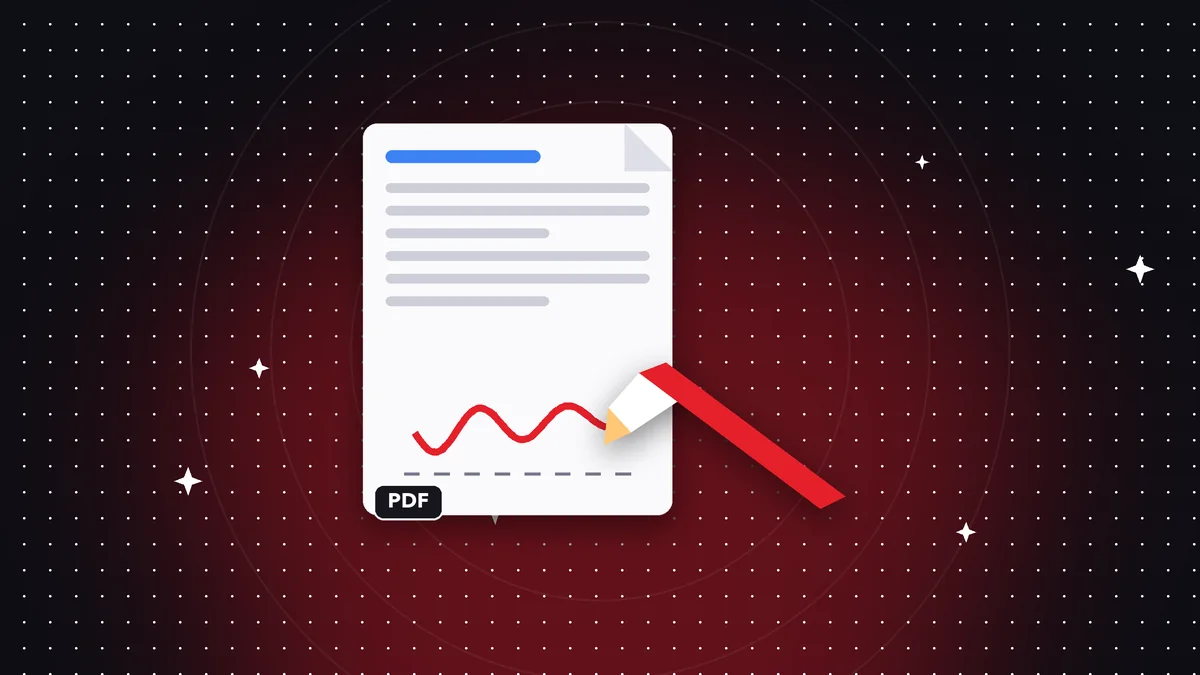

Try it now: Sign PDF
Choose your file and continue in the app. It is processed on your device, never uploaded to a server.
Before signing: what you absolutely must review
Read the entire document, not just the last page. Clauses on duration, automatic renewal, penalties, assignment of rights, confidentiality, and how to terminate are usually in the middle and define the real commitment you're taking on.
Confirm the details: full names, ID numbers, addresses, dates, amounts, and figures. A wrong number or name can cause problems later. If something doesn't match what was agreed, ask for it to be corrected before signing, not after.
Make sure it's the final version. Ask whether there are exhibits, tables, or pages missing, and compare against the previous version if they sent you changes. If the contract is important, such as a lease, a loan, or an employment agreement, consider having someone you trust or a lawyer review it.
What a signature on a PDF is and what it isn't
A signature on a PDF can be of several kinds. The simplest is placing an image of your handwritten signature on the document. Another is an advanced electronic signature, which relies on a digital certificate issued by a third party and leaves an audit trail on the document.
Rayo PDF GO lets you draw or place your signature on the PDF wherever you choose. That works for many informal procedures and agreements between people who accept it, but it isn't necessarily the same as a certified digital signature and doesn't ensure legal validity in every situation.
The legal validity of a signature depends on each country's regulations and on the type of document. Some contracts require special formalities, such as signing before a notary or using a digital certificate. If you have doubts, consult a lawyer or the organization requesting the document.
If several people are signing the contract, agree on the order and on how the file will circulate. A simple practice is for each party to sign a copy and then combine the pages with Merge PDF, or to pass a single file from one person to the next. What matters is that all the signatures end up on the same version of the text.
Step by step: sign a PDF contract in Rayo PDF GO
1) Open Rayo PDF GO at rayopdfgo.com/app (with your free account) or use the app on your phone or computer, and go to Sign PDF. Depending on the plan, some options may vary; check what yours includes.
2) Upload the contract, create your signature by drawing it with your finger or mouse, and place it in the right spot, adjusting size and position so it sits inside the signature box. If you need to add a date or name, you can do it with the text editing tools.
3) Save the signed PDF and open it to check that the signature looks sharp and is in the right place. The file is processed on your device and is never uploaded to any server. If you plan to email it, agree with the other party on which copy will be the final one.
How to make your signature look good and professional
Draw your signature calmly and on a large screen if you can. On a phone, turn it sideways for more room and use a stylus if you have one. A shaky or cropped signature makes a bad impression and can raise doubts.
If you prefer to use an image of your signature made on paper, sign with dark ink on white paper, photograph it in even light, crop it, and use it on a light background. Avoid placing it too large or covering contract text: it should sit next to your name.
You can add the date and printed name near the signature. It's a common practice that helps identify who signed and when, although by itself it doesn't replace other requirements the law or the other party may impose.
If you have to sign on your phone while traveling or away from home, avoid public Wi-Fi networks for receiving or sending the file, and don't leave the contract open on a screen others can see. When you're done, delete temporary copies from your downloads folders and confirm the signed version was saved where you expect.
After signing: how to protect the document
Once it's signed, it's wise to prevent the content from being modified without anyone noticing. Flattening the PDF merges the signature into the page and helps keep it from being moved or deleted easily. Keep the unsigned original separately in case you need a new version. One last precaution: if the contract involves a company, ask who has authority to sign on its behalf and, when appropriate, request a document proving it, such as a certificate of incumbency or the equivalent in your country.
If the contract contains sensitive information, protect it with a password before emailing it (Protect PDF, a Premium feature) and share the password through another channel. You can also send a smaller copy if file size is a problem, compressing it carefully so you don't lose legibility.
Always keep a copy in a safe place with a clear name, for example including the date and the parties. Over time, being able to find a contract signed two years ago can be decisive in any dispute.
Mistakes and risks when signing digitally
Saving your signature as a loose image in your gallery or email carries risks: anyone who gets it could paste it into another document. Keep it in a controlled place and avoid sending it by chat or leaving it on shared computers.
Signing documents that reach you through questionable links, or without being able to verify who they belong to, is another risk. Before signing, confirm the identity of the sender through an independent channel, especially when money or personal data is involved.
Also, don't sign blank contracts or ones with empty spaces: someone could fill them in later. If there are pending fields, ask for them to be filled in before you sign, or strike through the leftover spaces visibly.
Alternatives when more formality is required
If the contract requires a certified electronic signature, a signature before a notary, or a specialized tracking service, use those means. Rayo PDF GO is useful for preparing, reviewing, and signing in a simple way, but it doesn't replace those mechanisms when the law or the other party requires them.
For dealings with institutions, ask what type of signature they accept. Many accept a scanned signature; others only accept certificates or their own platforms. Finding out beforehand saves you from having to repeat the process.
In short, sign calmly, verify the other party, and keep everything in order. A good signing process doesn't depend on the software, but on reading, asking questions, and keeping records. Technology just makes that path faster.
Checklist for signing with peace of mind
Before signing, answer honestly: Did I read the whole document? Do I understand what happens if either party fails to comply? Are the names, numbers, and dates correct? Are there blank spaces or missing exhibits? If any answer is "I'm not sure," stop and ask.
While signing: Am I using a trusted device and connection? Did I sign in the right place, without covering any text? Did I add the date and my name if needed? Did I save the signed file with a name that includes the parties and the date?
After signing: Did the other party confirm they received the signed version? Do I have a copy somewhere other than my phone? Did I delete draft versions that could be confused with the final one? Did I note where I saved the original and who has a copy?
For contracts involving money, housing, employment, or important business, this list doesn't replace a lawyer's advice. Use it as a reasonable minimum, and get professional help when the amount or the consequences are high. Signing fast is convenient; signing well is what protects you.
Frequently asked questions
Can I sign a PDF contract from my phone?
Yes. In Rayo PDF GO you can draw your signature with your finger or a stylus and place it on the PDF. The file is processed on your device and is never uploaded to any server.
Does a signature on a PDF have legal validity?
It depends on your country's law and the type of contract. A signature inserted as an image isn't always equivalent to a certified electronic signature, so it's best to consult a lawyer or the relevant organization.
Is it free to sign a PDF in Rayo PDF GO?
It depends on the plan. Check in the app which signing options your current plan includes, since some features and limits differ between the free plan and Premium.
How do I prevent the contract from being modified after signing?
You can flatten the PDF to merge the signature into the document and save a protected copy. No measure completely prevents tampering, so it's wise to keep the original and the related communications.
Do I have to sign every page of the contract?
It depends on what the parties ask for or the applicable regulations. Often each page is signed or initialed to prevent changes; confirm with the other party or a legal advisor.
Keep reading
 GuidePDF vs Word: Key Differences and When to Use Each Format
Compare PDF and Word: editing, formatting, file size, security, and compatibility. Find out which to choose an…
Read article › GuidePDF vs JPG: Which Format to Use for What You Need to Do
Compare PDF and JPG on quality, file size, text, and compatibility. Learn when each fits and how to convert PD…
Read article › GuideHow to Archive Documents as PDFs So They Last for Years
A simple method for archiving invoices, contracts, and certificates as PDFs: organization, file names, backups…
Read article ›
To understand better
- GlossaryElectronic signature and digital signature
The difference between drawing your signature on a PDF and a certificate-based signature.
- GlossaryFlatten a PDF
Lock annotations, signatures and forms so they can no longer be edited.
- File formatPDF
What the PDF format is, why it looks the same everywhere and what it contains besides pages.