 Rayo PDF GO
How to Convert PDF to Excel: Editable Tables Without Retyping
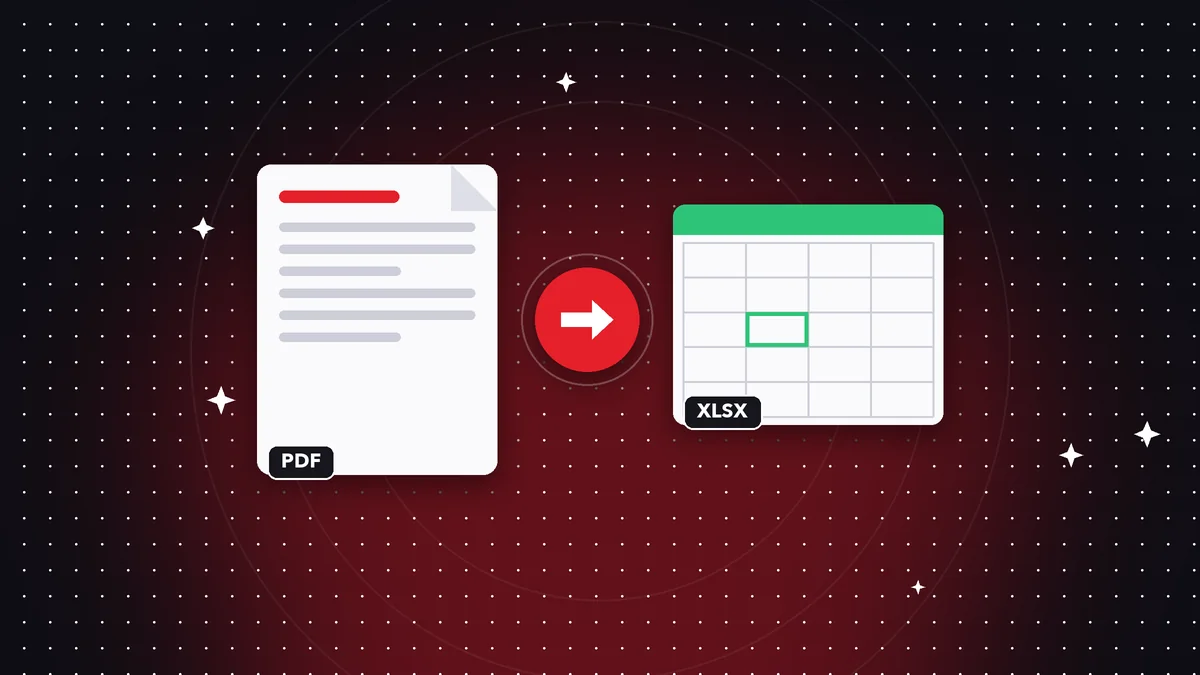
A statement, a sales report or a price list lands in your inbox as a PDF and you need to work with those numbers: add them up, filter them, compare them. Copying cell by cell is slow and error-prone, and copying and pasting from the viewer usually scrambles everything. Converting PDF to Excel is the logical way out, but it helps to know what to expect: it works very well with clean tables and can fail with complex layouts or scans. This guide explains how to do it in Rayo PDF GO, how to verify the result and what to do when the PDF does not cooperate.
Try it now: PDF to Word, Excel & PowerPoint
Choose your file and continue in the app. It is processed on your device, never uploaded to a server.
When it makes sense to turn a PDF into Excel
A PDF is made to display, not to calculate. Even if a table looks tidy, to the program it is just text placed at certain positions on the page. If you want to add up a column, sort by date, filter by customer or build a chart, you need that data in real cells. That is where converting to Excel adds value.
The most common cases are financial reports, transaction statements, inventories, supplier price lists, survey results and reports that other systems only export as PDF. If you repeat that task every month, skipping manual data entry translates into hours saved and fewer transcription errors.
But not every PDF deserves conversion. If you only need to look up one figure, just open it and read it. And if the PDF is a text document with a small table, it is sometimes quicker to turn the whole thing into Word, or simply type five numbers. Convert when the volume of data justifies the effort of checking it afterward.
How to convert PDF to Excel step by step in Rayo PDF GO
1) Open Rayo PDF GO on the web (rayopdfgo.com/app, with a free account) or in the app on your phone or computer, and go to the tool that converts PDF to Word, Excel and PowerPoint.
2) Select the PDF that contains the tables. If it has many pages but you only care about a few, it is best to extract them first with Split PDF so you work with a smaller, cleaner file.
3) Choose Excel as the output format and run the conversion. An .xlsx file is generated on your device, without uploading the PDF to any server, which matters with financial or customer data.
4) Open the result in your spreadsheet program and review it. PDF to Office conversion is part of the Premium features of Rayo PDF GO, whose plan costs $4.99 per month or $29.99 per year, with a 3-day trial on the annual plan.
What to expect from the result
In a computer-generated PDF, with clear-bordered tables and selectable text, the conversion usually produces fairly orderly cells, with recognizable columns and rows. Even so, do not expect magic: you may end up with merged cells, headers repeated on every page or columns split apart where the original showed just one.
Numbers deserve special attention. Sometimes they are imported as text instead of values, so they cannot be added up, or they keep currency symbols and thousands separators that confuse the spreadsheet. If that happens, select the column and convert it to a number format, or clean the symbols with find and replace.
Also do not expect the visual design to survive: colors, logos and typefaces take a back seat because the goal is to get usable data. Think of the result as a draft of the data that you need to review, not a finished copy ready to send.
How to check that the data is correct
Never trust a conversion blindly. The first check is to compare totals: if the PDF says the sum is 1,254,300 and your sheet adds up to something else, some cells were imported wrong. The second is to count rows: the number of records should match the original, with no duplicate or missing lines.
Check the dates too, a classic trouble spot. A day/month/year format can be read as month/day/year depending on the program's settings, which turns 03/04 from April 3 into March 4. And leading zeros, as in codes or ID numbers, can be lost if the cell is treated as a number.
A good practice is to put the original PDF and the converted sheet side by side and check a random sample of rows. If you find systematic errors, it is usually faster to fix them with a formula or a replacement than to review every cell. For critical data, such as accounting figures, it is best to verify everything before using it.
If the PDF is a scan or a photo
A scanned PDF is essentially an image of a page: it contains no real text to convert. If you convert it directly, the result will be an empty sheet or one with the image pasted in. First you need to recognize the text using OCR, a feature Rayo PDF GO offers in the browser and in the apps, and which is part of Premium.
OCR depends heavily on scan quality. A straight document with good lighting and clear type will give good results; a crooked, wrinkled or shadowed one will generate errors you will have to fix by hand. If you have the option, rescan more carefully instead of trying to rescue a bad original.
Even with OCR, scanned tables are the hardest. You will probably need to check cell by cell and rearrange columns. When the volume is small, it may be quicker to type in the data. When it is large, OCR still saves time, as long as you spend a few minutes verifying.
Alternatives when the conversion does not turn out well
If the table got scrambled, try converting to Word first. Sometimes the structure looks better there and you can copy the table from Word to Excel with less mess. You can also use Extract text to get the raw content and then split it into columns with your spreadsheet's text-to-columns tools.
Another option is to crop the PDF before converting. If a page mixes a table, charts and paragraphs, the Crop PDF tool lets you keep only the useful area, and the converter will have fewer elements to interpret. The cleaner the original, the better the result.
And if nothing works, ask whoever sent it for the original file. Often the person has the source Excel file and sent the PDF out of habit. A one-minute request can save you an hour of cleanup, and the data will arrive free of conversion errors.
Privacy and best practices
PDFs with tables often contain sensitive information: payroll, accounts, customer lists. Uploading them to an unknown site to convert them is a risk that is not always worth taking. With Rayo PDF GO the file is processed on your device, without traveling over the internet, which reduces data exposure.
After converting, save the Excel file under a clear name and delete any intermediate copies you no longer use. If you are going to share the sheet, check that it does not include columns or rows with data that does not belong, and consider sending only what is necessary. We do not promise perfect results: the conversion is an aid, not a replacement for your own review.
Finally, always keep the original PDF as a backup. If a question comes up about a figure, it is the official reference. And if you work with these files often, set up a fixed routine: convert, check totals, fix formats and save. In that order, the process becomes fast and reliable.
Practical case: from a bank statement to a tidy sheet
Imagine a six-page statement with hundreds of transactions. You convert the PDF, open the sheet and see that each page repeats the header and that some descriptions were split across two rows. Remove the repeated headers with a filter and join the split descriptions with a simple formula.
Then apply a number format to the debit and credit columns, sort by date and create a category column to classify expenses. A pivot table will give you the total per category in seconds, something impossible to do with the original PDF.
Before accepting the data as good, compare the final balance of your sheet with the one on the statement. If they match, the conversion was faithful. If not, look for the difference month by month until you find the problem row. That final check is worth more than any automatic feature.
Do it on your device: your files are never uploaded to any server.
Use PDF to Word, Excel & PowerPoint
Frequently asked questions
Can I convert a PDF to Excel for free?
In Rayo PDF GO, PDF to Office conversion is a Premium feature. The conversion is done on your device.
Why do the tables come out scrambled?
A PDF does not store real cells, only positioned text. Complex layouts or merged cells may need manual cleanup.
What do I do with a scanned PDF?
It needs OCR before converting. Rayo PDF GO includes OCR, which works in the browser and in the apps and is part of Premium.
Are the numbers ready to add up?
Not always. They may be imported as text; convert the column to a number format and check the totals against the PDF.
Is my data uploaded to any server?
No. Everything is processed on your device and the PDF is not sent over the internet.
Can I convert only some pages?
Yes. You can first extract the pages you need with Split PDF and convert that smaller file.
Keep reading
 GuideHow to Convert PDF to PowerPoint and Edit Your Slides
Turn a PDF into an editable PPTX presentation: when it works well, what changes in the design and how to fix t…
Read article › GuideHow to Save a Web Page as a Clean, Complete PDF on Any Device
Save any web page as a PDF with its full content to read offline, archive or send. Method in the Rayo PDF GO a…
Read article › GuideHow to Compress an Image Without Losing Quality (Real Guide)
Learn how to shrink a JPG or PNG photo with no visible quality loss: which quality to choose, when to resize f…
Read article ›