 Rayo PDF GO
How to Save a Web Page as a Clean, Complete PDF on Any Device
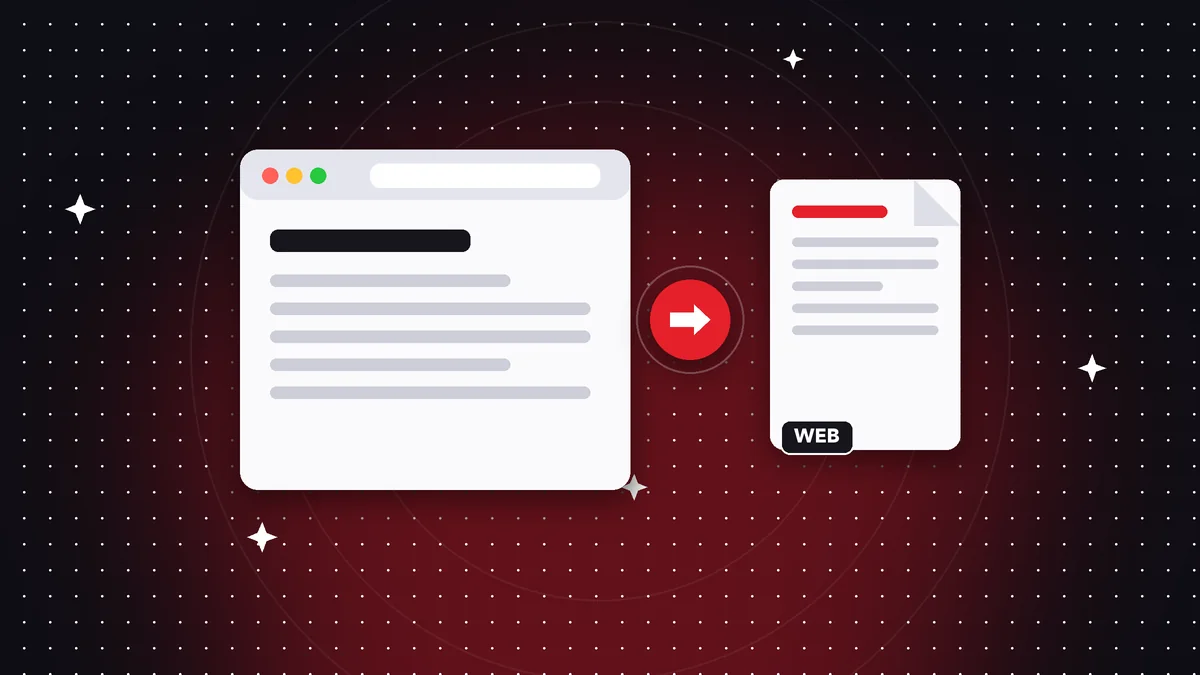
You found an article, a recipe, an online receipt or a booking confirmation and you want to keep it exactly as it is, without depending on the page still existing or on having internet. Saving a web page as a PDF is the most reliable way to do it, but the result varies a lot depending on the method: sometimes you get odd page breaks, ads or repeated menus. In this guide you will see how to do it with the Web to PDF tool in the Rayo PDF GO apps, what to do with long pages and how to end up with a clean, readable document that is easy to archive.

Try it now: Web to PDF
Choose your file and continue in the app. It is processed on your device, never uploaded to a server.
Why save a web page as a PDF
Web pages change, move or disappear. An article you read today could be behind a paywall tomorrow, an offer can expire and an online receipt can stop being available after a few days. A PDF freezes the content exactly as you saw it at that moment, which is very useful as a backup or as evidence.
It is also good for reading offline. On a trip, in an area without coverage or on a flight, having the recipe, the instructions or the reading saved on your phone means you do not depend on a signal. And for sharing, a PDF opens on any device, without ads or pop-ups, and looks the same for everyone.
Another frequent use is work: research for a college paper, a vendor's documentation, a service's terms and conditions, electronic invoices and confirmations. Having organized PDF copies makes them easier to cite, file and retrieve later without depending on the browser or on lost bookmarks.
What Web to PDF is in Rayo PDF GO and where it is available
Web to PDF is a tool that downloads the address you type and turns it into a PDF document. To do that it needs to connect to that page, so it is the only Rayo PDF GO feature that uses the internet to get its content; all the other tools process files on the device without uploading anything.
Important: Web to PDF is only available in the Rayo PDF GO apps, that is, on iPhone, iPad, Android, Mac and Windows. It is not in the web version at rayopdfgo.com/app. The app stores are under review or in preparation, so availability depends on when each app is published on your platform.
It is also a Premium feature, along with PDF to Office conversion, OCR, Protect PDF, Unlock PDF, Redact PDF, Organize PDF, Watermark and Compare PDF. Premium costs $4.99 per month or $29.99 per year, with a 3-day trial on the annual plan. If you only need it occasionally, the trial may be enough.
How to save a web page as a PDF step by step
1) Open the Rayo PDF GO app on your iPhone, iPad, Android phone, Mac or Windows, and go to the Web to PDF tool.
2) Copy the page address from your browser and paste it into the tool's field. Make sure it starts with https and that it is the exact address of the page you want, not the site's home page.
3) Start the conversion. The app downloads the content and turns it into a PDF on your device. Wait for it to finish, especially with long pages or pages with lots of images.
4) Open the PDF and review it from start to finish. Check that the text is complete, that the images show up and that no sections are missing. Then save it under a clear name that includes the topic and the date, so it is easy to find later.
Long pages, ads and layout: what to expect
Web pages are not designed to be sheets of paper, so converting them involves decisions: where to cut, how to arrange columns and what to do with floating elements. On a simple page, like a blog post, the result is usually clean. On a page loaded with menus, banners and pop-ups, content you do not care about may show up.
If the document turns out very long, you can trim it afterward with Delete pages, or split it with Split PDF to keep only what you need. If there is extra space in the margins, the Crop PDF tool lets you adjust the visible area of each page. These follow-up tools let you polish the PDF without repeating the whole process.
Keep in mind that the PDF layout may differ from what you see on your screen. The page width, font size and arrangement can change. What matters is that the content is complete and readable; for an exact copy of the site's design, it is worth saving a separate screenshot too.
Pages that require signing in or load dynamic content
An honest limitation: if a page requires signing in, such as an invoice in your bank account or a webmail inbox, the tool has no access to your session and may capture only the sign-in screen. You also will not be able to save private pages the same way as public ones.
Pages that load content as you scroll, or that display everything through scripts, can also give incomplete results. In those cases, the PDF may come out with empty areas or missing parts. Always check the document before relying on it as a backup.
For private, sensitive content, such as a bank receipt, the safest approach is to download the PDF the service itself offers, or use your browser's print-to-PDF function while you are signed in. What you should never do is enter your passwords into third-party tools to access private pages.
Improving the PDF once it is saved
Once you have the PDF, you can work on it with the rest of the tools. If it is too heavy, Compress PDF reduces the size. To bring order to long documents, Page numbers applies clear numbering. And if you want to highlight phrases or add your own notes, Edit PDF lets you highlight and annotate.
If the document contains information you do not want to keep or share, such as personal data visible in a confirmation, Redact PDF performs a permanent redaction, also in Premium. Remember that covering it with a rectangle in another program does not remove the text underneath; true redaction does.
And for a final file that you do not want to change, you can flatten it with Flatten PDF or protect it with a password using Protect PDF. That way your backup copy keeps its integrity and you can show with more confidence what a page said on a given date.
Legal and privacy considerations
Saving a page for personal use, offline reading or your own archive is usually reasonable, but redistributing other people's content without permission may infringe copyright. If you use the PDF in a paper, cite the source and the date you accessed it. Do not take this article as legal advice: if in doubt, check the site's terms of use.
On privacy, remember that Web to PDF downloads the address you type, so that page will know it was visited, just as when you open it in your browser. The resulting PDFs are saved on your device and are not uploaded to any Rayo PDF GO server. Avoid typing addresses that contain personal data in the URL itself.
Finally, if you save a page as evidence of something, note down the address and the date, and keep the file in a safe place. A PDF does not by itself carry guaranteed legal value; its weight as proof depends on the context and on who evaluates it, so it is best not to take it for granted.
Alternatives and best practices
Most desktop browsers let you print a page and choose to save as PDF, and on a phone there is an option to share or print to PDF. These are valid methods, especially for pages that require a login, because they work with what you see. The advantage of Web to PDF is that everything stays in one tool, alongside the rest of the utilities for working on the document.
As a habit, name your files with a simple convention: topic, site and date. Organize them in folders by project. If you save many pages, consider merging related ones into a single document with Merge PDF, which on the free plan allows up to 3 PDFs at a time.
And before relying on a copy, open it on another device to confirm it looks the same. A backup that cannot be opened when you need it is worthless. With a few minutes of care, your saved pages will be a useful, organized archive ready for when you need it.
Frequently asked questions
How do I save a web page as a PDF?
In the Rayo PDF GO apps, open Web to PDF, paste the page address and convert. It is a Premium feature and is not available in the web version.
Does Web to PDF work in the Rayo PDF GO web version?
No. It is only in the apps for iPhone, iPad, Android, Mac and Windows. The app stores are under review or in preparation.
Are my files uploaded to a server?
PDFs are generated on your device and are not uploaded. The only thing the tool downloads is the web address that you type.
Can I save pages that ask for a password?
Not reliably: the tool does not use your session. For private content, download the PDF from the service or print to PDF from your browser.
Why does the PDF come out with empty parts?
Some pages load their content dynamically and it may not be captured completely. Check the result and try the exact address of the article.
Is a web page saved as a PDF legally valid?
It is not guaranteed. Its value as evidence depends on the context; always note the address and the date you accessed it.
Keep reading
 GuideHow to Compress an Image Without Losing Quality (Real Guide)
Learn how to shrink a JPG or PNG photo with no visible quality loss: which quality to choose, when to resize f…
Read article › GuideHow to Reduce a Photo's File Size to Upload It to a Form
Photo too big for an official form? Learn how to shrink it to 100 KB, 200 KB, or 1 MB without it looking bad a…
Read article › GuideHow to Resize Photos for Social Media Without Distorting Them
Common sizes for Instagram, Stories, YouTube, and more, plus how to adjust photos without stretching them or c…
Read article ›