 Rayo PDF GO
How to Convert PDF to PowerPoint and Edit Your Slides
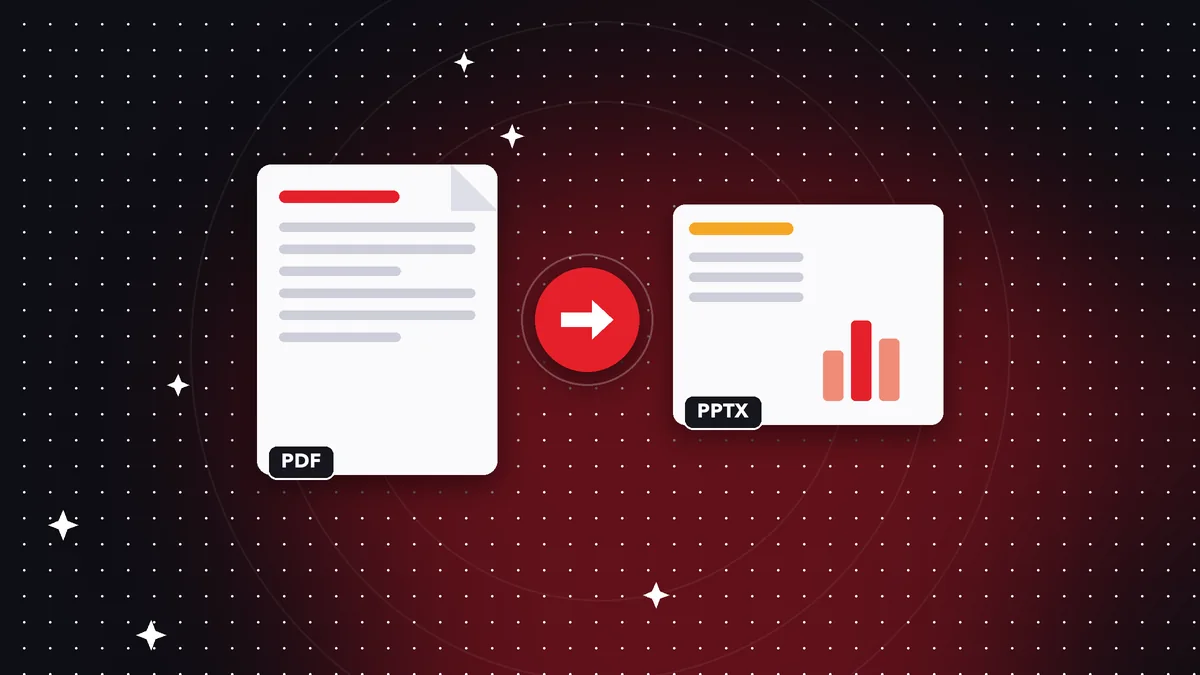
Someone sent you a presentation only as a PDF, or you lost the original file of your slides, and now you need to change a title, update a figure or reuse the content in another talk. Converting PDF to PowerPoint lets you recover text and images in an editable format, although the result is rarely identical to the original. Understanding what you get back, what you lose and how to touch up what goes wrong makes the difference between saving an afternoon of work and starting from scratch. Here we look at it with Rayo PDF GO, without uploading your files to any server.
Try it now: PDF to Word, Excel & PowerPoint
Choose your file and continue in the app. It is processed on your device, never uploaded to a server.
What you can recover from a PDF and what you cannot
A PDF does not store slides as such: it stores pages with text, images and shapes drawn at specific positions. When you convert it to PowerPoint, the program tries to rebuild text boxes, images and graphic elements from that information. It does this quite well when the PDF came from a presentation, because its elements are clear and well separated.
What is hard to recover is the original structure: slide masters, themes, font styles, animations, transitions, speaker notes and linked objects. All of that is lost when exporting to PDF and no conversion can reinvent it. That is why it is better to see the result as a starting point, not as a duplicate of the original presentation.
If you have access to the source PPTX file, always use it. Reverse conversion is a rescue for when there is no other option, and it is better to ask whoever sent it for the original or look for it in your email before investing time in rebuilding it.
How to convert PDF to PowerPoint step by step in Rayo PDF GO
1) Open Rayo PDF GO on the web (rayopdfgo.com/app, with a free account) or in the app on your phone or computer, and go to the tool that converts PDF to Word, Excel and PowerPoint.
2) Select the PDF. If you only care about some pages, extract those first with Split PDF so you work with a lighter, cleaner file.
3) Choose PowerPoint as the output format and start the conversion. A .pptx file is created on your device; the PDF is not uploaded to any server, a relevant point if the presentation includes internal figures or confidential proposals.
4) Open the result in your presentation program and review it slide by slide. PDF to Office conversion is part of Premium, which costs $4.99 per month or $29.99 per year, with a 3-day trial on the annual plan.
What to expect from the converted design
It is normal for some slides to come out almost perfect and others to need adjustments. Text usually appears as editable boxes, although sometimes one line is split into several boxes or two paragraphs are merged. Images are placed as separate objects, and backgrounds may end up as a single image behind the content.
Fonts are a sensitive point. If the PDF uses a typeface that is not installed on your device, the program will put another one in its place, and that can make text overflow or change the look of titles. Choosing a similar font and adjusting sizes usually fixes it in a few minutes.
Charts and tables depend on how they were drawn. Sometimes they arrive as images, and then you will not be able to edit their data; other times they arrive as loose shapes and lines. If you need to modify a chart, the most practical approach may be to recreate it with the data and use the converted image only as a visual reference.
How to clean up the result after converting
Start by checking the order and numbering: confirm there are as many slides as pages and that none ended up blank or duplicated. Then go through each one and fix the obvious: split text boxes, elements outside the margins and substituted fonts.
A good trick is to apply a clean, consistent theme. Instead of fixing each element separately, choose one typeface and one color palette and use them on all the slides. This gives uniformity and hides small differences left over from the conversion.
If your goal is only to reuse the content, you may not need it to look the same. Copy the texts and images you want into a new template and keep your own design. It is often faster and gives a more professional result than trying to repair every converted slide.
If the PDF is a scan or made of images
A scanned PDF or a presentation exported as images contains no real text. When you convert it, you will get slides with one large image and nothing editable. To recover the text you need to apply OCR first. Rayo PDF GO includes OCR, which works in the browser and in the apps, and is part of Premium.
Recognition quality depends on sharpness. Large, high-contrast letters, like those on a slide, are recognized better than a small paragraph from an old document. Even so, check every word, especially proper names, figures and symbols, which are what fail most.
If the PDF contains images with text inside, such as screenshots or infographics, that text will remain part of the image. You can extract it with OCR and retype it as text, or leave the image as it is if it does not need to be modified. Decide case by case what is worth redoing. Before editing, set up your workflow: find the original, trim the PDF down to the useful pages, convert, apply your own template, replace pixelated images, proofread spelling and figures, and export again if you need to share it.
Real-world cases where it helps
A teacher received a talk from the school as a PDF and wants to adapt it to her group: she converts it, changes the examples and adds her own slides. An entrepreneur lost the file of his investor presentation but still has the PDF he sent; he converts it, updates the figures and recovers weeks of work.
A small business needs to update the service catalog an agency gave it, and it only received the PDF. A student has to expand a classmate's presentation. In every case, the PDF works as a starting point, and the conversion saves the work of rewriting text and repositioning images.
That said, respect authorship. Converting and editing someone else's PDF to present it as your own may infringe copyright. Use these tools with your own material, with permission or with a license that allows it, and cite your sources where appropriate.
Common mistakes and how to avoid them
The first is expecting an identical result and getting frustrated by the differences. It is better to assume from the start that there will be touch-ups. The second is not saving the original PDF: if something goes wrong in the conversion, you need to be able to go back to the source. The third is converting a huge hundred-page PDF when you will only use ten.
Another mistake is editing without proofreading: converted text sometimes carries recognition errors, especially if it went through OCR. Read everything aloud or run it through the spell checker before presenting. And do not forget to check the links, which can be lost or point to the wrong addresses.
Lastly, take care of your privacy. A converted presentation may include metadata, comments or information from someone else that you do not want to share. Check the file before sending it and, if necessary, export it again to a password-protected PDF with the Rayo PDF GO tools.
Alternatives and when not to convert
If you only need to read or project the presentation, there is no need to convert it: a PDF can be projected full screen on almost any device. If you need to extract a few images, PDF to images may be more direct. And if all you want is the text, the Extract text tool gets it without carrying the design along.
When the design is very complex, with effects, layers and special typefaces, it is sometimes more efficient to rebuild the presentation with a new template, using the PDF as a guide. It is more work at first, but it avoids dragging along the formatting problems of an imperfect conversion.
Choose the route that saves the most time with the best result. Converting PDF to PowerPoint is a valuable tool when the content matters more than the exact form. And since Rayo PDF GO works on your device, you do not depend on uploading files to third parties to try it.
Do it on your device: your files are never uploaded to any server.
Use PDF to Word, Excel & PowerPoint
Frequently asked questions
Can I convert a PDF to PowerPoint for free?
In Rayo PDF GO, PDF to Office conversion is a Premium feature. The process happens on your device.
Is the original design preserved?
Text and images are recovered, but fonts, styles and effects may change. Expect to make adjustments after converting.
Can animations be recovered?
No. Animations and transitions are not stored in the PDF, so they cannot be rebuilt when converting.
What if the PDF is a scanned image?
It needs OCR first to get editable text. Rayo PDF GO includes OCR in the browser and in the apps, as a Premium feature.
Is my PDF uploaded to the internet?
No. Everything is processed on your device and the file is not sent to any server.
How many pages can I convert?
It depends on the plan. If you only need some, extract them first with Split PDF to convert a smaller file.
Keep reading
 GuideHow to Save a Web Page as a Clean, Complete PDF on Any Device
Save any web page as a PDF with its full content to read offline, archive or send. Method in the Rayo PDF GO a…
Read article › GuideHow to Compress an Image Without Losing Quality (Real Guide)
Learn how to shrink a JPG or PNG photo with no visible quality loss: which quality to choose, when to resize f…
Read article › GuideHow to Reduce a Photo's File Size to Upload It to a Form
Photo too big for an official form? Learn how to shrink it to 100 KB, 200 KB, or 1 MB without it looking bad a…
Read article ›