 Rayo PDF GO
How to Convert PDF to JPG: One Page or the Whole Document
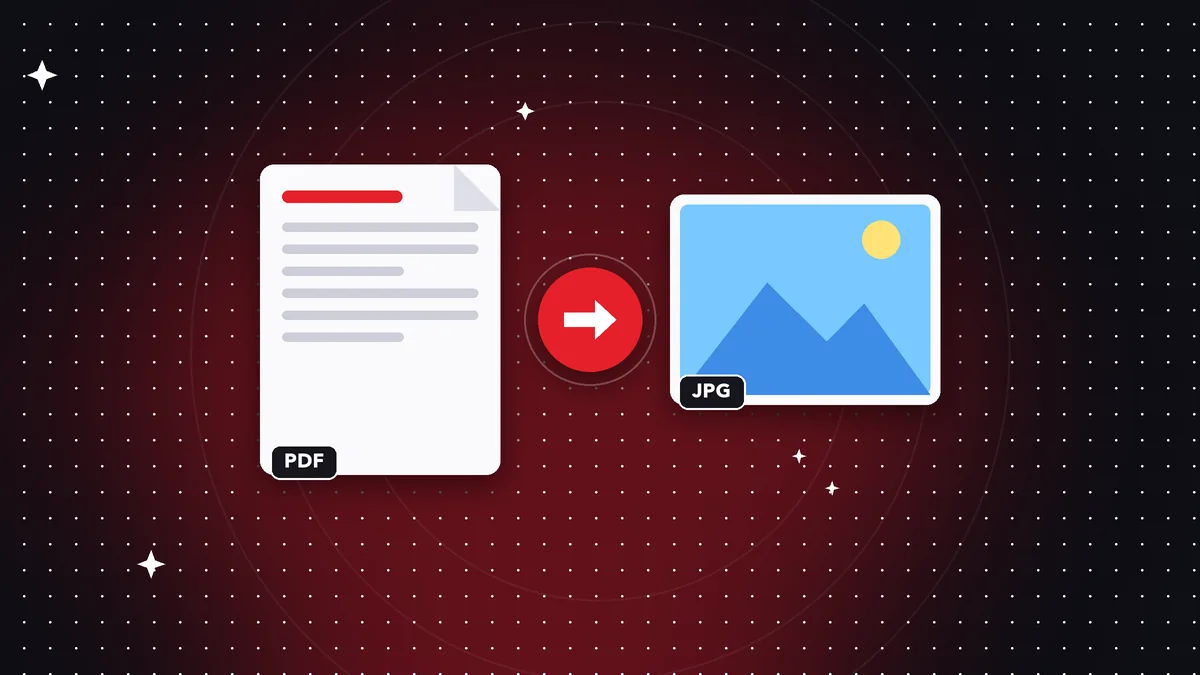
Sometimes a PDF is not what you need: you want a page as an image to post on social media, drop into a presentation, send in a messaging app or upload to a system that only accepts photos. Converting PDF to JPG is simple, but the result depends on choices almost nobody explains: resolution, how many pages to export and what to do when the document has small text. Here is how to do it in Rayo PDF GO, what the free plan limits are and how to get sharp images without making them enormous.
Try it now: PDF to Images
Choose your file and continue in the app. It is processed on your device, never uploaded to a server.
What converting a PDF into JPG images is good for
A PDF is a container designed for reading and printing, not for sharing comfortably on every platform. An image, on the other hand, opens everywhere: you paste it into a chat, upload it as a product photo, place it on a slide or post it as a carousel. That is why converting a PDF to JPG is so common among people who work with social media, online stores or presentations.
Another frequent use is official paperwork. Some portals only accept photos and reject PDFs, the opposite of what happens on others. If your proof of payment, certificate or receipt arrived as a PDF and the system asks for an image, the conversion gets you out of the jam in a minute, without having to print the page and photograph it again, which always lowers quality.
It is also useful for pulling out a single page. Maybe you have a forty-page report and only need to show the chart on page twelve. Converting that page to an image gives you exactly what you want, ready to drop into an email or a presentation, without carrying the whole document.
How to convert PDF to JPG step by step in Rayo PDF GO
1) Open Rayo PDF GO on the web (rayopdfgo.com/app, with a free account) or in the app on your phone or computer, and go to the PDF to images tool.
2) Select the PDF you want to convert. You will see the pages of the document; choose all of them or only the ones you need, for example pages 3 and 7.
3) Pick JPG as the output format and the quality you prefer. The standard option works for screens; if you are going to print or the document has very small type, choose a higher quality.
4) Tap convert and save the result. Each page becomes a separate image, with the order reflected in the file name. Zoom in on at least one image to confirm the text is clearly readable. Everything happens on your device; the PDF never travels to a server.
One page, several pages or the whole document
Most of the time you do not need everything. Before converting, decide which pages you will actually use: the fewer you export, the faster the process and the fewer files you will have to sort afterward. If the document is long, converting all of it creates an avalanche of images that you will then have to delete or organize.
On the free plan, PDF to images lets you export up to 5 pages at standard quality. For a receipt, a certificate or an infographic of a few pages, that is more than enough. If your PDF has more, you can split it first with the Split PDF tool and convert it in sections, although Split PDF may also have limits depending on your plan.
If you work with long documents regularly, such as books, catalogs or exported presentations, Premium removes the limits and lets you process the whole document at once. It is the logical choice for designers, teachers and marketing teams who turn PDFs into images almost daily.
Quality, resolution and file size: finding the sweet spot
A PDF has no fixed size in pixels, because it is made of text, strokes and images that are drawn at whatever scale is needed. When you convert it to JPG you have to choose that scale. A low resolution gives lightweight files, but small text looks rough; a high one gives sharp images, but they are heavier and slower to send.
For posting on social media or sending over WhatsApp, standard quality is usually enough, because those platforms recompress the image anyway. For inserting into a projected presentation or for printing, a higher quality is better, especially if the document includes small type, tables or plans with thin lines.
A good practice is to convert a test page first, zoom in and check the hardest details: small numbers, footnotes, signatures. If everything is readable, repeat the process with the rest. And if the result is heavier than allowed, you can reduce it afterward with Compress image or Resize image, without having to convert the PDF again.
Real-world cases: how it helps day to day
A designer receives a supplier's catalog as a PDF and wants to upload three products to her online store. She converts those three pages to JPG, crops what she needs with Crop image and publishes them in minutes. A teacher takes a page from a PDF book to project in class: he exports it as an image and pastes it into his presentation.
A student has to turn in screenshots of a report through a platform that does not accept PDFs. An entrepreneur wants to post her restaurant menu, which she has as a PDF, on Instagram. Someone receives a bank statement as a PDF and has to attach an image to a form. In every case the pattern is the same: choose the pages, convert to JPG and check.
And if the PDF contains sensitive information, such as a statement or an ID document, first cover whatever you do not need to show with the Redact PDF tool, available in Premium, before exporting the images. That way you avoid accidentally sharing account numbers or addresses that never needed to appear.
Common mistakes when converting PDF to images
The first is exporting at the lowest quality to save space and then discovering the text is unreadable. It is better to start with medium quality and go lower only if needed. The second is forgetting the order: if you export many pages, check that the file names keep the sequence, or you will end up reordering by hand.
The third is expecting the resulting image to keep selectable text. An image is a set of pixels, not a document with text: you will not be able to copy phrases or search for words. If you need editable text, use the text extraction tools or the conversion to Word instead, depending on your case.
The fourth is converting a password-protected PDF without unlocking it first. If the file is encrypted, you will need the password to open it; the Unlock PDF tool, available in Premium, is for when you know the password and want to remove the protection. And remember: it is only appropriate to do this with your own documents or with the owner's permission.
Privacy and alternatives
Many online converters ask you to upload the PDF so they can convert it and send back the images, and they do not always explain what happens to the file afterward. If your document has personal, work or financial data, that is a decision worth thinking twice about. Rayo PDF GO processes files on the device itself: there is no upload or download in between.
A common alternative is taking screenshots of each page. It works for something quick, but quality depends on your zoom and screen size, the shots often come out cropped, and with many pages it becomes tedious. With a real conversion you get images of the same size, complete and in the right order.
If your goal is something else, you may not need images at all. To share a lightweight document, Compress PDF is the better fit; to pull out all the text, use the Extract text tool; and to edit the content, convert to Word. Choosing the right tool saves you steps and avoids losing quality along the way.
How to name, order and share the images
When you convert several pages, the images come out with numbered names. Keep that numbering while you work, because it lets you tell at a glance which is which and rebuild the order if you are going to publish them as a carousel or in a presentation.
If you are going to share them through a messaging app, keep in mind that many apps recompress images when sending, so small type can lose sharpness along the way. If the content is sensitive, such as a receipt with numbers, it is safer to send the original PDF or send the images as a document.
For posting on social media, crop each image to the aspect ratio the platform asks for with Crop image and check the result on your phone, which is where most people will see it. The same content may need different versions for each network.
Frequently asked questions
How do I convert a PDF to JPG for free?
Open PDF to images, choose the file and the pages, select JPG and save. On the free plan you can export up to 5 pages at standard quality.
Can I convert just one page of the PDF?
Yes. You can choose the exact pages you need, such as a single one or a range, and they are saved as separate images.
Why does my JPG come out blurry?
You probably chose a low quality. Repeat the conversion with a higher quality, especially if the PDF has small text or plans.
Is the text lost when it becomes an image?
The image does not keep selectable text, only pixels. If you need to copy or edit the text, use Extract text or the conversion to Word.
Are my files uploaded to any server?
No. The conversion happens on your device, so the PDF is not sent over the internet.
Does it work on a phone?
Yes, it is designed for phone and computer. The app stores are under review or in preparation; in the meantime you can use the web version.
Keep reading
 GuideHow to Convert Excel to PDF Without Tables Getting Cut Off
Turn your Excel sheet into a PDF with full columns, clean pagination and formatting intact. Practical guide wi…
Read article › GuideHow to Convert PowerPoint to PDF and Share It Without Surprises
Convert your PPTX presentation to PDF while keeping design, images and fonts, and shrink the file to send it b…
Read article › GuideHow to Convert PDF to Excel: Editable Tables Without Retyping
Turn the tables in a PDF into an editable Excel sheet. What to expect, when it works best, how to check the nu…
Read article ›