 Rayo PDF GO
How to Convert PowerPoint to PDF and Share It Without Surprises
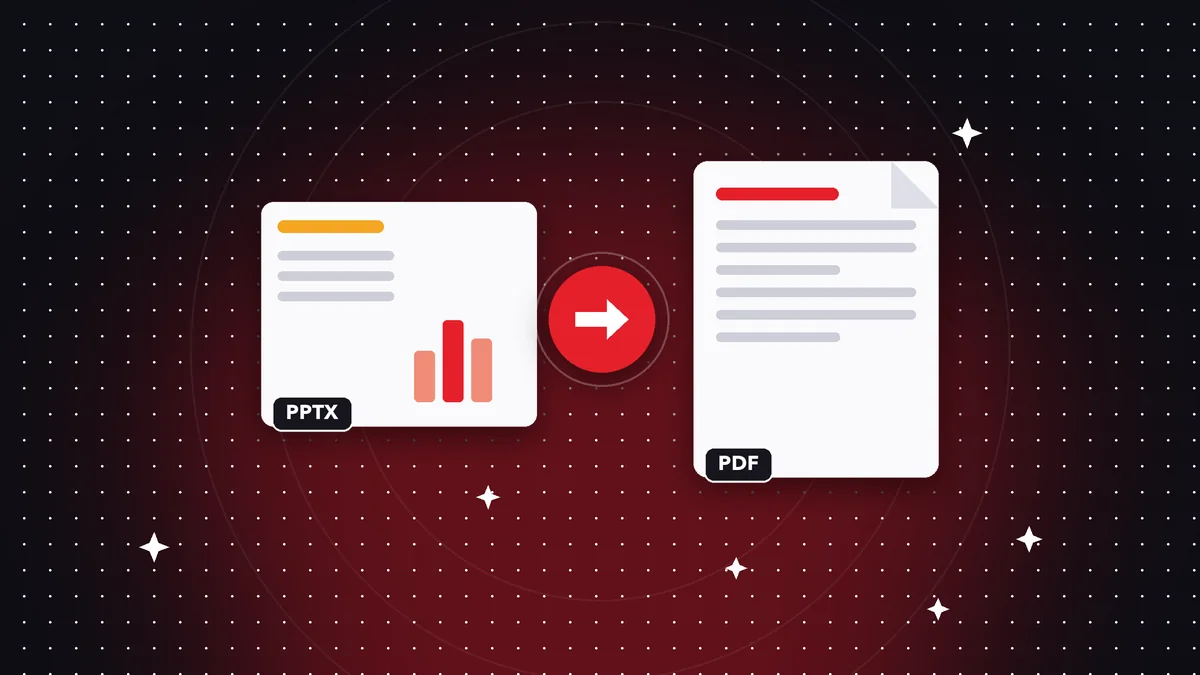
Your presentation looks perfect on your computer, but when you open it on another machine the fonts change, the animations break and the images shift. Converting PowerPoint to PDF solves almost all of that: the document looks the same on any device, weighs less and cannot be altered by accident. Still, there are choices worth making before and after converting, from what happens to animations to how to cut the file size if it is huge. Here is the complete method with Rayo PDF GO, without uploading your work to any server.
Try it now: Office to PDF
Choose your file and continue in the app. It is processed on your device, never uploaded to a server.
Why share as a PDF instead of PowerPoint
A presentation in its original format depends on the device of whoever opens it. If the other person does not have the same fonts, the text rearranges itself and titles overflow. If they use a different version or a different program, some effects change or disappear. With a PDF you eliminate that uncertainty, because the document carries its appearance with it and looks the same on a phone, a tablet or a computer.
There is also a matter of control. If you send a PPTX, the recipient can change anything, copy your slides or reuse them without you noticing. A PDF is much harder to alter by accident and, if you want, you can password-protect it or flatten it so nothing can be edited. It is not an absolute guarantee, but it is a reasonable barrier.
And then there is size. A presentation with lots of images can top 50 MB, which is impossible to attach in most email accounts. A PDF usually weighs quite a bit less, and you can also compress it in a controlled way so it reaches its destination without problems.
Prepare the presentation before converting
First, check that every slide is finished. It is common to forget visible speaker notes, comments in the margins or hidden slides you did not want to share. Ask yourself which parts of the presentation should go in the PDF, and delete or fix what should not.
Check the fonts. If you used a typeface installed only on your computer, the converter might replace it. Use common fonts or verify the final result. Also check that the images have good resolution; an image that is pixelated on screen will stay pixelated in the PDF, and it is best to fix it in the presentation itself, not afterward.
Think about the animations. If a slide depends on bullet points appearing one by one, in the PDF they will all appear at once. If the order of appearance is essential, consider splitting that information across several static slides before converting. That prior review usually saves more time than any adjustment afterward.
How to convert PowerPoint to PDF step by step in Rayo PDF GO
1) Open Rayo PDF GO on the web (rayopdfgo.com/app, with a free account) or in the app on your phone or computer, and go to the Office to PDF tool.
2) Select your .pptx file. The same tool accepts Word documents and Excel sheets, so it works for several file types.
3) Start the conversion. The process runs on your device, so your presentation is not sent to any server; that is useful when it includes internal figures, business proposals or customer data.
4) Open the resulting PDF and go through all of it. Check that the slides are in order, that the images look sharp and that no text overflowed. Depending on your plan, some options of this tool may have limits.
What is preserved and what is lost
The design of each slide, the text, the images, the shapes and the colors are preserved. Hyperlinks usually stay as links in the document, although it is worth testing them. Speaker notes are normally not part of the PDF, which is good if you do not want others to read them.
Animations, transitions and embedded videos or audio are lost. In the PDF, each slide is a fixed page. If your presentation depends on a video, also keep the original file to present on screen and use the PDF only as a reading document or backup.
Another detail is the shape of the page: slides are wide, so the PDF will have landscape pages. If you need to print it, keep in mind that it will use a lot of paper with little content per sheet; some people prefer to print several per page, and that is where it pays to set up the print program's options properly.
How to reduce the PDF size of a presentation
Presentations tend to come with heavy images, high-resolution photos and large backgrounds. When you convert them, the PDF inherits that weight. If you have to send it by email or upload it to a portal with a limit, use Compress PDF. Start with a medium level and look at the result.
After compressing, open the document and look at the areas where loss shows up first: photographs with gradients, small logos and charts with fine text. If something looks bad, go back and use gentler compression. It is always worth keeping the original uncompressed version in case you need it for printing.
If the problem is the number of slides and you only need part of them, you can split the PDF with Split PDF and keep the relevant pages, or remove pages with the Delete pages tool. A shorter document is easier to read, to send and to remember for whoever receives it.
Real-world cases: classes, proposals and assignments
A student has to turn in a presentation as a PDF through a university platform. He converts the presentation, checks that the charts come out complete and uploads it, with no surprises about fonts. A teacher shares class material as a PDF with her students so they can read it on their phones without needing to open PowerPoint.
A freelancer sends a business proposal to a client: she converts it to PDF, adds page numbers with the corresponding tool and password-protects it if it contains prices. A small business keeps an archive of its monthly presentations as PDFs, so it has a backup that opens the same way years from now, without depending on the program version.
In every case the pattern is similar: prepare, convert, review and, if needed, compress or protect. And if someday you need to go from PDF to PowerPoint, there is the reverse conversion, which keeps the content but not always the exact design, so the ideal is always to keep the original file.
Common mistakes and best practices
The most common mistake is sending the presentation without opening the PDF first. One minute of review keeps a client from seeing a cut-off slide. The second is forgetting hidden slides or notes with internal comments. The third is compressing too much and ruining the very images you wanted to show.
Another frequent slip is the file name: presentation final definitive 3 signals disorder. Use a clear name with the topic and date. It is also worth checking that the document is a reasonable size before sending it, and trying to open it on your phone, which is where many people will read it first.
And finally, keep privacy in mind. If the presentation includes customer data or financial information, converting it on your device avoids uploading it to unknown sites. If it will circulate outside your organization, consider password-protecting the PDF, a Premium feature of Rayo PDF GO. That way you control who opens it and reduce risks.
Design tips with the PDF in mind
If you know from the start that your presentation will end up as a PDF, design it with that in mind. Use text sizes that are comfortable to read on a small screen, avoid putting key information inside animations and leave enough contrast between the text and the background.
Backgrounds with strong gradients or very large photographs increase the weight of the document and make it harder to read when printed. A simple background with few elements compresses better and looks more professional. The same goes for tables: a few clear rows are better than a cramped grid.
If the PDF is going to be read without you presenting it, add enough context to each slide. What you say out loud in a talk has to be written down in a document. A supporting sentence under each chart can make the difference between a slide that stands on its own and one that raises questions.
Frequently asked questions
How do I convert PowerPoint to PDF for free?
Open Office to PDF, select your .pptx file and convert it. Limits may apply depending on your plan, and the process happens on your device.
Are animations kept in the PDF?
No. Each slide becomes a fixed page; animations, transitions and videos are not included.
Why is my PDF so big?
It is usually due to high-resolution images. Try Compress PDF at a medium level and check how sharp the result is.
Do speaker notes appear in the PDF?
Normally not. Still, check the document before sharing it to confirm it does not include internal comments.
Is my presentation uploaded to the internet?
No. The conversion happens on your device and the file is not sent to any server.
Can I convert the PDF back to PowerPoint?
Yes, with PDF to PowerPoint, a Premium feature. It keeps the content, but the design may vary, so always keep the original.
Keep reading
 GuideHow to Convert PDF to Excel: Editable Tables Without Retyping
Turn the tables in a PDF into an editable Excel sheet. What to expect, when it works best, how to check the nu…
Read article › GuideHow to Convert PDF to PowerPoint and Edit Your Slides
Turn a PDF into an editable PPTX presentation: when it works well, what changes in the design and how to fix t…
Read article › GuideHow to Save a Web Page as a Clean, Complete PDF on Any Device
Save any web page as a PDF with its full content to read offline, archive or send. Method in the Rayo PDF GO a…
Read article ›