 Rayo PDF GO
How to Email a Large PDF Without It Bouncing Back Fast
You write the email, attach the PDF, and the warning pops up: the file is too large. It always seems to happen right when there's a deadline, a work delivery or a job application that can't wait. The good news is that the problem is almost always solved in a couple of minutes, with no heavy software to install and no loss of text sharpness. Here you'll see why some PDFs get so big, how much to shrink them depending on where they're going, how to do it in Rayo PDF GO, and what to do if the file is still too large.
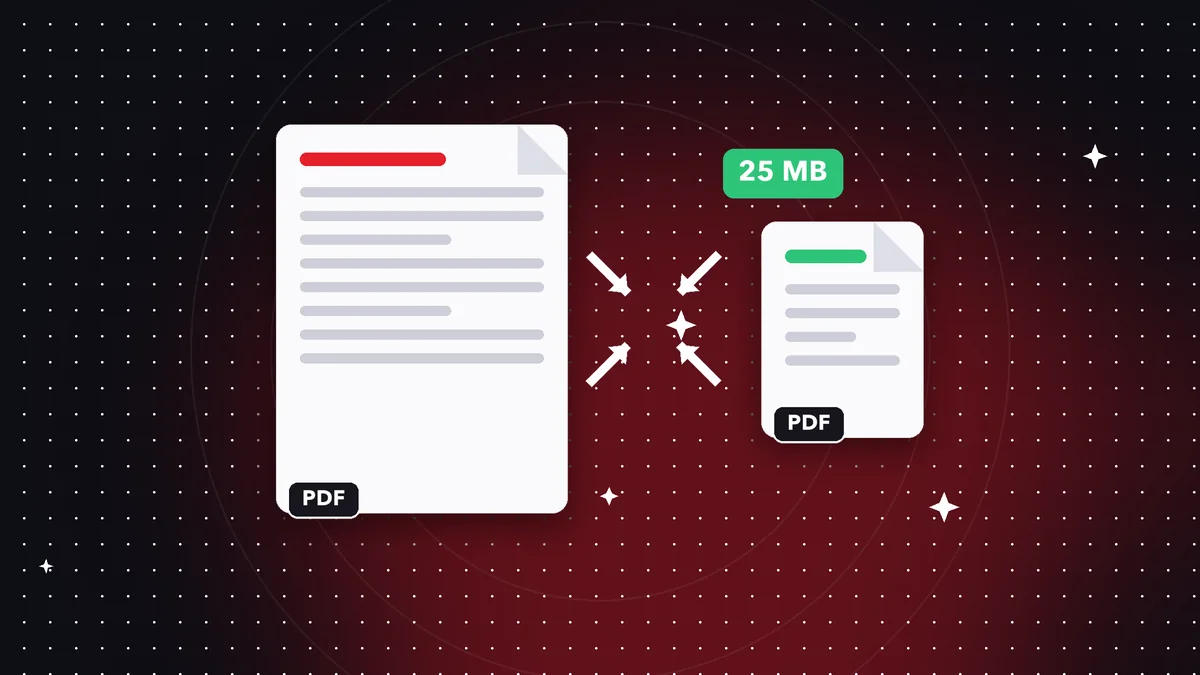

Try it now: Compress PDF
Choose your file and continue in the app. It is processed on your device, never uploaded to a server.
Why your email provider rejects the file
Every email service sets a cap on attachments. In many cases it is around 20 or 25 MB, though it varies by provider and account type, and business accounts sometimes have stricter limits. It's worth confirming yours before you start so you know what size to aim for.
There is a little-known detail: when you send an email, attachments are encoded and take up more than their real size. A 20 MB PDF can count as roughly 27 MB inside the message. So if the cap is 25 MB, aim for a file that is clearly under it, for example 15 or 18 MB.
Also, the limit applies to the whole message, not to each file. If you attach three 9 MB PDFs, you're already over the cap even though none of them looks huge. Add them all up before sending, along with any images or signatures embedded in the body of the email.
Find out first why it's so heavy
A text-only PDF weighs very little: a hundred pages can come in at a few hundred kilobytes. When a document reaches tens of megabytes, the cause is almost always images: high-resolution photos, floor plans, catalogs, or scanned pages saved as images at maximum quality.
A scan made at 600 dots per inch or a photo taken with your phone camera can weigh several megabytes per page. A presentation exported with lots of photos or an invoice with oversized logos has the same problem. Knowing where the weight comes from helps you decide how much to compress.
On the other hand, if your PDF has only a few pages and is still heavy, it may contain embedded fonts, layers or internal file attachments. Compression helps in that case too, although the savings will be smaller. Always compare against the original size to see whether it was worth it.
Step by step: compress it in Rayo PDF GO
1) Open the Compress PDF tool on the web (rayopdfgo.com/app, with a free account) or in the app on your phone or computer.
2) Select the file you want to send. You'll see its current size so you can compare afterward.
3) Choose the compression level. For email, a medium level is usually the best balance between size and readability. If you need to cut the size a lot, try a stronger one.
4) Run the compression and check the result: the tool shows you the new size. The process happens on your own device, so your document never travels to a server.
5) Save the compressed file under a different name, for example by adding “-light”, so you don't lose the original. Then attach it to the email and send.
How much to compress depending on the destination
Not every send requires the same thing. For a personal email with a 25 MB limit, compressing down to 10 or 15 MB is usually more than enough. For job application portals or official procedures that ask for a maximum of 1 or 2 MB, you'll need to be more aggressive and check carefully that the text is still legible.
If the recipient is going to print the document, keep more quality: compressing too hard makes photos and stamps blurry. If they will only read it on screen, you can afford heavier compression without anyone noticing, because screens don't need as much resolution as paper.
A good rule is to compress from less to more: start with a medium level, check the size, and zoom in on the hardest page, the one with small print or an important photo. If it reads well, great; if not, start over from the original with a milder level. Avoid compressing an already compressed file several times, because each pass degrades the images further.
If it's still too heavy: split it or share a link
Some documents don't fit even after compression: a complete scanned book, a catalog with hundreds of photos or a long case file. You have two options here. The first is to split the PDF into parts with the Split PDF tool, for example by chapters or page ranges, and send each part in a separate email.
The second option is to stop attaching and share a link from your cloud storage instead. It's convenient for very large files, but it means uploading the document to an outside service and setting the permissions correctly. If the content is sensitive, think about whether you prefer that option or splitting the file.
Combining both methods also works: compress first, and only if that isn't enough, split. That way you avoid sending ten emails when one would have done. Mention in the subject line how many parts you'll send, for example “Part 1 of 3”, so the other person knows to wait for the rest before processing your submission.
Common mistakes when shrinking a PDF
The first is compressing until the text becomes unreadable just to save a few megabytes. Before sending, open the result and read a page with small print. The second is overwriting the original: if something goes wrong, you can't start over. Always keep an untouched copy.
Another frequent mistake is renaming an image or Word file as if it were a PDF, or converting photos without adjusting their size. If your PDF is built from several photos, it's sometimes better to shrink them before assembling the document. Rayo PDF GO includes Compress image and Resize image tools that help at that stage.
People also forget to check the real limit. Some company mail servers reject messages smaller than those of personal accounts. If the email bounces again, read the error message: it usually states the maximum size accepted. And if the document has a password, remember that compression may require unlocking it first, which depends on your plan.
Privacy: what happens to your document
Many online compression sites require you to upload your file to their servers, which is risky if it's a contract, medical record, bank statement or ID document. Even if they promise to delete it afterward, your file has already left your control. It's worth asking yourself whether you really want to expose it.
In Rayo PDF GO, files are processed on your own device and are never uploaded to any server. You only need a connection to open the web page and create your free account. This applies both to the web and to the apps for iPhone, iPad, Android, Mac and Windows, which are in preparation or under store review.
Even so, before emailing sensitive documents, consider protecting them with a password, a feature available depending on your plan, and share the password through another channel, such as a separate message. Email doesn't encrypt each attachment by itself, and a protected PDF adds a useful layer if the message ever reaches the wrong person.
Compressing vs. other ways to cut the file size
There are other ways to slim down a PDF: re-exporting it from the original program at a lower quality, shrinking photos before inserting them, deleting pages you don't need, or removing annotations. All of them work, but they require having the source file, which you don't always have when you receive a PDF from someone else.
Compressing the final PDF directly is the most practical option when that's the only file you have. And if the weight comes from useless pages, like repeated cover pages or attachments the recipient doesn't need, you can combine compression with Delete pages. Often removing five pages saves more than any fine-tuning.
In the end, the best approach is to combine them: remove what's extra, compress what's left, and check readability. In that order you get the lightest file without sacrificing what matters. Next time you need to send a document in a hurry, you'll know exactly what to do and how long it will take, without depending on anyone else.
Frequently asked questions
How many MB can I send by email?
It depends on the provider: many accept between 20 and 25 MB per message, and business accounts may have a different limit. Because attachments are encoded and take up a bit more space, it's best to keep the file clearly under the cap.
Does compressing a PDF reduce text quality?
The text usually stays sharp; what gets reduced is the resolution of the images inside. That's why you should check a page with small print before sending it.
How do I email a 50 MB PDF?
Compress it first. If it's still large, split it into parts with Split PDF and send several emails, or share a link from your cloud storage.
Can I compress a PDF from my phone?
Yes. Rayo PDF GO is designed for both phone and computer, and processing happens on your device. The apps are in preparation or under store review; in the meantime you can use the web version.
Is my file uploaded to the internet when I compress it?
No. Everything is processed on your device and files are never uploaded to any server.
Is it free to compress a PDF?
It depends on the plan. Some tools have limits on the free plan and Premium removes them. Check the details inside the tool.
Keep reading
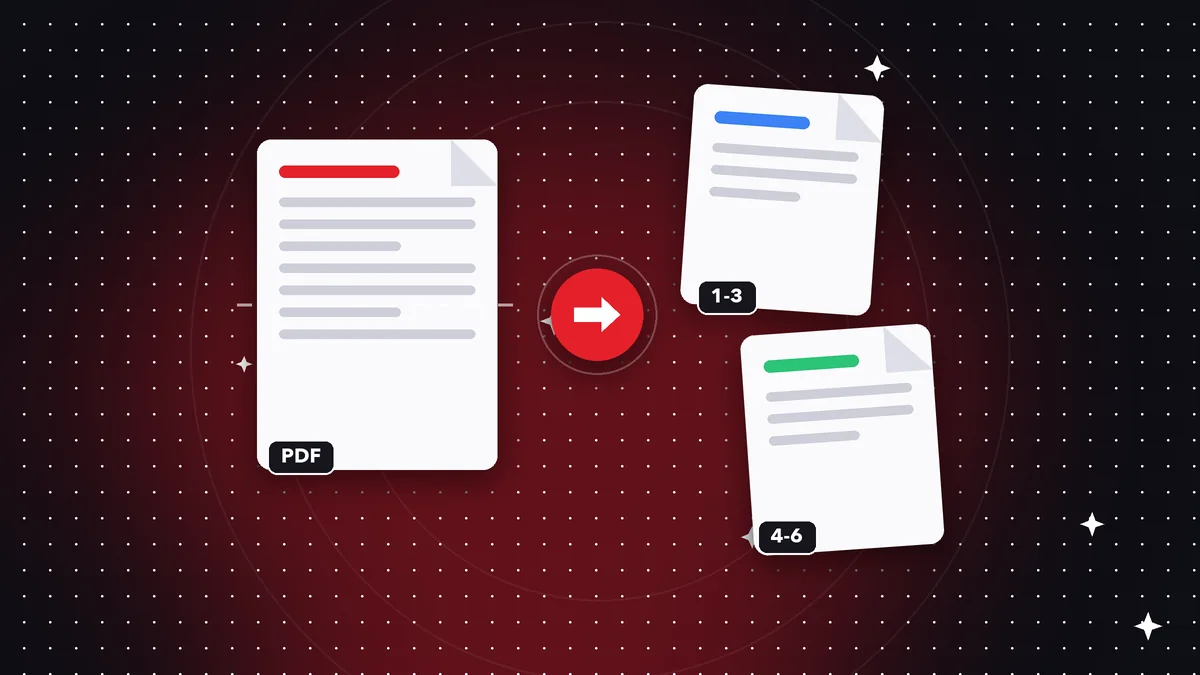 GuideHow to Split a Large PDF Into Parts (by Page or Range)
Learn how to split a PDF into several parts by page ranges, chapters or size, with no quality loss and no uplo…
Read article ›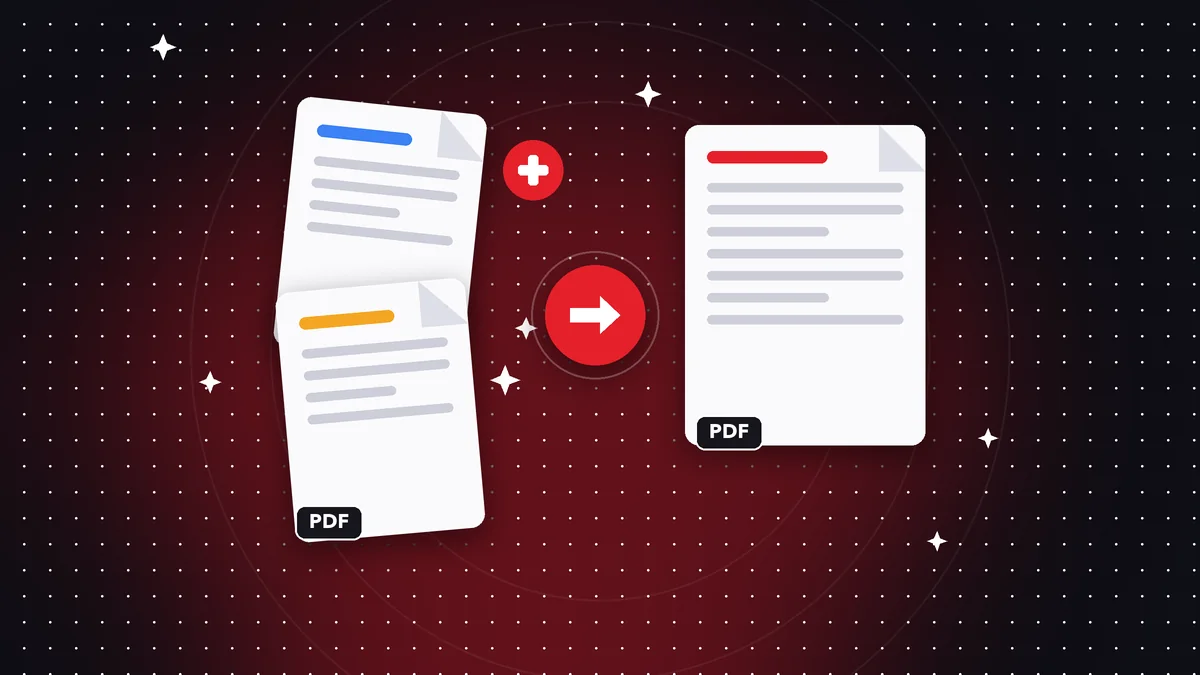 GuideHow to Prepare Your Resume as a PDF for Job Applications
Turn your resume into a clean, lightweight PDF: merge certificates, organize pages and avoid the mistakes that…
Read article ›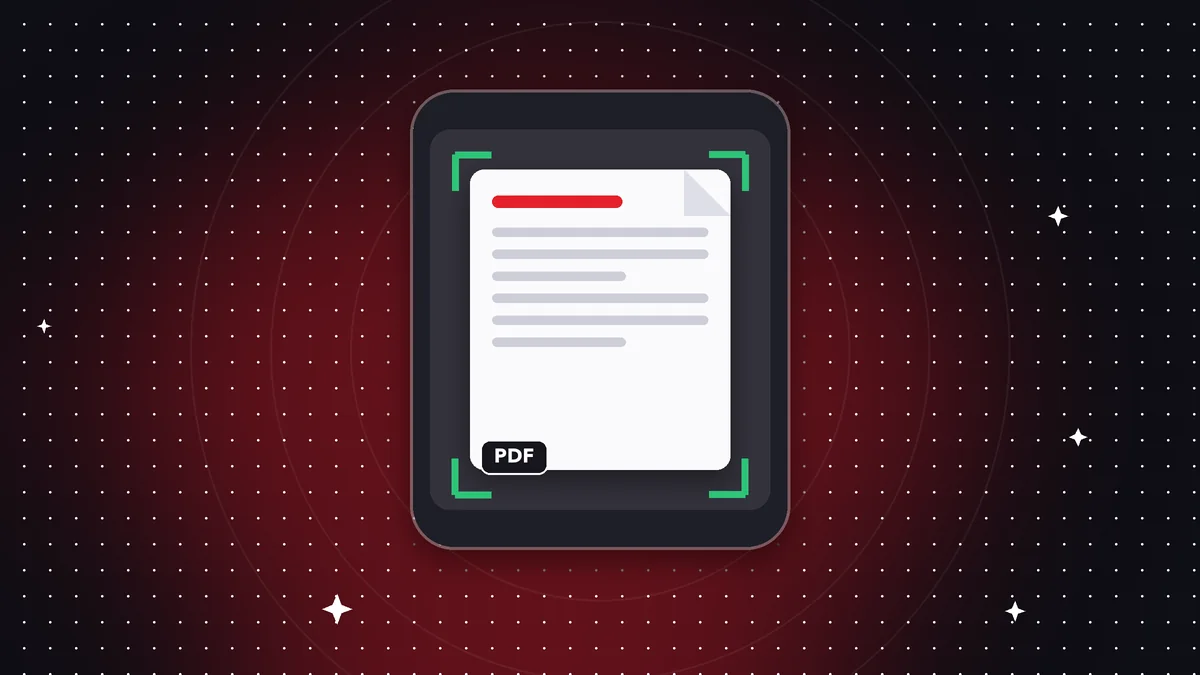 GuideHow to Scan Multiple Pages Into One PDF With Your Phone
Scan multi-page documents with your phone and save them as one sharp, well-ordered PDF. Tips on lighting, fram…
Read article ›