 Rayo PDF GO
How to Prepare Your Resume as a PDF for Job Applications
Your resume is the first thing a recruiter sees, and often the only thing. A badly named file, with pages out of order or too heavy, can cost you the opportunity before anyone reads your experience. Preparing the PDF carefully doesn't take professional design, just order and a few concrete steps. Here I explain how to export, merge your resume with certificates and letters, adjust the file size, name the file and check the final result, all in Rayo PDF GO and without uploading your personal data to any server.
Try it now: Merge PDF
Choose your file and continue in the app. It is processed on your device, never uploaded to a server.
Why PDF is the right format
A Word file looks different depending on the program, the version and the device where it's opened. A table shifts, a font changes, a margin overflows. PDF freezes the design: what you see is what the recruiter will see, on a phone, on a computer or in an applicant tracking system.
PDF also prevents accidental edits and doesn't show tracked changes or comments you forgot to delete. Even so, many job portals read the text in the file to rank candidates, so your PDF should keep selectable text and not be a photo of your resume.
The exception is when the job posting explicitly asks for another format, such as Word or its own form. In that case, follow the instructions to the letter. If it doesn't say anything, PDF is the safest option and the one that best conveys organization, care and professionalism.
Before exporting: what your resume should include
Review your document the way a recruiter in a hurry would: a large, clear name, up-to-date contact details, a short summary, experience in reverse chronological order, education and skills. One to two pages is usually enough. Avoid big photos, loud colors and graphics that add no information.
Make sure your email address is professional and that your phone number includes the right country or area code if you're applying outside your city. Write dates consistently and proofread by reading aloud. A mistake in a previous employer's name or in your own job title costs you more than you'd imagine.
Export from your editing program with the “Save as PDF” or “Export to PDF” option. If your resume is in Word, you can also convert it with the Office to PDF tool in Rayo PDF GO. Then open the result and read through it completely before sending it.
Merging your resume with certificates and letters
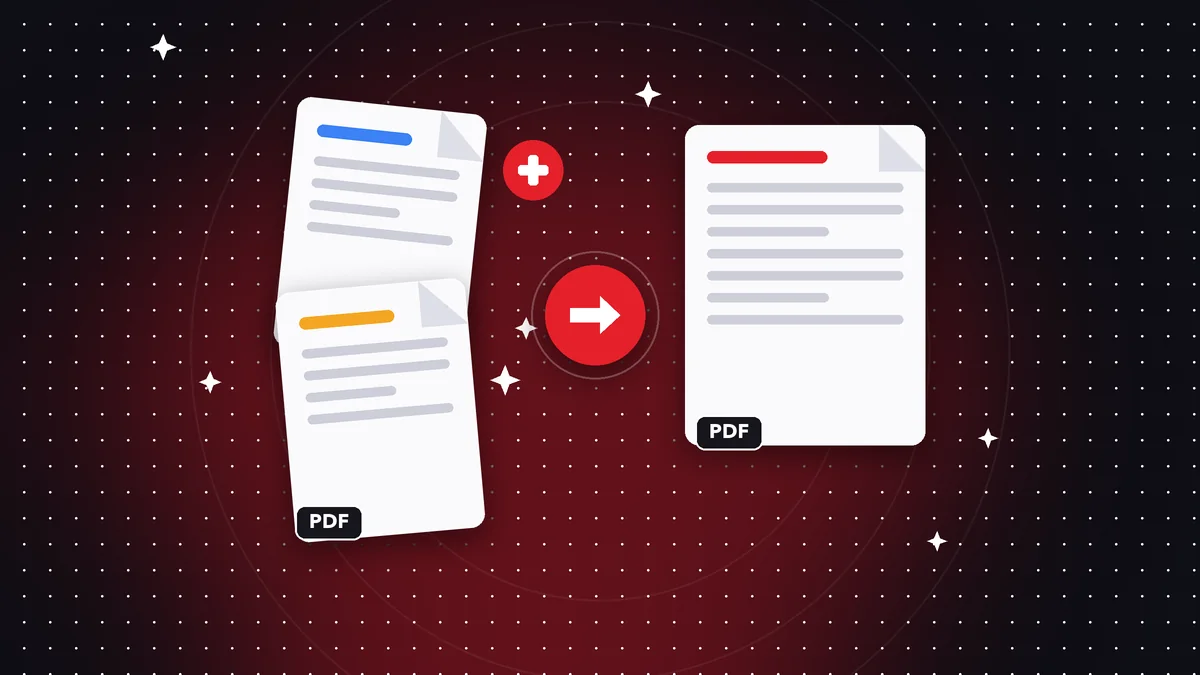
Many job calls, especially in the public sector, universities and competitions, ask for a single file with your resume, ID, degrees, employment certificates and letters. Sending ten separate files makes the review harder and increases the chance that something gets lost. Merging them into one PDF solves the problem.
1) Open the Merge PDF tool at rayopdfgo.com/app or in the app. 2) Add your resume first and then the supporting documents. 3) Put them in a logical order: identification, education, experience, references. 4) Merge and save the result. The free plan lets you merge up to 3 PDFs at a time; for more files, the Premium plan removes that limit.
If you have more than three documents and don't want Premium, you can merge them in batches: first three, then the result with two more, and so on. It's slower, but it works. If you need to change the page order after merging, the Organize PDF tool is available depending on your plan.
Supporting documents that are photos: convert them first
It's common for certificates, diplomas or your ID to be photos taken with your phone. A JPG file can't be merged directly with a PDF: convert it first. With Images to PDF you can turn one or several photos into a document, and then merge it with the rest of your papers.
For better legibility, use Scan to PDF from the phone app instead of a regular photo. Scanning lightens the background, straightens the paper and strengthens the text. Watch the lighting and avoid shadows or glare, especially on documents with stamps and signatures, which are the ones that suffer the most.
Check that each document is complete and the right way up. If a page came out sideways, use Rotate PDF. If a sheet has extra borders, the Crop PDF tool helps you clean it up. It's worth spending a minute on each page: the recruiter will judge your organization by what they see.
File size, name and presentation
Many portals limit the size to 2, 5 or 10 MB. After merging, check how much the final file weighs. If it's over the limit, use Compress PDF at a medium level and confirm that stamps, signatures and numbers are still legible. A resume with certificates can top 20 MB if they come from raw photos.
The file name signals professionalism. Avoid “resume final final 2.pdf” or “scan0045.pdf”. Prefer something like “Maria-Gomez-Resume.pdf”: no accents, no double spaces and with your full name. If the posting specifies a particular format, use it exactly, because some systems automatically filter out names that don't match.
Also check the metadata and the first page: it should open on your resume and not on a loose certificate. And if the document has many pages, consider adding page numbers with the corresponding tool. It helps the recruiter find their place when discussing your application with others.
Mistakes that get you rejected
One of the most common is sending your resume as an image: the system can't read the text and your profile drops out of keyword searches. Another is a corrupted file or one with cut-off pages, the result of a bad conversion. Always open the final PDF before sending it, ideally from another device.
Disorder also counts against you: certificates out of order, repeated pages, crooked photos or documents from other applications included by mistake. Before sending, go through the file from start to finish. A typical slip is leaving someone else's certificate or an old draft inside the package, which is impossible to hide.
Finally, be careful with the data you share. A public resume with your full ID number, exact address and date of birth can make identity theft easier. Include only what's needed for the stage of the application and keep the rest for when there's a concrete offer or you're formally asked for it.
Privacy: your data is yours
A resume with certificates gathers exactly the type of data you shouldn't give away: ID, phone, address, work history and education. Many free tools ask you to upload the file to their servers to process it, and it isn't always clear what they do with it afterward.
Rayo PDF GO processes everything on your device: files are never uploaded to any server. To use the web version you need a connection to load the page and create the free account; in the apps for iPhone, iPad, Android, Mac and Windows, which are under review or in preparation in the stores, processing is also local.
If you're going to send very sensitive documents, you can protect them with a password, a feature available depending on your plan, or redact data the recipient doesn't need, such as an account number visible on a receipt. Always think about what information the other party really needs to make a decision.
Alternatives and wrap-up
You can prepare your resume with online templates or ask a friend to lay it out, and that's fine. What matters is the last step: a final PDF that is tidy, lightweight, legible and well named. You control that step, and it doesn't depend on having a sophisticated design.
Sum up your routine like this: review the content, export to PDF, convert the photos of supporting documents, merge them in logical order, compress if needed, name the file well and open it once more before sending. It's ten minutes that can make the difference between being read and ending up in the rejected pile.
Keep a final copy in your email or in an applications folder, with the date you sent it in the name. That way, when you get called for an interview, you'll know exactly which version the company received and can prepare consistently, without surprises or contradictions between what you sent and what you say.
Frequently asked questions
How do I merge my resume with my certificates into one PDF?
Use Merge PDF, add your resume first and then the supporting documents in the order you prefer. If they are photos, convert them first with Images to PDF.
How big should a resume PDF be?
It depends on the portal, but many ask for between 2 and 10 MB. If yours is larger, you can compress it and check that the text is still legible.
Is it better to send a resume as a PDF or in Word?
PDF keeps the layout on any device, so it is usually safer. If the job posting requires another format, follow its instructions.
Can I merge more than 3 PDFs for free?
The free plan lets you merge up to 3 PDFs at a time. You can merge them in batches or use Premium to remove the limit.
Are my personal documents uploaded to the internet?
No. Everything is processed on your device and files are never uploaded to any server.
Keep reading
 GuideHow to Scan Multiple Pages Into One PDF With Your Phone
Scan multi-page documents with your phone and save them as one sharp, well-ordered PDF. Tips on lighting, fram…
Read article › GuideHow to Convert Screenshots to a Single PDF File Fast
Turn screenshots into one tidy PDF from your phone or computer: order, size, file weight and tips for chats, r…
Read article › GuideHow to Organize Your Digital Documents as PDFs (Guide)
Organize your digital documents with clear names, logical folders and PDFs with pages in order. A simple metho…
Read article ›