 Rayo PDF GO
How to Split a Large PDF Into Parts (by Page or Range)
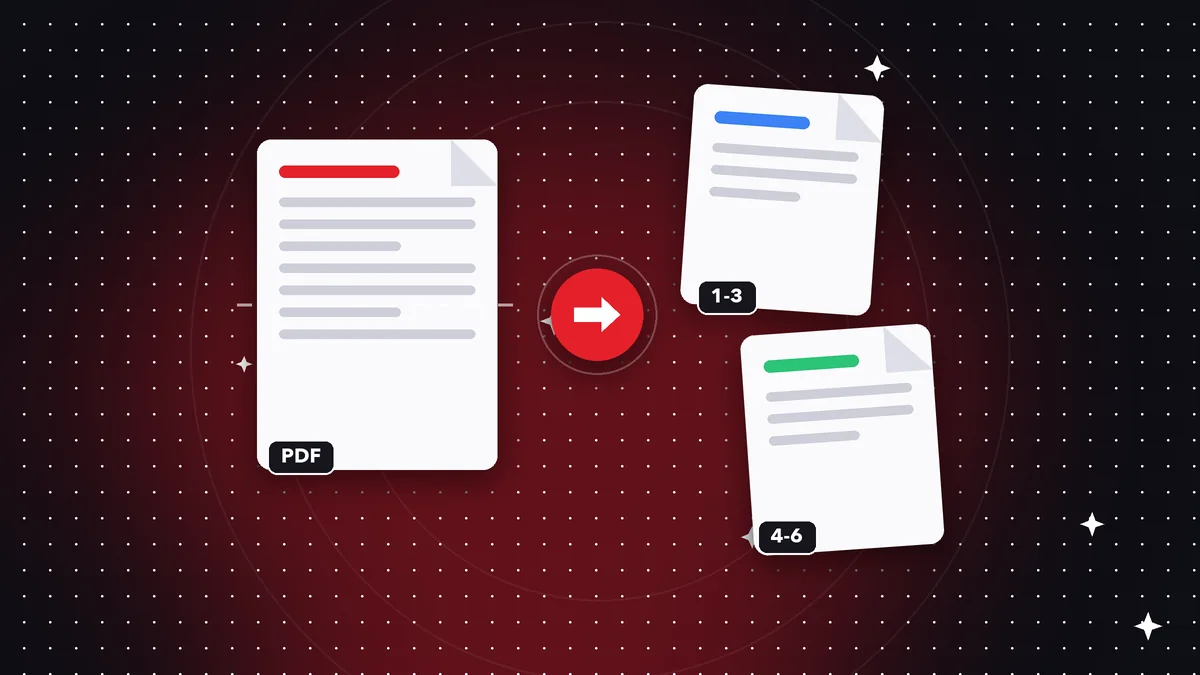
A 300-page PDF doesn't work the same for everyone: your boss only needs chapter three, the official procedure asks only for the signed pages, and your email rejects the full file. Splitting the document solves all three cases. It's one of those simple tasks that become a headache without the right tool. Here you'll see when it makes sense to split, how to choose the right ranges, how to do it step by step in Rayo PDF GO, and which mistakes to avoid so you don't lose pages or order.
Try it now: Split PDF
Choose your file and continue in the app. It is processed on your device, never uploaded to a server.
When it makes sense to split a PDF
There are some very clear situations. A long book or manual you want to share by chapters. A case file with mixed documents that you have to hand in separately, such as your ID in one file and your certificates in another. A results report where each department should only see its own section. A file too heavy for email or for a platform that limits file size.
Splitting also helps when you receive a scan with several documents in a row, because the office scanner lumps everything into a single PDF. Instead of asking the sender to redo the process, you separate it yourself in seconds and each document is ready to file under its own name.
On the other hand, if all you want is to remove a few pages and keep the rest in one file, there's no need to split. It's more direct to use Delete pages. Splitting is the right tool when you need two or more output files, not one shorter file.
Ways to split: by ranges, by chapters or by single pages
The most common way is by ranges: you specify, for example, pages 1 to 10, 11 to 25 and 26 to the end. Each range produces a file. It's ideal when you know in advance where each part starts and ends, as in a report with a table of contents.
Another way is to extract specific pages, for example pages 4, 9 and 15, when you only need a few loose sheets and not a continuous sequence. A third is to cut the document into equal blocks, such as every 20 pages, useful for dividing work among several people or respecting a size limit per file.
Before choosing, open the PDF and look at the table of contents or scroll through the thumbnails. Write down on paper the start and end page numbers of each part. Spending two minutes on that map saves you from redoing the work, especially if the document has a cover or Roman-numeral pages that throw the visible numbering off from the real one.
Step by step: split a PDF in Rayo PDF GO
1) Go to rayopdfgo.com/app and sign in with your free account, or open the app on your phone or computer.
2) Choose the Split PDF tool and select the file you want to separate.
3) Define how you want to cut it: enter the page ranges or the pages you need. Make sure the numbers match the real position within the file and not the printed numbering.
4) Run the split. Rayo PDF GO generates the files on your own device, without sending them to any server.
5) Check each part: open the first and last page of each file to confirm they start and end where you expected. Then save them with clear names, like “contract-part-1” and “contract-part-2”. Some features have limits on the free plan; the details depend on your plan.
Real-life cases: paperwork, school and work
A student receives the complete PDF of a 180-page study guide, but the professor will only test modules two and three. They split the file and share those parts with their group, so everyone studies the same material without carrying the entire document on their phone and without wasting time hunting for the page.
Someone applying for a loan needs to send the bank only the last page of a signed contract and the two payment receipts, but they're all in one scanned file. They extract those pages, save them as one file, and avoid sharing information nobody asked for, which is a good idea for privacy.
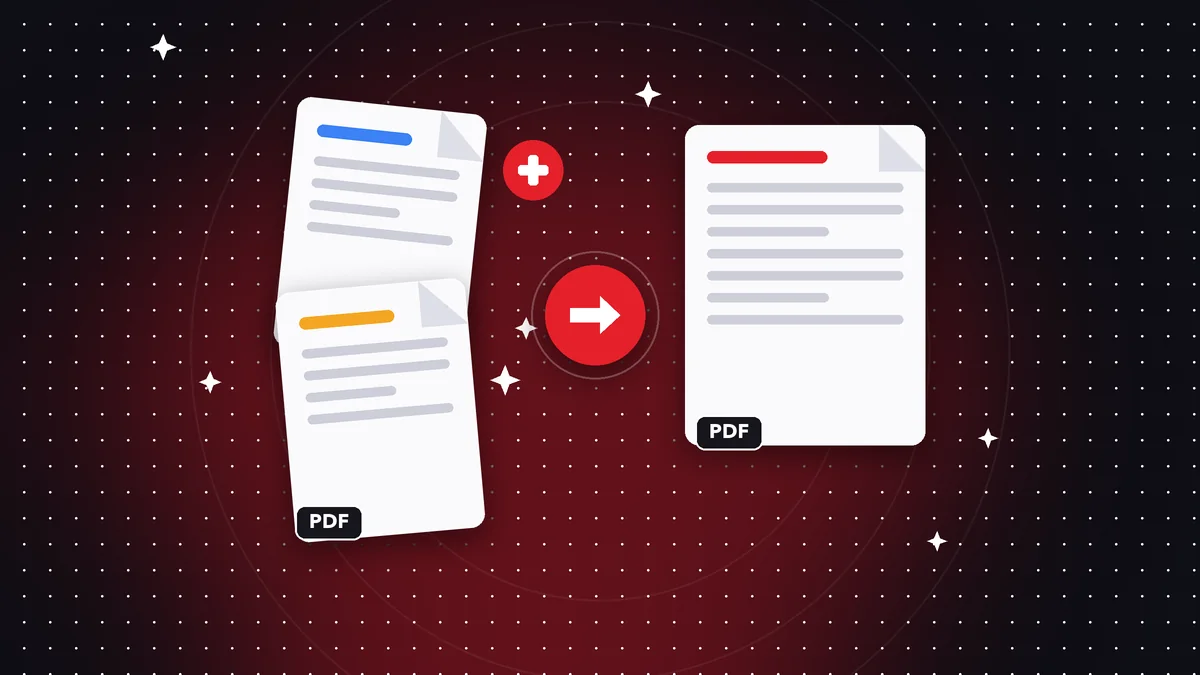
A small business receives a single PDF from its accountant with tax returns for several months. They split it by month, name each file with the date and file them in folders. If they later need to put them back together for an audit, they can do it with the Merge PDF tool, which works in the opposite direction.
Common mistakes and how to avoid them
The most frequent mistake is confusing the printed page numbers with the real ones. If the document has a cover and a table of contents page, the page that says “1” may actually be the third in the file. Always use the number shown by the viewer, not the one printed at the bottom of the page.
Another mistake is leaving out a page because of a badly written range, for example cutting at 25 and starting the next one at 27. To avoid it, write the ranges consecutively and check at the end that the total pages of all the files match the total of the original.
It's also common not to keep the original. Splitting doesn't modify your input file, but if you accidentally overwrite something or move folders around, you're left without a backup. Keep the complete PDF in a safe place and work with copies. And if one of the parts looks odd, the original file may have errors: try Repair PDF.
Quality, names and file order
Splitting a PDF doesn't recompress the pages: the content of each part is the same as the original, with the same sharpness in text, images and stamps. Unlike compressing, there is no quality loss here, just a reorganization into separate files. That makes it safe for documents that will be printed or signed.
What you should take care of is naming. Use names that sort themselves in the folder: “01-introduction”, “02-contract”, “03-appendices”. Avoid accents, double spaces and odd symbols if you're going to upload them to official platforms, because some reject special characters in the file name.
If you later need to reorder pages within one of the parts, you can do it with Organize PDF, and if you need to renumber, there's the Page numbers tool. For some of these features, such as Organize PDF, Premium may be required depending on your plan. Check in each tool what your plan includes before starting the job.
Privacy when splitting sensitive documents
The PDFs that get split the most are often the most sensitive: contracts, medical records, bank statements, ID documents and case files. Uploading them to an unknown site to split them exposes personal information unnecessarily, even when the service promises to delete the files afterward.
Rayo PDF GO processes everything on your device. Files are never uploaded to any server; you only need a connection to load the web page and create your account. In the apps, processing is also local. That way you can separate a confidential document without wondering where a copy ends up or who might see it.
Still, be careful with what you share afterward. If you split a file to hand over only one part, check that the resulting part doesn't include pages with extra data, such as an appendix with your address or account number. And if you need to hide information, the Redact PDF tool lets you do it permanently, although it requires a Premium plan.
Splitting vs. other options
Some people print only certain pages to PDF from their viewer, and that works for simple cases, but it recompresses the content, can change the page size and doesn't generate several files at once. Splitting with a dedicated tool is faster and keeps quality intact.
Others turn to heavy desktop programs that take up space and require installation. For a task of a few minutes, it isn't worth it. With a tool that opens in the browser or in a lightweight app, you have what you need at hand and without complicated setup, even from your phone when you're away from your computer.
The ideal combination depends on the goal: split to distribute, compress to send, merge to put it back together. If you get used to that trio, handling any long document stops being a problem and becomes a routine of a few clicks, with tidy results ready to share with whoever needs them.
Frequently asked questions
How do I split a PDF into several pages for free?
Open the Split PDF tool, choose the file and define the page ranges. Some tools have limits on the free plan, so the exact scope depends on your plan.
Does splitting a PDF reduce its quality?
No. Each part keeps the same content and sharpness as the original, because the pages are not recompressed.
Can I split a PDF from my phone?
Yes, with the web version or with the Rayo PDF GO apps, which are in preparation or under store review. Processing happens on your device.
How do I extract just one page from a PDF?
Enter that page as a single range in Split PDF and you'll get a file with only that sheet.
Is my document uploaded to a server when I split it?
No. Everything is processed on your device and your files are never uploaded to any server.
Keep reading
 GuideHow to Prepare Your Resume as a PDF for Job Applications
Turn your resume into a clean, lightweight PDF: merge certificates, organize pages and avoid the mistakes that…
Read article › GuideHow to Scan Multiple Pages Into One PDF With Your Phone
Scan multi-page documents with your phone and save them as one sharp, well-ordered PDF. Tips on lighting, fram…
Read article › GuideHow to Convert Screenshots to a Single PDF File Fast
Turn screenshots into one tidy PDF from your phone or computer: order, size, file weight and tips for chats, r…
Read article ›