 Rayo PDF GO
How to Edit a Scanned PDF: OCR, Text and Annotations
You open a PDF, try to select the text and can't: it's a scan. That changes how you edit it, and it pays to choose the right path for what you need to do.
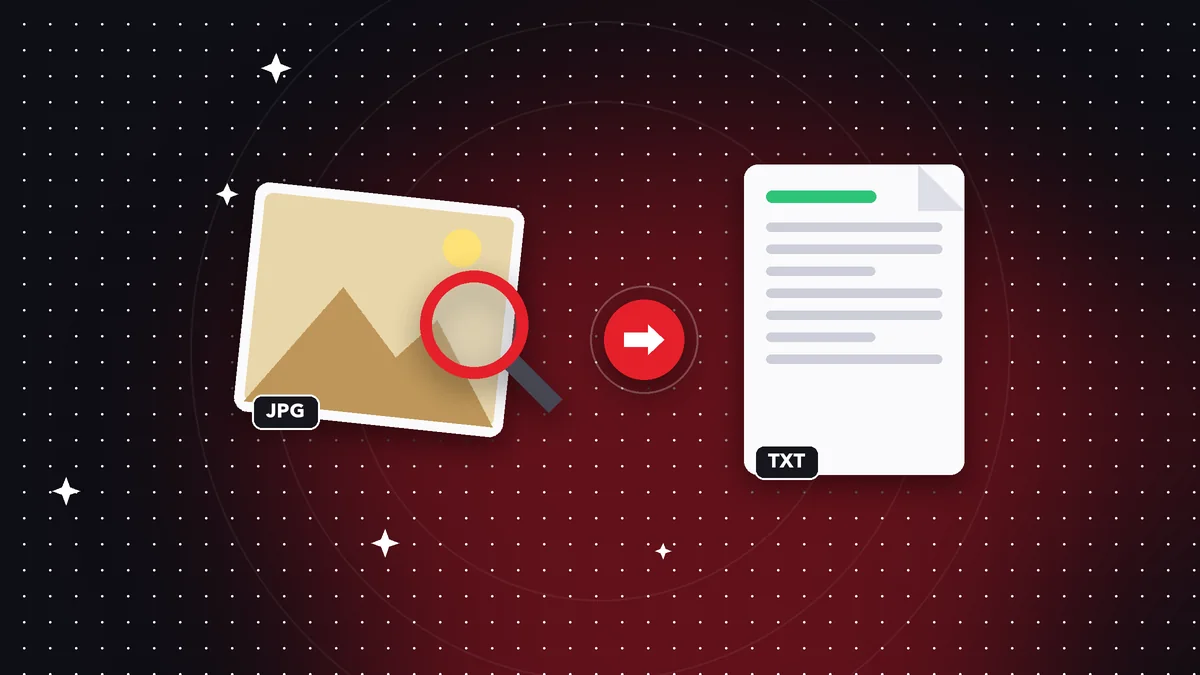
Three possible paths
If you only need to fill in a form or add details, type text on top with the editor: nothing needs to be recognized.
If you need to search or copy the text, use OCR. And if you want to rewrite the document, recognize the text and convert it to Word.
OCR in Rayo PDF GO
OCR recognizes the text on the pages and creates a searchable PDF. It's available in the iPhone, Android, Mac and Windows apps; not yet in the browser.
The best results come from sharp, straight scans with good light. Always review the recognized text.
Quality tips
Scan at 300 dpi at minimum, avoid shadows and use the document filter. If the scan is crooked, straighten it first with rotate or crop.
Do it on your device: your files are never uploaded to any server.
See OCR for scanned PDFs
Frequently asked questions
Can I edit the original text of a scan?
Not directly: it first has to be recognized with OCR.
Does OCR work in the browser?
For now only in the phone and desktop apps.
Is it free?
OCR is a Premium feature.
Keep reading
 GuideHow to Convert Word to PDF Without Microsoft Office Installed
Turn Word, Excel, or PowerPoint files into PDF from your phone or browser, with no Office installed and no upl…
Read article › GuideHow to Delete Pages from a PDF (and Extract Only the Ones You Need)
Remove blank pages, covers or attachments from a PDF in seconds, or extract only the pages you want to share, …
Read article › GuideHow to Flatten a PDF So No One Can Edit Your Signatures and Forms
What flattening a PDF means, when to do it, and how to lock annotations, comments, and form fields without upl…
Read article ›