 Rayo PDF GO
How to Add Text to a PDF Without Changing Its Layout
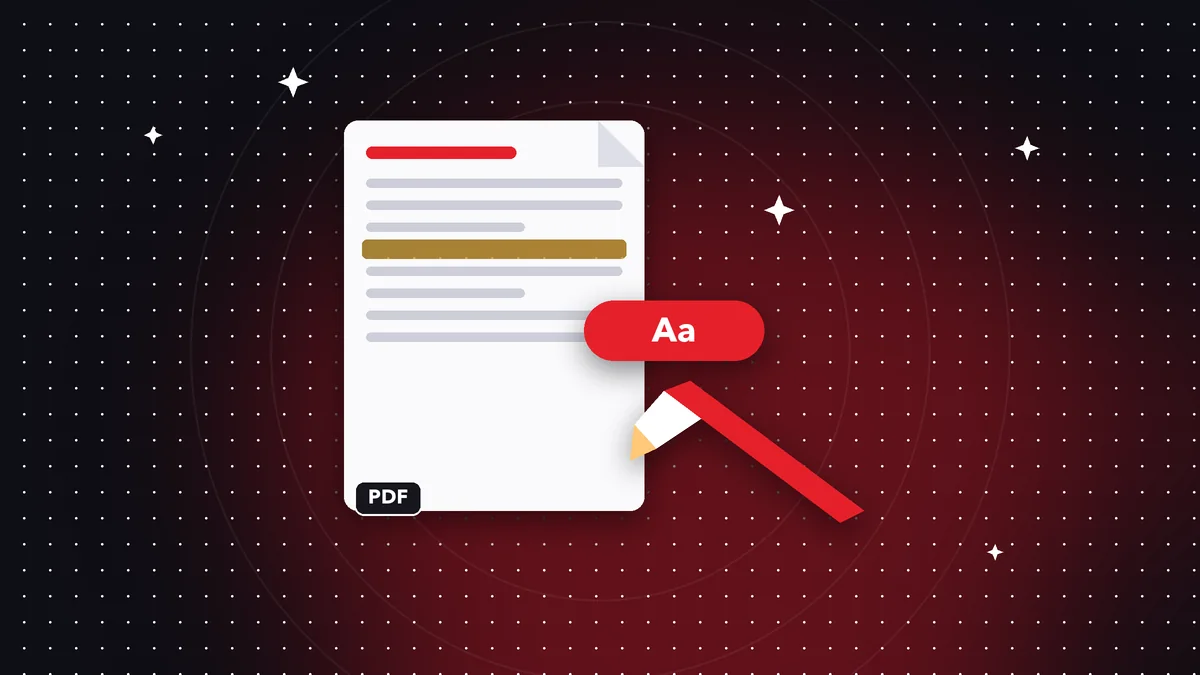
Sometimes a PDF does not need to be rewritten, just completed: a date, a name, a contract number, a clarification or a note for the recipient is missing. Doing it does not require opening Word, converting the document or breaking the layout. With Rayo PDF GO you can place text anywhere on the page, choose size and color, move it precisely and save the result in a few minutes. This guide explains the process, how to make it look professional and when another route makes more sense, such as converting the PDF to Word.
Try it now: Edit PDF
Choose your file and continue in the app. It is processed on your device, never uploaded to a server.
When adding text is enough and when it is not
Adding text over a PDF is the ideal solution when the document is almost finished: filling in details on a template, writing the date on a letter, putting in an order number, adding a clarifying sentence or labeling an image. The original layout is untouched and the result looks a lot like it was typed on an old-school typewriter.
It is not the best option when you need to rewrite whole paragraphs, change the order of a table or modify text that already exists in the document. Those edits require text reflow, something a PDF does not do naturally because every line is fixed in position. In that case, use PDF to Word, which is a Premium feature, edit in Word and export back to PDF.
A practical way to decide: if your change fits in a blank space or a margin, add text. If you have to delete and replace, or if the change moves things around it, convert. Knowing this difference saves a lot of frustration, especially with carefully designed documents such as brochures, certificates or invoices.
Step by step: adding text to a PDF in Rayo PDF GO
1) Open rayopdfgo.com/app with your free account, or the app on your iPhone, iPad, Android, Mac or Windows. Go to Edit PDF and select the file. You will see the pages as thumbnails or in a large view, depending on the device.
2) Choose the text tool and tap or click the exact spot on the page where you want to write. An editable box appears. Type your content and, if needed, drag the box to place it precisely, for example over a dotted line or in a gap in the template.
3) Adjust the font size, color and style. A useful trick: zoom in to align precisely and zoom back out afterward to check that the whole thing looks natural. Repeat the process for each additional detail you want to include.
4) Review all the pages and save the result. Use a name different from the original's, such as final-letter.pdf, so you can go back if you find a mistake later.
How to make the added text look like part of the document
The difference between text that looks pasted on and text that looks original comes down to three details: size, color and alignment. Start by looking at the font size of the nearby text. If the document uses an 11-point body, your note at 18 will stand out like a patch. Keep similar proportions, unless you want it to stand out on purpose.
Color gives it away too. Pure black on a document where the text is dark gray is noticeable; choose a very close shade. For filling in form fields, dark blue is a well-known convention that signals “filled in afterward,” and anyone understands it. For corrections or comments, you can use red, which communicates that it is not part of the original text.
Alignment is the subtlest: make sure the baseline of your text is parallel to the line. If the page was scanned at a slight tilt, your horizontal text may look crooked. In that case, straighten the document first before writing on it, using page rotation or, if needed, scanning it again with better framing.
Real cases: where adding text helps most
Paperwork is the classic use: completing a form letter with your details, adding the case number to a document you are asked to resend, noting the payment reference on a receipt or including the address on an application that comes with blank spaces. It is much faster than reprinting and filling it out.
Freelancers and small businesses use it to personalize templates: putting the client's name on a PDF quote, adding a last-minute payment condition, stating the expiration date of an offer. Teachers add grades and comments to assignments turned in as PDFs without having to convert them.
It also helps with accessibility and quick translations: adding an explanatory note next to a chart or writing a short translation of a field for someone who does not speak the language of the original form. And on work teams, for leaving instructions on a specific page, such as “use this image on the cover.”
Common mistakes when adding text and how to avoid them
The most common mistake is accidentally covering existing text. When you type over an occupied area, the letters overlap and the result is confusing. Before placing the box, zoom in and confirm the space is really free. If you need to replace a piece of information, the right approach is to edit the original content, not to type over it.
Another mistake is using a font so small to make it fit that it becomes unreadable when printed or when viewing the PDF on a phone. It is better to shorten the content or continue in a separate note than to force a tiny size. Text under 8 points is usually hard to read on small screens.
A third slip is forgetting accents and special characters when typing on keyboards that switch languages. Check that words have their accents and that characters like ñ appear correctly, especially in proper names and addresses. Finally, do not overwrite the original file: always saving under a different name gives you a safety net if you change your mind.
Text, shapes and images: combining editing tools
Edit PDF is not limited to text. You can combine a text box with a shape to create an improvised “PAID” or “COPY” stamp, mark with a rectangle the area a note refers to, or add an image such as a logo or a signature. Having everything in one tool saves you from switching apps and reduces the risk of losing quality.
If the document will pass through several hands and you do not want it altered, flatten it at the end: the text and shapes merge with the page and stop being editable objects. If you need every sheet to carry a visible “draft” or “confidential” mark, the Watermark tool does it across the whole document at once, a feature that may be Premium depending on your plan.
For long documents, the Page numbers tool adds numbering automatically, so you do not have to type each number by hand on every sheet. Choosing the right tool for each task keeps the result tidy and keeps the work from multiplying.
Privacy, quality and alternatives
Rayo PDF GO processes the file on your device: it is not uploaded to a server, neither during editing nor when saving. That matters when you add personal data to a document, such as an ID number, bank account or address. With other online services, your file travels to someone else's server and it is not always clear how long it stays there.
Other alternatives are opening the PDF in a word processor, editing it and exporting again, which can mess up the layout, or printing and writing by hand, which takes time and paper. Editing directly on the PDF preserves the look and is the fastest when the change is small. If the original document is in Word, it is always better to fix the source file and export again.
Before sending, open the final PDF in another reader, preferably on your phone, and check that everything appears where it should. It is a thirty-second check that spares you the embarrassing “I forgot a detail” email. If the file is large, compress it before sending.
Frequently asked questions
How can I type on a PDF?
Open the file in Edit PDF, choose the text tool, tap the place where you want to write and type. Then adjust size, color and position, and save the document under a different name.
Can I edit the text that is already in the PDF?
Adding text is easy, but rewriting existing content is limited because a PDF fixes every line in place. For big changes, convert the PDF to Word, edit it and export it again.
How do I keep the added text from standing out?
Use a size and color similar to the nearby text, align it with the line and zoom in while placing it. Check the result in a full view at the end.
Can I add text to a PDF from my phone?
Yes. With the app for iPhone, iPad or Android, or from your phone's browser, you can add text boxes and save the edited PDF.
Does the PDF quality change when I add text?
It should not. The text is added as a new element and the rest of the page stays the same. If you flatten the document at the end, everything is fixed on the same page.
Keep reading
 GuideHow to Insert an Image or Logo in a PDF, Step by Step
Add a logo, signature or photo to a PDF: size, position, transparent background and file weight. A practical g…
Read article › GuideHow to Compare Two Versions of a PDF and See the Changes
Find out what changed between two versions of a PDF: contracts, quotes or reports. Step-by-step method, limits…
Read article › GuideHow to Crop PDF Margins and Remove Extra Borders Fast
Remove white margins, dark scan borders or extra areas from a PDF. Steps, printing tips and the mistakes to av…
Read article ›