 Rayo PDF GO
How to Crop PDF Margins and Remove Extra Borders Fast
A PDF with huge margins looks small on a phone, wastes paper when printed and forces you to zoom in to read it. A scan with black borders or scanner leftovers looks sloppy. Cropping the pages fixes both problems: you remove what is extra, make better use of the space and end up with documents that are easier to read. In this guide you will see how to crop PDF margins with Rayo PDF GO, how to decide how much to remove and how to keep the crop from eating important content.
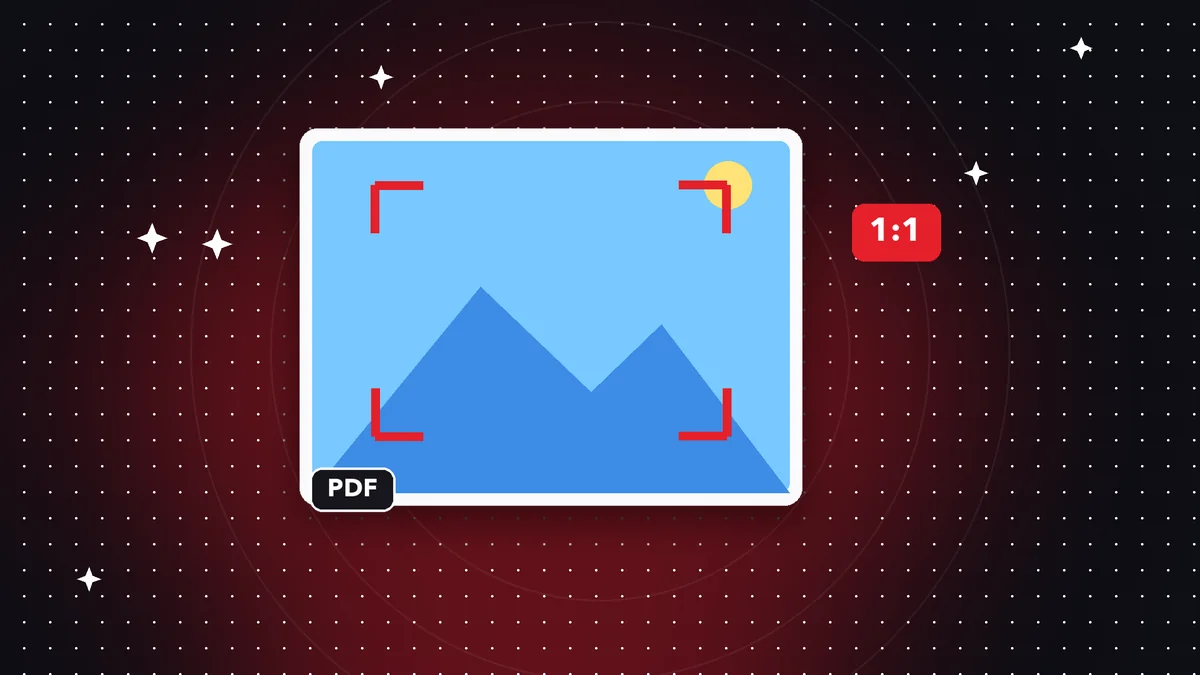

Try it now: Crop PDF
Choose your file and continue in the app. It is processed on your device, never uploaded to a server.
What cropping PDF margins is for
The number one reason is reading on small screens. A PDF designed for letter or A4 paper with 1.2-inch margins shows tiny text on a phone, because almost a third of the page is empty border. When you crop, the content takes up more of the screen and reads at a larger size, with no need to pinch or scroll sideways.
The second reason is saving when printing. If you print manuals, notes or presentations with lots of margin, you can crop them so the content fills more of the sheet, or so you can fit more pages per sheet. The third is visual cleanliness: scans often come with black shadows on the edges, scanner lines or the fingers that held the sheet, and cropping them out leaves a neater document.
You also crop to isolate part of a page, such as a table or a chart, so the rest does not appear. For example, a receipt where only the amount should be visible, or a page with a header that no longer applies. It is a quick adjustment that improves presentation without rebuilding the document.
Step by step in Rayo PDF GO
1) Open rayopdfgo.com/app with your free account, or the app on your device, and go to the Crop PDF tool. Select the file; the first page will appear so you can define the area to keep.
2) Adjust the crop frame by dragging the edges or corners until it encloses only the content you want to keep. Zoom in to see the edge areas in detail, especially where there are page numbers, footers or notes, which are easy to cut off without noticing.
3) Decide whether to apply the same crop to every page or only some. In uniform documents, such as reports or books, a single crop for the whole file is usually the most practical. In mixed documents, work in sections.
4) Apply the crop, review the result page by page and save the file under a different name, for example cropped-manual.pdf. That way you keep the original in case you need to adjust the margin later.
How much to crop: finding the sweet spot
The practical rule is to leave a small cushion of about a quarter to a half inch around the text. Cropping flush gives a cramped feeling and also risks cutting off part of a letter, a page number or a footnote on a sheet whose content sits slightly closer to the edge.
Before applying it to the whole document, check several different pages: the first, one from the middle, one with tables and the last. Documents almost never have their content in exactly the same position on every sheet. If there is a page with a wider header or an image that reaches the edge, choose the crop based on the most demanding page.
If the document is for printing, keep a larger safety margin: many printers do not print in the last few millimeters of the edge and can cut off content. For on-screen use only, you can be more aggressive. Thinking about the final destination, print, phone or archive, tells you how much margin to leave.
Cleaning up scans: black borders, shadows and crooked pages
Scans made with a phone camera often include the table in the background, shadows in the corners or fingers at the edges. Cropping removes those leftovers and makes the PDF look more professional. It is a highly recommended step before sending documents to an organization that requires legible files.
If the pages were scanned crooked, cropping does not straighten them: it only cuts a rectangle. For pages rotated ninety or one hundred eighty degrees, use the Rotate PDF tool first. If the problem is a slight tilt, the best fix is to scan again with better framing; the Scan to PDF tool helps you get a clean document from the start.
When the scan is low quality and the text comes out blurry, cropping does not improve sharpness. If you need to copy its content, run OCR after cropping, which is a Premium feature depending on your plan. Removing the excess border before OCR helps the recognition concentrate on the useful area.
Real cases: reading, printing and paperwork
A student downloads course readings as PDFs with wide margins and crops them to read on her phone during her commute. With the usable area enlarged, she avoids moving the screen around. An accountant crops the pages of a bank statement so the receipt takes up less space in the supporting-documents folder.
An event organizer crops a digital ticket down to just the QR code and the important details, so it can be printed at a small size. A teacher cleans up scanned handouts for his class, removing the black borders from the photocopier and ending up with lighter, tidier files.
It is also common to crop before merging documents: if you are going to combine several PDFs with different margins, matching their content areas makes the final result look consistent. Afterward you can use Merge PDF, and Page numbers to number the whole set uniformly.
Another detail that gets overlooked is reading orientation. If you are going to read on your phone in portrait, crop with a tall, narrow screen in mind; if you will read on a tablet or computer in landscape, you can leave a bit more side space. Testing the result on the same device where you will read it is the best way to know whether the crop is comfortable or needs one more adjustment.
Common mistakes when cropping a PDF and how to avoid them
The most frequent mistake is cropping too much and cutting off content. Always check page numbers, footers and notes at the edges. The second is applying the same crop to a document with pages of different sizes: a crop designed for a portrait page can be disastrous on a landscape one.
The third is assuming that cropping reduces the file size. In many cases the cropped content still takes up space internally even though it is not visible, so the PDF does not necessarily get smaller. If you want a lighter file, run the result through Compress PDF and compare sizes.
The fourth is overwriting the original. Always save a new file. And the fifth is forgetting that cropped content may still exist in the file even though you cannot see it. If the reason for cropping is to hide sensitive information, do not use it: apply the Redact PDF tool, which removes the content permanently and which is part of Premium depending on your plan.
Quality, privacy and alternatives
Cropping a PDF should not degrade the content: the text and images that remain inside the kept area retain their quality. After saving, check that nothing looks different when you open the file in another reader, especially if you are going to print it. If something gets cut off, go back to the original and repeat with a slightly looser frame.
As for privacy, Rayo PDF GO processes files on your device, so your documents, whether statements, contracts or scans with personal data, do not pass through any server. That is an advantage over online services that force you to upload the file in order to crop it.
As an alternative, some PDF viewers offer a reading mode that adjusts the zoom to the content without modifying the file, which is useful if you only want to read. But if you need the cropped document saved for printing, sharing or archiving, you have to really crop it. Choosing one or the other depends on whether the change needs to stay in the file.
Frequently asked questions
How do I crop the margins of a PDF?
Open the file in a cropping tool, adjust the frame around the content you want to keep, apply it to one or all pages and save a copy. In Rayo PDF GO it is done with Crop PDF.
Does cropping a PDF reduce its size in MB?
Not necessarily, because the cropped content may still be stored in the file. To reduce the size, use Compress PDF after cropping.
Can I crop only some pages?
Yes. You can apply the crop to specific pages or to the whole document, depending on what you need. For documents with pages of different formats, it is best to do it in sections.
Can cropping be used to hide sensitive information?
No. The content may still be inside the file. To hide data permanently, use the Redact PDF tool, which is a Premium feature depending on your plan.
Are my files uploaded when I crop?
No. Cropping is done on your device and the files are not sent to any server.
Keep reading
 GuideHow to Duplicate Pages in a PDF (Make Copies of a Sheet)
Repeat a page several times inside a PDF: forms, practice sheets, cover pages and templates. Step by step, rea…
Read article › GuideHow to Extract Pages From a PDF and Save Them Separately
Pull one or several pages out of a PDF and save them as a new file: ranges, single pages and paperwork. Step b…
Read article › GuideHow to Email a Large PDF Without It Bouncing Back Fast
Your PDF is over the email size limit and keeps bouncing. Learn how to compress, split or slim it down step by…
Read article ›