 Rayo PDF GO
How to Duplicate Pages in a PDF (Make Copies of a Sheet)
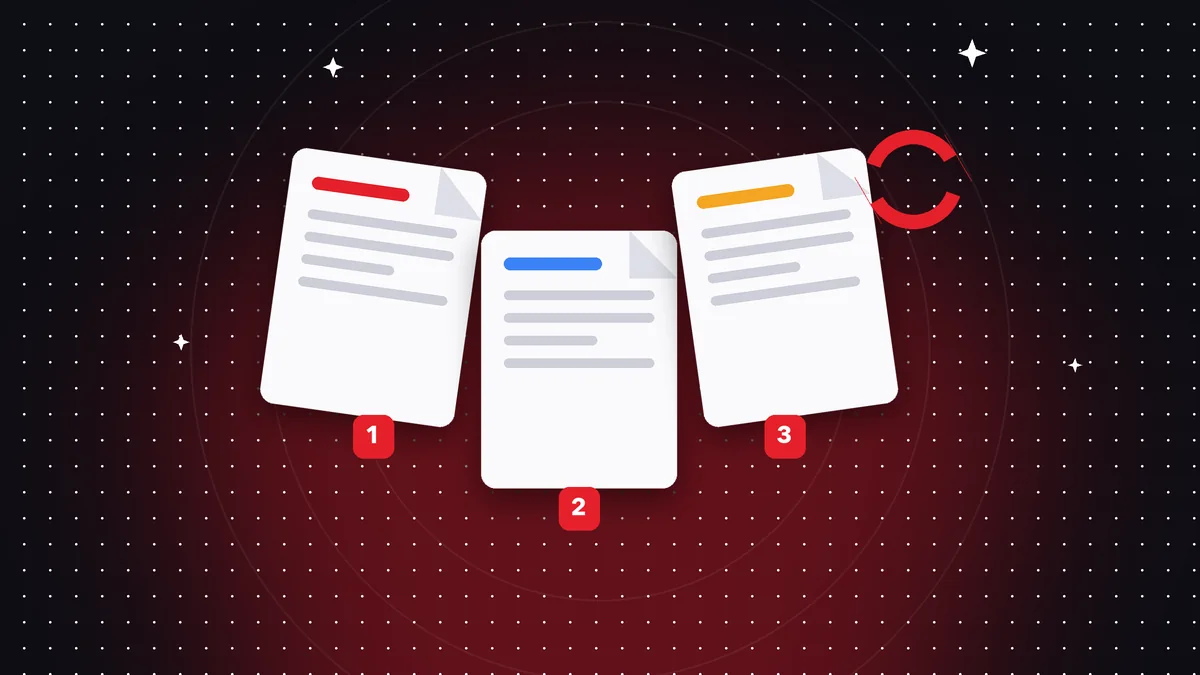
Sometimes a PDF needs the same page more than once: an attendance sheet to be used all month, a blank form for each family member, a handwriting exercise to repeat, a cover page that must open each section. Copying and pasting pages in other programs is slow and usually messes up the document. With the Duplicate pages tool in Rayo PDF GO you choose which sheet to repeat and how many times, and you get a file ready to print or share.
Try it now: Duplicate pages
Choose your file and continue in the app. It is processed on your device, never uploaded to a server.
When you need to duplicate pages in a PDF
Duplicating pages seems like a minor feature, but it solves everyday problems very quickly. A teacher preparing an exercise packet needs several copies of the answer sheet; an auto shop wants the vehicle intake form repeated so it can fill out several by hand; a family prints the same household chore chart five times.
In the world of paperwork, it comes up when a form must be submitted in duplicate or triplicate, or when each person in a group needs to fill out their own copy within a single submission. It is also used to repeat a cover page or a divider sheet between sections of a long report, or to generate practice sheets such as grids, writing guides or drawing templates.
Doing it at the printer with the multiple copies option works for printing, but it does not leave you with a single digital file with all the pages. If you want to share it by email, upload it to a portal or print it later at a print shop, having one PDF with the copies included simplifies everything and avoids quantity mistakes.
Step by step to duplicate pages in Rayo PDF GO
1) Go to rayopdfgo.com/app with your free account, or open the app on your iPhone, iPad, Android, Mac or Windows, and choose the Duplicate pages tool. Select the PDF from your gallery or file folder.
2) Indicate the page you want to repeat. If it is the first sheet of a one-page document, just pick it; if the PDF has several, find the right one in the thumbnail view so you do not get the number wrong.
3) Define how many additional copies you need. Keep in mind that one copy means one extra page: if you want five identical sheets in total, you need four duplicates plus the original. Confirm the total before applying.
4) Run the action and review the result in the thumbnails: check that the copies are where you expected and that the total page count is correct. Save under a different name, for example chart-x5.pdf, to keep the original.
Where the copies end up and how to reorder them
When you duplicate, the copies usually appear right after the original page, so the document ends up with the repeated sheets back to back. That is ideal for forms or charts printed in a batch, because they come out together and do not need sorting afterward.
If you need the copies somewhere else, for example a cover page repeated at the start of each section, use Organize PDF to drag the pages into position. It is a visual tool: you see the thumbnails, move them and confirm the final order before saving. Depending on your plan, Organize PDF is a Premium feature.
If you end up with extra pages, deleting pages lets you remove the ones you do not need without redoing everything. And if the final document needs numbering, apply Page numbers at the end; that way the numbering reflects the final order. Making the changes in this order, duplicate, reorder, clean up and number, avoids rework.
Real cases: from school to the office
An elementary school teacher builds a letter-practice workbook: she duplicates the template page thirty times, numbers the sheets and prints them bound. An accountant duplicates the summary sheet that goes with each accounting record to complete one per client. A sports club repeats the registration form until it has as many as it needs for an event day.
An architect who delivers plans reuses the revision control sheet, duplicating it for each version. A trade show organizer copies the visitor registration sheet to have several at each booth. A parent duplicates the weekly chore table so each child has their own.
In all the examples, the savings come from turning a repetitive task into a few-second action. And because the resulting file is a normal PDF, you can compress it, merge it with other documents or protect it with a password, each with its own tool, without leaving the same app.
Common mistakes when duplicating pages and how to avoid them
The most typical mistake is confusing copies with the total. If you ask for five copies of a page and you already had the original, you end up with six. Before applying, write down the number of final sheets you want and calculate how many extras you need. The second mistake is duplicating the wrong page because you did not verify the number: use the thumbnails to confirm.
The third is forgetting that the copies are identical, including any data already written on them. If you duplicate a sheet that is already filled in, all the copies will carry the same data. Always duplicate the blank version and fill in each copy afterward. The fourth is duplicating a huge document unnecessarily: if you only need part of it, first extract the relevant pages with Split PDF.
The fifth is not checking the size of the result. A PDF with many copies of a page with heavy images can grow quite a bit. If you are going to email it, run it through Compress PDF and check that the quality is still good enough to print. A tidy, lightweight file sends without problems.
Duplicate forms: a useful warning
When a procedure requires a form in duplicate or triplicate, check whether each copy must be a separate original, with an original signature, or whether a photocopy is accepted. Duplicating the page digitally does not change that requirement: the copy is identical but does not replace an original handwritten signature if the organization requires one. Check the procedure's instructions before printing.
If the form has a serial number, a barcode or a sequence number, the copies will carry the same value. That can be a problem for organizations that track each copy. In those cases, download the form again for each copy you need or request official copies.
For forms that each person fills out with their own data, a good practice is to duplicate the blank page, save the file and then fill out each copy with Edit PDF, typing the data directly on the document. That way you avoid printing and scanning again, and you keep control of each copy in a single file.
Before sending a file with many copies to print, run a test with a single sheet on the printer. Check that the margins are not cut off, that the ink does not smear and that the orientation is correct. Discovering a problem with one sheet is cheap; discovering it after printing fifty copies at a print shop is a loss of money and time that a couple of minutes of checking will avoid.
Privacy, quality and alternatives
Rayo PDF GO does the duplication on your device, so the document is not uploaded to any server. That matters if the page contains data about customers, students or patients. The result keeps the original quality of the pages, because they are simply repeated as they are, without recompressing their content.
Among the alternatives, printing several copies from the PDF viewer works if you only want paper, though it does not create a digital file. Pasting the same image several times into a word processor gives uneven results and can change the size. With direct duplication you get a clean document of identical dimensions, ready for any use.
If you later need to split the document into individual files, for example one sheet per person, you can use Split PDF and get each page as an independent file. That way, the same tool that helped you multiply also serves to distribute, and the whole workflow stays inside a single app, without sending anything to the internet.
Do it on your device: your files are never uploaded to any server.
Use Duplicate pages
Frequently asked questions
How do I duplicate a page in a PDF?
Open the PDF in a duplication tool, pick the page and the number of copies, and save the result. In Rayo PDF GO it is done with the Duplicate pages tool.
Can I duplicate several pages at once?
It depends on how you define the selection; you can repeat the process for each page and then reorder with Organize PDF if you need a specific order.
Do duplicated pages make the file bigger?
Yes, the file grows because it has more pages. If size is a problem, use Compress PDF after duplicating and check that the quality is still good enough.
How do I move the copies to another position?
With Organize PDF you can drag the thumbnails to the spot you want. Depending on your plan, Organize PDF is a Premium feature.
Are my files uploaded when I duplicate pages?
No. All processing is done on your device and the PDF is not sent to any server.
Keep reading
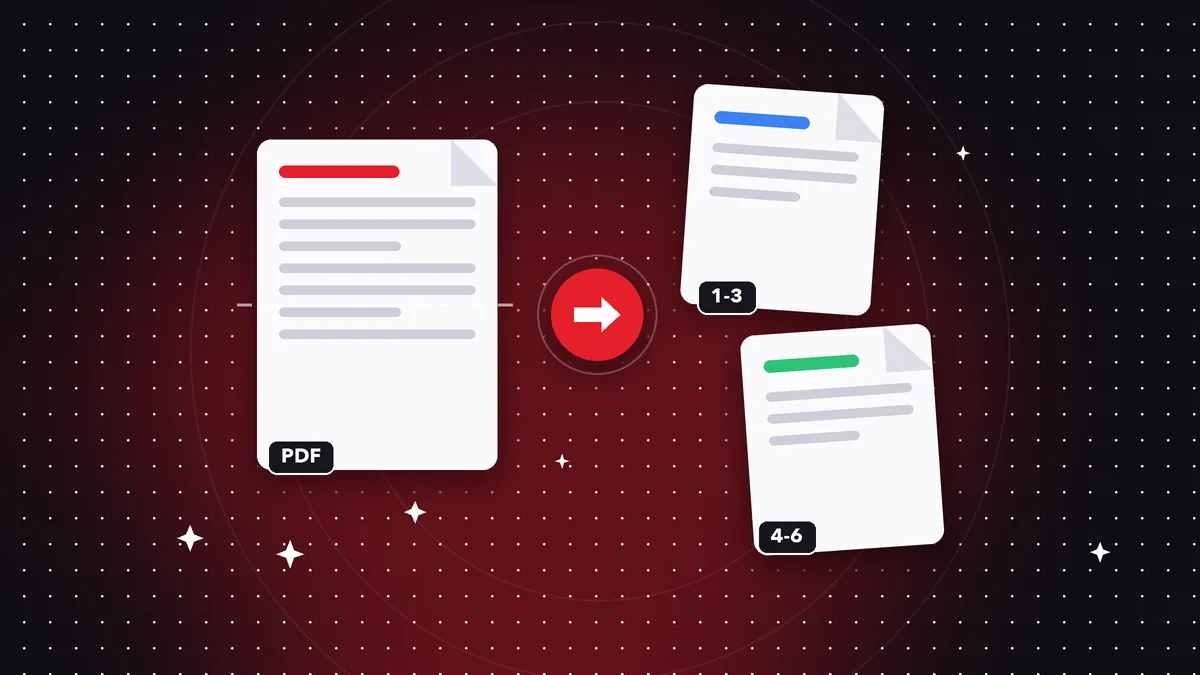 GuideHow to Extract Pages From a PDF and Save Them Separately
Pull one or several pages out of a PDF and save them as a new file: ranges, single pages and paperwork. Step b…
Read article ›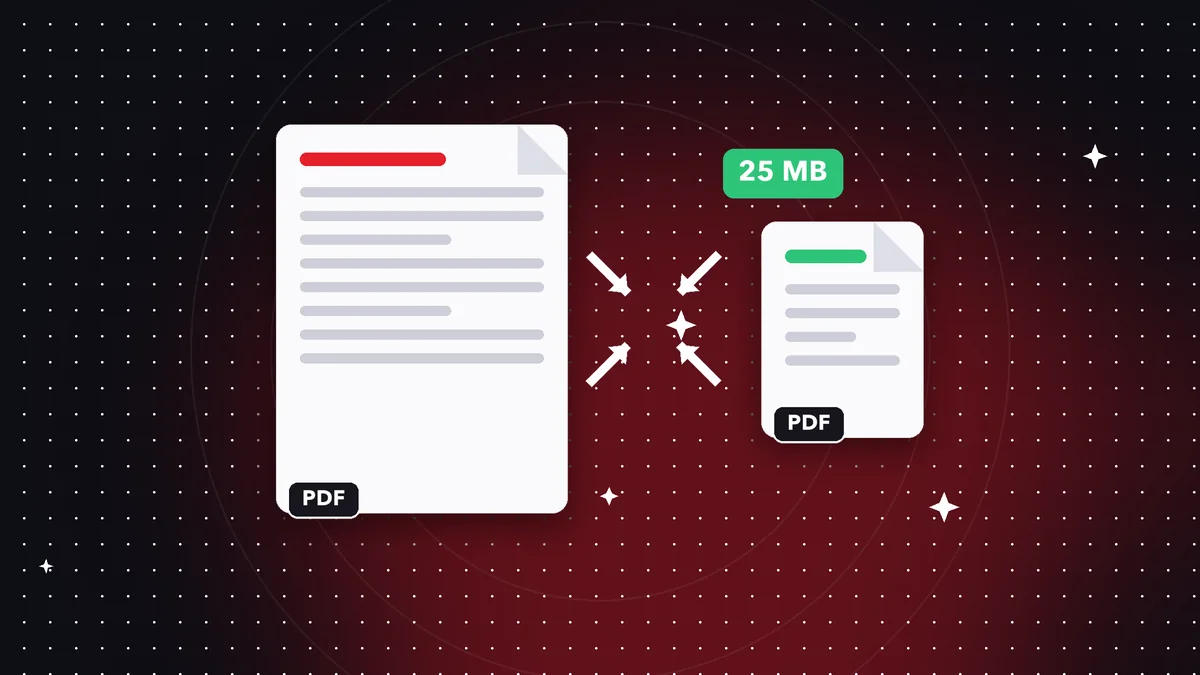 GuideHow to Email a Large PDF Without It Bouncing Back Fast
Your PDF is over the email size limit and keeps bouncing. Learn how to compress, split or slim it down step by…
Read article › GuideHow to Split a Large PDF Into Parts (by Page or Range)
Learn how to split a PDF into several parts by page ranges, chapters or size, with no quality loss and no uplo…
Read article ›