 Rayo PDF GO
How to Extract Pages From a PDF and Save Them Separately
You have an eighty-page PDF and only need three: the chapter for class, the signature page of the contract, the monthly statement your bank asks for. Sending the whole document is heavy, impractical and sometimes unwise, because you are sharing information you should not. Extracting pages lets you keep only what is useful in a new file that is light and tidy. Learn how to do it with Rayo PDF GO, how to specify ranges without getting confused and how to protect your privacy when sharing.
Try it now: Split PDF
Choose your file and continue in the app. It is processed on your device, never uploaded to a server.
Why extract pages instead of sending the whole PDF
Sending an entire document when only part of it is needed has three drawbacks. The first is size: a large PDF takes a long time to upload, exceeds email limits and eats up mobile data. The second is convenience: the person receiving it has to hunt for the relevant page among dozens, and they often get it wrong or ask for it to be sent again.
The third, and the most important, is privacy. A full contract can include appendices with other people's data, a statement can show transactions that have nothing to do with the matter, and a report can contain confidential sections. Sharing only what is necessary is a good security practice that protects both the sender and third parties.
Extracting pages is also a very common task in academic and work life: separating a chapter from a scanned book, pulling a certificate page out of a document package, isolating one invoice from a monthly file. Once you master the operation, it saves you a lot of running around.
Step by step in Rayo PDF GO
1) Go to rayopdfgo.com/app with your free account, or open the app on your iPhone, iPad, Android, Mac or Windows, and select Split PDF. Load the document from your gallery, your downloads or the file manager.
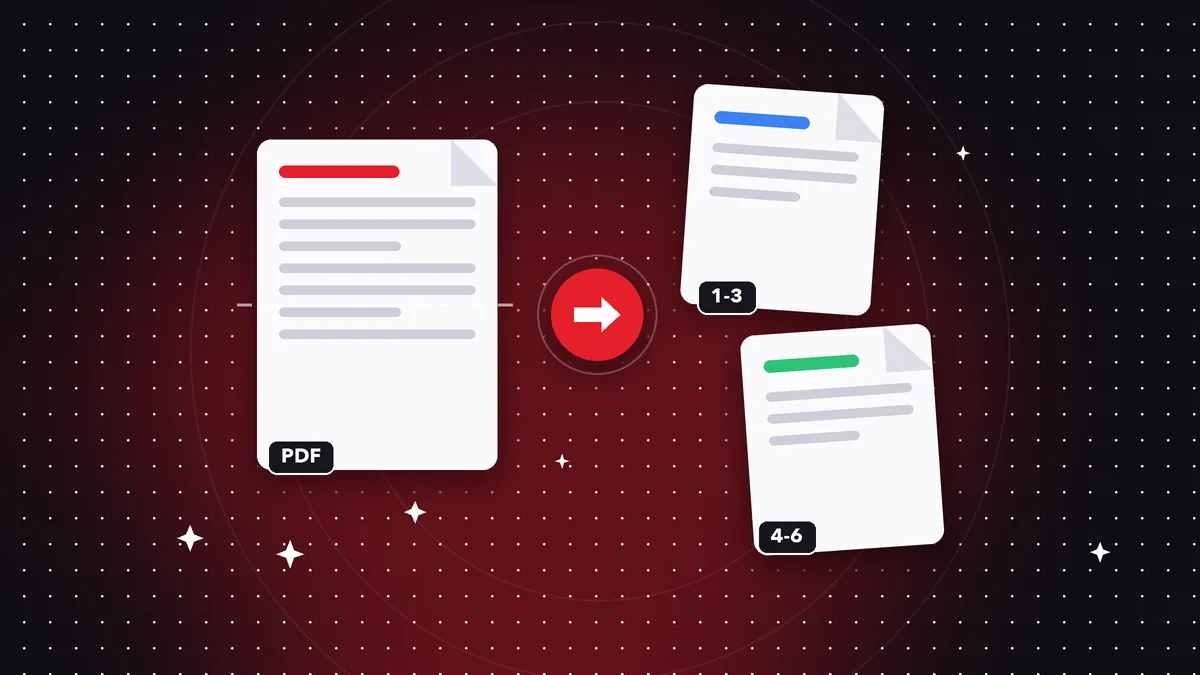
2) Indicate which pages you want. You can select single pages, type a range like 3-5 or combine both, for example 1, 4-6 and 12. If you are unsure of a page's number, check the thumbnails: the numbering printed in the document may not match the actual position in the PDF, for example when the cover does not count.
3) Choose the mode you need: get a single file with the selected pages or split the document into several files. For extracting, the most common choice is a single new PDF with just those pages.
4) Run it, review the result by opening the file and check that it contains exactly what you wanted, in the expected order. Save it with a descriptive name, such as contract-signature-page.pdf, so you can find it easily later.
How to write page ranges correctly
The biggest source of errors when extracting is confusing the numbering. The numbers printed at the bottom of the page may not match the position in the file: if the PDF has a cover, a table of contents or pages numbered in Roman numerals, the page that says “15” may be page 19 of the document. Always use the thumbnails as your reference and not the printed numbering.
For several stretches, separate them with commas and use a hyphen for ranges: 2-4, 8, 11-13 equals pages 2, 3, 4, 8, 11, 12 and 13. If you need an order different from the original, extract first and then reorder with Organize PDF, which is a Premium feature depending on your plan. Check the total page count of the result: it should match your tally.
When the document is very long, it can help to do it in two steps: first extract the large chapter and then, on that smaller file, fine-tune the exact pages. That way you work with more manageable thumbnails and reduce the risk of selecting the wrong page among hundreds.
Extract, delete or split: choosing the right tool
Although they look alike, each tool answers a different need. Extracting pages means keeping a few and discarding the rest. Deleting pages does the opposite: you have an almost complete document and want to remove a few. If you are going to keep 90 pages and remove 3, deleting is faster; if you are going to keep 3 out of 90, extracting makes more sense.
Split PDF, for its part, breaks the document into several files: for example, one per chapter, or one for every given number of pages. It is useful when you receive a package with several procedures in a single PDF and need to distribute them among different people or portals. Each resulting file is independent.
Choosing well avoids redundant steps. And if you want the opposite, to combine parts from different documents, use Merge PDF; the free plan lets you merge up to 3 PDFs at a time. With these tools combined you can build any document from pieces of others, always on your own device.
Real cases: paperwork, study and work
A citizen who needs to submit only the page with the details of their property deed extracts that sheet from a forty-page PDF and uploads it to the portal that limits the file to a few megabytes. A student extracts chapter four from a digital book to print at the print shop without paying for the other pages.
A company that receives a statement with all the account transactions separates the sheet that matches the supporting document the auditor asked for. A freelancer extracts the terms page from a hundred-page contract to send to the client with a summary. A person who received their scanned certificates in a single file splits them into one PDF per document.
In every case the pattern is the same: identify the pages exactly, extract, verify and save. If the result is too large for the portal, compress it afterward. If the pages came out rotated, use Rotate PDF. Each step takes just a few seconds.
If your original document is password-protected, you will need to unlock it before extracting pages, which requires knowing the password, since the Unlock PDF tool works when you have the password and is Premium depending on your plan. Conversely, if you want the extracted pages to stay protected when you share them, you can then apply a password with Protect PDF, so that only the person you choose can open them.
Common mistakes when extracting pages and how to avoid them
The first mistake is trusting the printed numbering. Always verify with the thumbnails. The second is not checking the resulting file: open the new PDF and make sure no sheet is missing or extra before sending it, especially if it is paperwork with a deadline.
The third is overwriting the original. Save the extract under a new name and keep the complete document in case you need other pages later. The fourth is forgetting that some sheets continue on the next one: a clause, a table or a signature can be split across two pages, and extracting only one leaves the information incomplete.
The fifth is believing that extracting is enough to hide sensitive information within a single page. If a sheet has data that should not be seen, extracting it does not remove them. That is what the Redact PDF tool is for, which hides content permanently and is a Premium feature depending on your plan. Always review the entire page before sharing.
Privacy and alternatives
Rayo PDF GO processes files on your own device: neither the original PDF nor the extracted pages are sent to a server. That is a clear advantage when you work with ID documents, medical records, contracts or bank statements. Many online services require uploading the entire file to be able to split it, which means trusting a third party.
Among the alternatives, printing to PDF from a viewer and choosing only certain pages works on some systems, but the process varies by device and a phone rarely makes it comfortable. With a dedicated tool you get the same result faster and on any platform, even from your phone.
One last tip: after extracting, name the file thoughtfully and include the date or the type of document. A set of files called document1, document2 and document3 becomes unmanageable within weeks. With clear names, you will find what you are looking for in seconds and avoid sending the wrong file.
Frequently asked questions
How do I extract a page from a PDF?
Open the PDF in Split PDF, select the page or range you want to keep and save the result as a new file. The original stays intact.
How do I extract several non-consecutive pages?
Type the numbers separated by commas and ranges with a hyphen, for example 2-4, 8, 11. Check in the thumbnails that the pages you chose are the right ones.
What is the difference between extracting and deleting pages?
Extracting keeps only the pages you chose; deleting removes the pages you chose and keeps the rest. Use whichever involves selecting fewer pages.
Does extracting a page hide the sensitive data it contains?
No. If the page has data that should not be seen, use Redact PDF to hide it permanently before sharing. Depending on your plan, this tool is Premium.
Is my PDF uploaded to the internet when I extract pages?
No. The process is done on your device and the files are not sent to any server.
Can I extract pages from my phone?
Yes. With the apps for iPhone, iPad or Android, or from your phone's browser, you can select pages and save a new PDF.
Keep reading
 GuideHow to Email a Large PDF Without It Bouncing Back Fast
Your PDF is over the email size limit and keeps bouncing. Learn how to compress, split or slim it down step by…
Read article › GuideHow to Split a Large PDF Into Parts (by Page or Range)
Learn how to split a PDF into several parts by page ranges, chapters or size, with no quality loss and no uplo…
Read article › GuideHow to Prepare Your Resume as a PDF for Job Applications
Turn your resume into a clean, lightweight PDF: merge certificates, organize pages and avoid the mistakes that…
Read article ›