 Rayo PDF GO
How to Compare Two Versions of a PDF and See the Changes
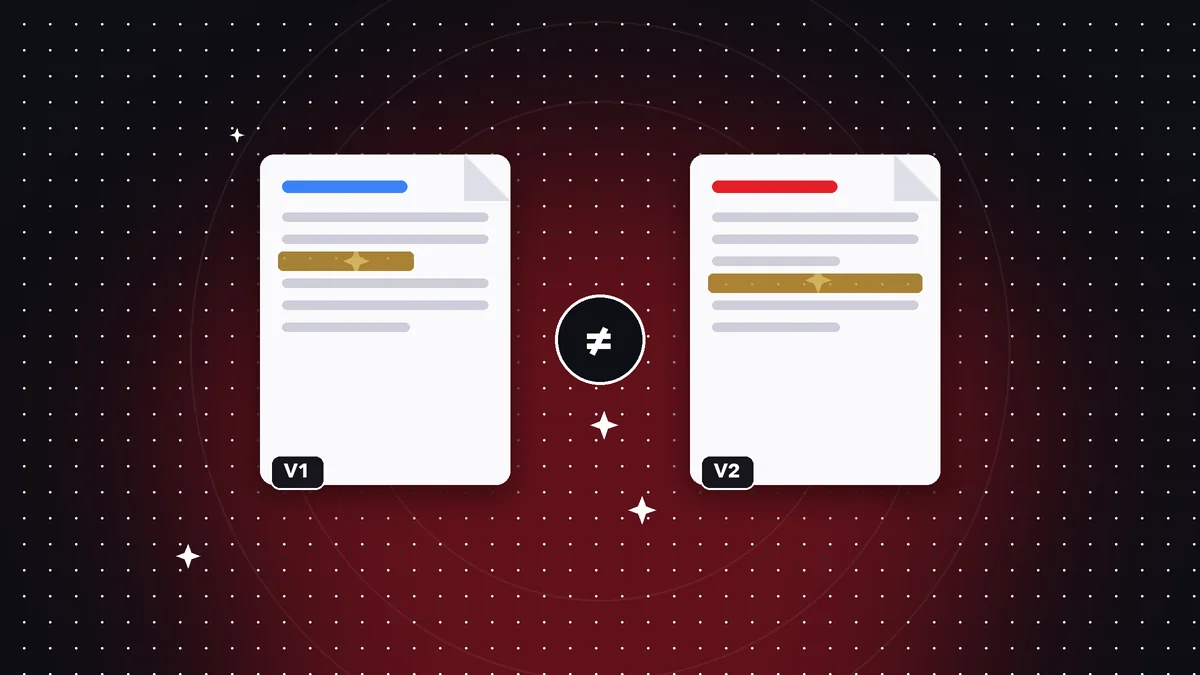
They send you the “final version” of the contract, but you would swear the previous one said something different in the payment clause. Reading two twenty-page documents side by side, hunting for differences by eye, is exhausting and unreliable: a changed number or a deleted word slips past alarmingly easily. Comparing the two PDFs with a tool points out exactly where they differ. This guide explains how to do it with Rayo PDF GO, what to expect from the result and how to review the changes with good judgment.
Try it now: Compare PDF
Choose your file and continue in the app. It is processed on your device, never uploaded to a server.
Why comparing PDF versions matters so much
Documents change between draft and signature more than we tend to think. In a negotiation, a quote can adjust prices, deadlines and delivery terms over three rounds of emails. If the other party sends you the updated PDF without highlighting the changes, it is up to you to find them before you accept. A small change, like going from “30 days” to “15 days,” can have real consequences.
It also happens in academic and professional settings: the latest version of a thesis after the advisor's comments, the updated report on a project, the terms of a call for proposals that were changed without notice, or a reissued internal policy. Knowing what changed lets you focus your reading on what really matters instead of rereading everything.
Finally, comparing is a form of quality control. Before publishing or printing a document, confirming that the version going out is the one you reviewed avoids costly mistakes, like printing a thousand flyers with the wrong phone number. A quick comparison saves headaches, and it takes only a few minutes.
Step by step to compare two PDFs in Rayo PDF GO
1) Go to rayopdfgo.com/app with your account, or open the app on your device, and select the Compare PDF tool. Have both files ready: the previous version and the new one. It helps to give them clear names, such as contract-v1.pdf and contract-v2.pdf, so you do not mix them up.
2) Load the first PDF as the base document (the original) and the second as the document to compare (the modified one). The order matters, because the tool treats what appears in the second and not in the first as an addition, and the opposite as a deletion.
3) Run the comparison and review the result. Differences are marked on the pages so you can see exactly where they are. Go through all the pages, not just the first ones, because changes tend to concentrate in appendices, price tables or final clauses.
4) Note the relevant differences and, if you need to, ask the other party for clarification. Remember that the comparison is an aid for spotting changes: you decide whether they are acceptable.
What the comparison detects well and what it does not
A comparison is very effective with text: added, deleted or modified words, different figures, changed dates, new or missing paragraphs. For contracts, reports and quotes with digital text, that is exactly what you need, and it works even when the pages have a very different number of lines.
Keep its limits in mind. If a PDF is a scan, its content is an image and has no text to compare; you first have to recognize it with OCR, a feature that is Premium depending on your plan and works in the browser and in the apps. Purely visual changes, such as a different color or a replaced logo, may not show up the same way a text change does.
Do not expect interpretation either: the tool will not tell you whether a change is favorable or dangerous. That is what your judgment is for, or an advisor's if the document is important. There is also no artificial intelligence involved, just a mechanical comparison of contents, which makes it predictable: it shows what really changed, with no guesswork.
How to prepare your files for a good comparison
The quality of the result depends on the files. If both come from the same original document and only the content changed, the comparison will be clean. If one version was generated with a different page setup, paper size or typeface, formatting differences may appear that are not real content changes.
If you have a scanned PDF and a digital one of the same document, convert them to the same type first: run OCR on the scanned one to get text. If a PDF has rotated pages or extra blank ones, normalize it beforehand with Rotate PDF or by deleting pages, so both documents are comparable page by page.
Another practical tip: if you only care about one section, extract those pages from both documents with the Split PDF tool and compare the fragments. It is faster, and the result is easier to read than a hundred-page difference report. Always keep the originals untouched and work on copies.
Real cases: contracts, quotes and academic documents
A tenant receives the renewed apartment lease. Comparing it with the previous one, she discovers that the annual increase changed from one percentage to another and that a clause about repairs was added. Without the comparison she would probably have signed without noticing; with it, she can negotiate before committing.
A small business receives a supplier's updated quote and, on comparing it, sees that the warranty was cut from one year to six months while the price dropped only slightly. A student compares the draft of his thesis with the version corrected by his advisor to make sure he has incorporated all the comments.
In an office, the legal team compares the current privacy policy with the proposed update to confirm that only the intended points change. In every case the comparison does not replace careful reading: it directs it to the places where it is worth looking more closely.
A good practice for teams is to keep a record of each comparison: save the differences file or note in a separate document the date, the versions compared and the changes you accepted or rejected. If months later a dispute comes up about what was agreed and when, that history is worth its weight in gold. Naming versions with a date and number, like proposal-2026-03-v3.pdf, makes that trail easy to follow.
Common mistakes when comparing documents
The most common mistake is reversing the order of the files: putting the new version as the base and the old one as the compared document. The results read backward, and what was an addition looks like a deletion. Label the files well and confirm which is which before you run it.
Another mistake is trusting the comparison without checking the context. A change from “shall not” to “shall” is just one word, but it reverses the meaning of a clause. Read each difference within its full paragraph. The importance of appendices and footnotes, where relevant conditions hide, is also underestimated.
Finally, comparing a scan against a digital PDF without recognizing the text gives empty or misleading results. If the tool shows no differences but you know there are some, check that both files have real text. And if the result flags hundreds of differences, suspect a formatting change rather than a change in substance.
Privacy, alternatives and wrap-up
The documents being compared are often confidential: contracts, offers, internal reports. With Rayo PDF GO, both files are processed on your device and are not uploaded to any server, which is an advantage over online services that require you to upload the documents to analyze them.
As alternatives, there is manual reading with both versions open side by side, which is slow and error-prone, or the comparison features built into word processors, which only help if you have the source files in an editable format. With PDFs, comparing directly is the most practical route. For a critical review, combine the tool with a final read of the complete document.
Remember that Compare PDF is a Premium feature in Rayo PDF GO, with a monthly or annual plan and a three-day free trial on the annual one. If you work with many contracts or versions, the time saved and the peace of mind of not missing a change usually more than pay off. Always keep both versions and record the date of each.
Frequently asked questions
How can I see the differences between two PDFs?
Use a comparison tool: you load the original version and the modified one, and the result flags the text changes on the pages. In Rayo PDF GO it is the Compare PDF tool.
Can I compare a scanned PDF with another one?
A scan is an image, so you first need to recognize its text with OCR. Once both have real text, the comparison works normally.
Does the comparison tell me whether the change is good or bad?
No. It only flags what changed. Interpreting whether a change is favorable or risky is up to you or an advisor, especially for contracts and legal documents.
Is comparing PDFs free in Rayo PDF GO?
Compare PDF is part of the Premium features, which cost $4.99 per month or $29.99 per year, with a three-day trial on the annual plan.
Are my documents uploaded to be compared?
No. Both files are processed on your device and are not sent to any server, which matters when dealing with confidential contracts or reports.
Keep reading
 GuideHow to Crop PDF Margins and Remove Extra Borders Fast
Remove white margins, dark scan borders or extra areas from a PDF. Steps, printing tips and the mistakes to av…
Read article › GuideHow to Duplicate Pages in a PDF (Make Copies of a Sheet)
Repeat a page several times inside a PDF: forms, practice sheets, cover pages and templates. Step by step, rea…
Read article › GuideHow to Extract Pages From a PDF and Save Them Separately
Pull one or several pages out of a PDF and save them as a new file: ranges, single pages and paperwork. Step b…
Read article ›