 Rayo PDF GO
How to Fill Out a PDF Form on Your Phone or Computer
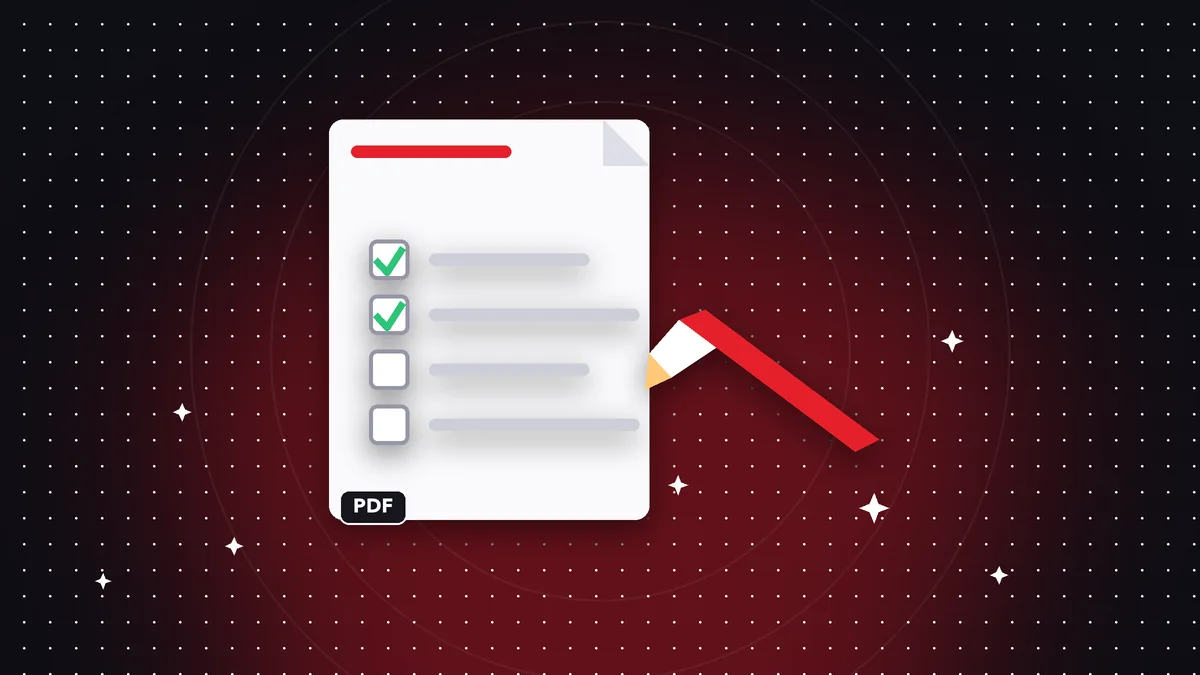
A PDF form lands in your inbox from your health insurer, your bank, your university or a government office, and the instructions are always the same: print it, fill it out by hand, scan it and send it back. That is a waste of time you can avoid. With Rayo PDF GO you type directly on the document, check the boxes, add your signature and save a clean copy, all from your browser or the app. Here is the complete process, the most common mistakes and how to get the file ready to send.

Try it now: Edit PDF
Choose your file and continue in the app. It is processed on your device, never uploaded to a server.
Why it pays to fill out the form without printing it
Printing a form to fill it out by hand seems harmless, but it creates three problems almost everyone has run into. First, handwriting: a tiny box with a narrow line ends up as a scribble the clerk cannot read, and they send the document back. Second, time: finding a printer and a scanner and turning the sheets back into a PDF eats up an afternoon. Third, quality: a crooked or shadowy scan is often rejected by upload portals.
When you type on the digital PDF, the text stays aligned, legible and in a uniform font. You can fix a mistake in seconds instead of redoing a whole page, and you keep a copy you can reuse next year by just changing the dates. For anyone who regularly submits scholarship applications, enrollments, claims or lease agreements, that difference shows up fast.
There is also a privacy advantage that people tend to forget: a form usually contains your ID number, address, phone number and income. In Rayo PDF GO the file is processed on your own device and never travels to a server, so that data does not pass through third parties while you fill it out.
Step by step: how to fill out a PDF form in Rayo PDF GO
1) Go to rayopdfgo.com/app in your browser (you need to create a free account) or open the app on your iPhone, iPad, Android, Mac or Windows. Choose the Edit PDF tool and select the form from your gallery, downloads folder or file manager.
2) Go to the first page and use the text option to create a box over each field. Drag the box until it sits right on top of the line, type the information and adjust the font size so it fits without touching the edges. Repeat for your name, ID number, address, date and every other field the form asks for.
3) For selection boxes, type an X in a small text box or draw a simple shape inside the box. Go through every page, even the ones that look read-only, because many forms hide a declaration or a date field on the last sheet.
4) When you finish, review each page carefully and save the result. We recommend keeping the original untouched and saving your filled-out version under a different name, for example enrollment-form-filled.pdf.
Checkboxes, dates and special fields
Checkboxes work well with a bold X, which is what any reviewer expects to see. If the form has single-choice circles, place a filled shape of the right size inside the circle. Avoid crossing out or underlining the option, because on a quick read it can be taken to mean you rejected it.
For dates, follow the format the document specifies. If it says MM/DD/YYYY, do not write the day first or shorten the year. Portals that read the PDF automatically are especially sensitive to this, and a badly written date can be grounds for rejection even if everything else is correct.
Long fields, such as addresses or descriptions, deserve a smaller font rather than cut-off text. If there is still not enough room, write “see attachment” and attach a separate sheet. That is better than cramming the text until it is unreadable. Write long numbers, such as account or ID numbers, without extra spaces so they match what the system expects.
How to add your signature to the form
Almost every form ends up asking for a signature. Inside Edit PDF you can insert your signature as an image you upload from your gallery or as a stroke drawn with your finger, a stylus or a mouse. Place it on the signature line, adjust its size and check that it does not cover the printed text underneath.
A trick that works very well: sign once on white paper with a black pen, photograph the sheet in good light and crop the image. That gives you a reusable signature for all future documents, with a natural stroke that looks better than one drawn with your finger on the screen.
An honest warning: this signature is an image placed on the document. Rayo PDF GO does not guarantee its legal validity before any authority, so if the procedure requires a certified electronic signature or a notarized one, confirm the requirements with the organization first. For most internal forms, universities and routine applications, a scanned signature is accepted.
Common mistakes when filling out a PDF and how to avoid them
The most frequent mistake is not reviewing before saving. A field that is off by a couple of millimeters can end up on the line of the field below, and the document reads as if you swapped one piece of information for another. Zoom in on each page and check that every piece of text is in its place before moving on.
The second mistake is overwriting the original. If you save over the blank form, you will have to download it again next time. Always keep one blank copy and one filled copy. The third is forgetting pages: a six-page PDF where you only filled out the first three is almost always sent back.
The fourth is sending a file that is too large. If you added a high-resolution signature image, the document can grow more than necessary. Before emailing it or uploading it to a portal with a size limit, run it through Compress PDF and check that the text is still sharp. A typical portal limit is 1 or 2 MB, but each organization sets its own.
Flatten the form so nobody can modify it
When you fill out a PDF with text boxes and shapes, those elements remain separate objects that someone else could move or delete if they open the file in an editor. If you are going to hand in the form as the final version, use the Flatten PDF tool: it merges everything you added with the page, so the content stays fixed as if it were printed.
Flattening is especially useful when the document is forwarded to several departments, when you sign an agreement and do not want the figures altered, or when a portal does not display the added elements properly and drops them on upload. Always do it on a copy, because the operation cannot be undone once saved.
If the form also contains very sensitive data that must not be readable in the copy you share, there is the Redact PDF tool, which permanently hides information instead of covering it with a box that can be removed. Depending on your plan, some of these tools are available in Premium.
Alternatives and when each one makes sense
Printing and writing by hand is still valid when the procedure requires handwriting or when you do not have a device at hand. The problem is the extra steps: scanning, straightening and converting. If you end up at the scanner anyway, try Scan to PDF in Rayo PDF GO, which turns photos into a tidy, clean document.
Some forms come with interactive fields and you can fill them out in any reader. That works fine, but many of those readers add their own limitations and watermarks or ask you to create an account. With an editor where you type directly on the page, you have full control of the result, it works the same with forms that have no fields, and it does not depend on the original format.
Whichever you choose, the criteria are the same: the final file should look clean, complete and legible, you should keep the original, and what you send should not leak more data than necessary. With that checklist, a task that used to take you an afternoon gets done in ten minutes from your couch.
Frequently asked questions
How can I fill out a PDF form without printing it?
Open the file in an editing tool, add text boxes over each field, check the boxes and add your signature. In Rayo PDF GO you do it from your browser or the app, and the file is never uploaded to a server.
Can I fill out a PDF on my phone?
Yes. With the app for iPhone, iPad or Android, or from your phone's browser, you can type over the document, adjust the font size and save the result to your gallery or files.
Is the signature I add legally valid?
It is an image placed on the document, and Rayo PDF GO does not guarantee its legal validity. If the procedure requires a certified electronic signature or a notarized one, confirm the requirement with the organization before sending.
How do I stop people from changing the form after I fill it out?
Use the Flatten PDF tool on a copy: it fixes the text and shapes you added into the page so they cannot be moved or deleted. Always keep the editable version too.
Is my personal data uploaded to a server?
No. In Rayo PDF GO everything is processed on your device, so your ID number, address and the rest of the form data are not sent to any server.
Keep reading
 GuideHow to Highlight and Annotate a PDF: Study and Review Guide
Highlight text and add notes and comments to a PDF without printing. A method for studying, reviewing contract…
Read article › GuideHow to Add Text to a PDF Without Changing Its Layout
Type on top of a PDF: add text, dates and missing details, adjust font and size, and save a clean file. Steps,…
Read article › GuideHow to Insert an Image or Logo in a PDF, Step by Step
Add a logo, signature or photo to a PDF: size, position, transparent background and file weight. A practical g…
Read article ›