 Rayo PDF GO
How to Highlight and Annotate a PDF: Study and Review Guide
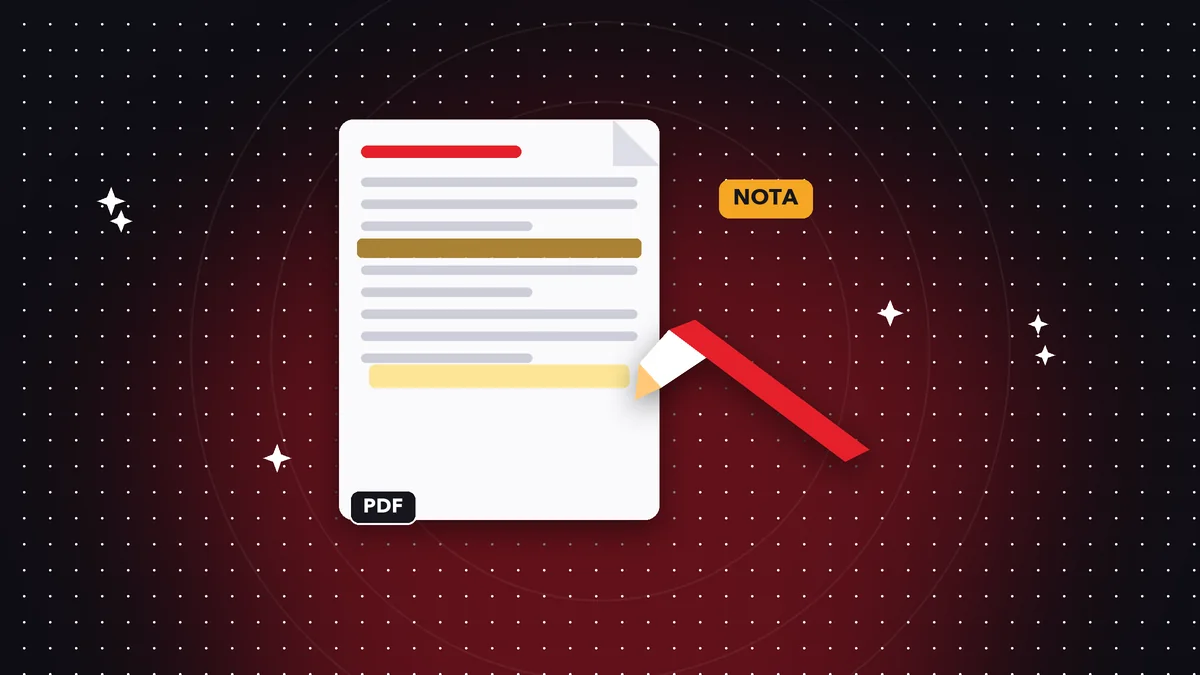
A long PDF with no markings is a wall of text: you read it, close it, and ten minutes later you cannot remember where the important detail was. Highlighting and annotating turns that file into a working tool. It helps you prepare for an exam, review a contract before signing it, correct a coworker's report or leave instructions for your team. In this guide you will learn how to do it in Rayo PDF GO, with a color system that actually works and without sending your documents to any server.
Try it now: Edit PDF
Choose your file and continue in the app. It is processed on your device, never uploaded to a server.
Why annotating a PDF changes the way you study and review
Reading without marking is passive reading: your eyes move over the lines but your memory retains little. When you highlight an idea and write a note in the margin, you force your brain to decide what matters and to put it in your own words. That small effort is what makes information stick, which is why almost every study method recommends reading with a pencil in hand.
The same thing happens at work. A contract review where you highlight the clauses on terms, penalties and renewal leaves you with a version you can check in a minute, instead of rereading twenty pages. Anyone who reviews proposals, theses or budgets appreciates being able to point to the exact sentence a comment refers to.
The digital version adds convenience: you never run out of ink, you can correct mistakes without scratch-outs, you never lose the page, and you can keep the same document with different annotations saved in separate copies, for example one for the exam and another to share with your study group.
Step by step to highlight and annotate in Rayo PDF GO
1) Open rayopdfgo.com/app (with your free account) or the app on your device and go to Edit PDF. Select the document you want to work on and wait for the first page to load.
2) Turn on the highlighter, pick a color and drag over the lines you want to mark. If you overshoot, undo the last stroke and try again. With a finger on a phone, it helps to rotate the screen to landscape so the text is larger and the stroke more precise.
3) To write a note, add a text box next to the paragraph, in the margin or in a blank area, and write a short sentence. If you need to point to something precisely, use shapes such as arrows, rectangles or circles to connect the note to the text it refers to.
4) Save the file under a different name, for example civil-law-notes-annotated.pdf, so you always keep the original without markings. That way you can start over, or prepare a clean version to share, without downloading anything again.
A color system that actually works
The classic beginner mistake is using the highlighter like an amateur marker: painting whole pages yellow. In the end you cannot tell what was essential. A simple system prevents that: assign one color to each function and stick to it throughout the document.
A practical four-color combination: yellow for definitions and key concepts, green for examples and facts you want to cite, pink or red for what you do not understand or what raises questions, and blue for pending tasks or things you need to verify. When you review, you can go straight to the color you need.
If you work with a team, agree on the legend before you start and write it on the first page in a text box. A document with annotations from four people and no shared code becomes unreadable in a few minutes. With the legend on the first sheet, anyone can understand what each mark means without asking.
Real cases: students, lawyers, designers and teams
A student with an 80-page study guide can highlight only the definitions on a first pass, and the examples on a second. Then, instead of rereading everything, they review only what is marked, which is usually a fifth of the text. The notes in the margins work like small exam questions for self-testing.
Someone reviewing a lease or a business agreement can highlight dates, amounts and obligations, and use a text box to write specific questions: who pays for maintenance? What happens if it ends early? Taking that list to the lawyer or the other party saves entire meetings.
At an agency or an office, the usual flow is to receive a draft, mark corrections in one color, comment in text boxes and send the file back. The person who gets it sees exactly where each remark is. To return a final document, generate a copy without annotations and keep the annotated one as a backup.
If you work with very long documents, such as a regulation or a textbook, split your reading into sessions and, at the end of each chapter, add a summary note on the last page of that section. That condensed sentence works as a personal index: when you review, you read your summaries first and only dig into the detail when something is unclear. It is a simple method that turns hours of rereading into minutes of focused review.
Common annotation mistakes and how to avoid them
The first mistake is highlighting too much. A useful rule: if you have marked more than a quarter of a page, you are probably copying instead of selecting. Try to highlight only keywords and short fragments, and add a note of your own in the margin.
The second is not saving versions. If you work on the only file and later need the clean version, you would have to delete everything by hand. Always keep a copy of the original and work on another. The third is forgetting that your notes are visible: if you are going to send the PDF to a client, check that no internal comments or casual remarks are left that you do not want them to read.
The fourth is relying on color in a document that will be printed in black and white. Yellow turns light gray, and green and pink get confused. If you know it will be printed, also rely on written notes or different shapes, and not only on color to convey meaning.
Tips to keep your annotations useful weeks later
Write notes that make sense when you come back to them cold. An annotation like “check this” is useless a month later; “confirm with accounting whether sales tax is included” tells you what to do. Always include the verb and the person responsible when it is a task, and the date if it matters for the paperwork.
Keep notes short and place them close to the text. A huge text box that covers the content forces you to move it every time you read. If you need to develop a long idea, dedicate the last page of the document to your comments and number the references to link them to the marks in the text.
If you are going to review the same reading many times, consider turning it into a summary: extract the marked text and move it to a separate document. With the Extract text tool you can pull the content out of a PDF to copy into your notes, as long as the document has real text and is not a scanned image.
A habit that makes a difference is going back over your marks after a few days. What seemed essential on the first read sometimes turns out to be secondary, and what you skipped may be the key. Adjusting your annotations in a second round, removing what is unnecessary and reinforcing what matters, leaves you with a far more useful document than the first pass.
Sharing an annotated PDF safely and with good quality
Before sending, decide which version each recipient needs. Someone grading your work wants to see your marks; the end client almost never does. If you share with annotations, check that no note reveals internal information, such as prices, opinions about third parties or other people's personal data.
If the document contains sensitive data that must not circulate, such as ID numbers, bank accounts or addresses, use the Redact PDF tool to hide them permanently before sharing. A plain black box drawn with a shape can be removed; permanent redaction cannot. Depending on your plan, this tool is part of Premium.
Finally, watch the file size. An annotated PDF can grow if you added images. Run it through Compress PDF when you are going to send it by email or messaging, and open the result to confirm that the marks and text look right. Everything happens on your device, without uploading the file to the internet, which is valuable when it is personal notes or work documents.
Frequently asked questions
How do you highlight text in a PDF?
Open the PDF in an editor with a highlighter, pick a color and drag over the text you want to mark. In Rayo PDF GO you do it from Edit PDF, both in the browser and in the app.
Can I add notes or comments to a PDF?
Yes. You can insert text boxes next to the paragraph, use arrows or shapes to point at things, and save the file with your annotations as a separate copy of the original.
How many colors should I use when highlighting?
Between three and four. Assign one color to each function, for example definitions, examples, questions and tasks, and stick to the code throughout the document so you can review quickly.
Can annotations be removed later?
If you saved the original separately, you just go back to it. That is why it is a good idea to save the annotated version under a different name and not overwrite the initial file.
Do annotations show up in any PDF reader?
Usually yes, but if you want to make sure they do not change or get lost when you send them, you can flatten the document to fix them into the page.
Are my documents uploaded to a server when I annotate them?
No. Rayo PDF GO processes everything on your device, so your notes, contracts or reports are not sent to any server.
Keep reading
 GuideHow to Add Text to a PDF Without Changing Its Layout
Type on top of a PDF: add text, dates and missing details, adjust font and size, and save a clean file. Steps,…
Read article › GuideHow to Insert an Image or Logo in a PDF, Step by Step
Add a logo, signature or photo to a PDF: size, position, transparent background and file weight. A practical g…
Read article › GuideHow to Compare Two Versions of a PDF and See the Changes
Find out what changed between two versions of a PDF: contracts, quotes or reports. Step-by-step method, limits…
Read article ›