 Rayo PDF GO
How to Protect Your Privacy When Sharing a PDF Safely
Every time you share a PDF you hand over more than you can see: ID numbers, addresses, balances, signatures, third-party names, and hidden data you didn't even know was there. Many exposure cases come from a "black box" that didn't actually cover anything. In this guide you'll learn to check what your PDF contains, to redact data truly permanently with Rayo PDF GO, and to share it with less risk, without uploading your file to any server.
Try it now: Redact PDF
Choose your file and continue in the app. It is processed on your device, never uploaded to a server.
What information can slip out of a PDF
The most obvious is what's visible: ID numbers, addresses, phone numbers, bank accounts, signatures, photos, names of family members or other clients. A statement, an invoice, or a contract often shows more personal data than the paperwork requires.
But there is also less visible information: comments and review notes, form fields with answers, text layers behind an image, annotations, and file properties, such as the author's name or the program used to create it. They can reveal more than you'd like.
That's why it's wise to look at the document with a suspicious eye before sending it. The key question is: does this person need to see exactly this to do what I'm asking? Anything extra should be removed before sharing.
The black box mistake
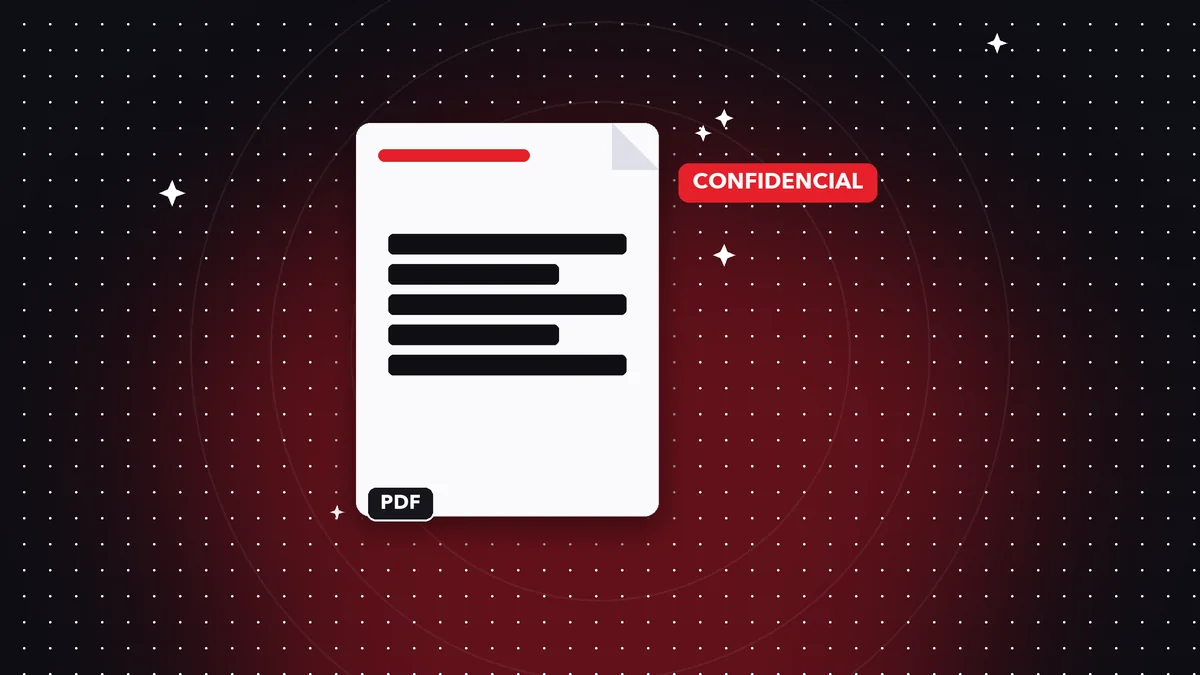
Many people cover a piece of data by drawing a black rectangle with an annotation or drawing tool. At first glance it seems to work, but the original text still exists underneath. Whoever receives the file can select that area, copy the text, or remove the box.
The same goes for a black highlighter, for a white text box placed on top, or for an overlaid image. They are visual layers, not deletions. Sensitive documents have leaked because of this mistake, so distrust any method that only covers.
Permanent redaction is different: it removes the content under the marked area and leaves an opaque mark in its place. Once applied and saved, the data is no longer in the file. That's why it's the right way to hide information in a PDF you're going to share.
A frequent example: you need to prove your address with a utility bill, but the bill shows your usage, your account number, and your ID number. If the agency only needs to see the address and the date, you can redact the rest before sending it. First confirm that the agency accepts documents altered that way, because some require the complete document.
Step by step: redact data in Rayo PDF GO
1) Open Rayo PDF GO at rayopdfgo.com/app (free account) or in the app on your phone or computer and go to Redact PDF. This tool is a Premium plan feature.
2) Upload the document, mark the areas you want to hide, and apply the redaction. Check each page carefully: it's easy to leave a second appearance of the same data unmarked, for example a number that shows up in both the header and the footer.
3) Save the result as a new file and keep the original separate. Open it, try to select and copy the text in the redacted areas, and search for the data using the reader's search function to confirm it really disappeared. The whole process happens on your device.
Clean up what you can't see: annotations, forms, and layers
Check whether the PDF has comments, sticky notes, or highlights from an earlier review. If they shouldn't go out, delete them or flatten the document. The Flatten PDF tool merges annotations and form fields into the content so they stop being separate elements.
If the PDF is a scan with text recognized by OCR, keep in mind that the text may be duplicated in an invisible layer. Verify that the redaction also covers that layer by searching for words from the hidden data once you're done.
Check the file properties, where the author, title, or creation program may appear. If you don't want that information to travel, choose a neutral file name and generate a clean version of the document, for example from the source program with the appropriate option.
Also think about other people's data that appears in your files: a contact on an invoice, a name in meeting minutes, a child on a certificate. Protecting their privacy is also your responsibility when you share. If they aren't needed for the purpose of the document, redact them with the same care you would give your own data.
Share only what's necessary
Often there's no need to send the whole document. If the paperwork only requires the first page of a contract, use Split PDF to extract just those pages. If there are extra sheets, delete them with Delete pages.
Also ask yourself whether you need to hand over a legible copy of identity documents. When possible, state on the file itself what it's being provided for, for example with a watermark that says "For procedure X only, date." That makes it harder to reuse for other purposes, although it doesn't prevent it entirely.
Watermark is a Premium feature in Rayo PDF GO. Use it with clear text in a visible position that doesn't cover the important data in the document. It's a deterrent, not an impassable barrier.
Protect the file and choose how to send it
If the document still contains sensitive data even after you've cleaned it, put a password on it with Protect PDF (Premium) and share the password through another channel. Choose a long, unique phrase, and don't send it together with the file.
Check the recipient's address and, if you can, use channels you control. Avoid sending sensitive documents over public networks, on shared computers, or to large messaging groups where anyone can forward them.
No measure completely prevents someone from copying, photographing, or forwarding what they see. Privacy is protected by combining several things: giving less data, redacting properly, protecting the file, and choosing carefully who you give it to.
Common mistakes and what to do if you've already shared too much
Some common mistakes: redacting only one of several appearances, forgetting the exhibit pages, overwriting the original without saving a copy, or sharing the pre-redaction version by mistake. Name your files "original" and "to send" so you don't mix them up.
If you've already shared a document with data you shouldn't have, act fast: ask the recipient to delete it and confirm, change any passwords or numbers that may have been exposed, and notify the relevant institution if it involves financial or identity data.
If the exposed information is sensitive, watch for unusual activity in your accounts and be wary of messages that use your details to look legitimate. Prevention is cheaper than repair, and a good redaction before sending is the habit that avoids the most problems.
Quick review checklist before sharing
Before sending any PDF with personal data, run through five points. First, does the person receiving it need every piece of data? Second, did I remove the extra pages? Third, did I permanently redact what shouldn't be seen and check by searching for the text? Fourth, did I clean up annotations, comments, and form fields?
Fifth, did I choose the right channel and protection? If the document is sensitive, it's wise to put a password on it and share the password another way. If it's low risk, perhaps simply sending it directly to the right person is enough. Match the effort to the harm a leak would cause.
Keep two versions with clear names: "original" for your own files and "to share" for the cleaned version. That way you avoid the classic mistake of accidentally sending the unredacted document, which tends to happen when you're in a hurry and have several similarly named copies in the same folder.
Privacy isn't a one-time action but a habit. Every time you share a document with less data than it had, you reduce the material someone could use against you. And with tools that work on your own device, like Rayo PDF GO, you also avoid adding yet another middleman who sees your files.
Frequently asked questions
How do I hide information in a PDF securely?
Use a permanent redaction tool, which removes the content under the marked area. Rayo PDF GO has Redact PDF, a Premium feature that works on your device.
Is a black box over the text enough?
No. A drawn box only covers the text, which may still be there and can be copied or revealed by removing the layer. You need a permanent redaction.
How do I check that the redaction worked?
Open the new file, try to select and copy the redacted area, and search for the data with the reader's search. If it doesn't appear, the redaction was applied correctly.
Are my documents uploaded to a server when I redact them?
No. Rayo PDF GO processes files on your device and never uploads them to any server.
How do I stop my ID from being used for other paperwork?
There's no way to prevent it completely, but you can hand over only what's necessary and add a watermark with the purpose and date of the procedure. That watermark is a Premium feature.
Keep reading
 GuideHow to Merge PDF Files Into One (Free, Without Uploading Them)
Learn how to combine several PDF files into one document in under a minute, on your phone or computer, with no…
Read article › GuideHow to Compress a PDF to Send on WhatsApp or Email
Reduce PDF file size without visible quality loss. A practical guide to compression levels and tips for making…
Read article › GuideHow to Split a PDF and Extract Only the Pages You Need
Split a PDF by pages or ranges and extract what you need in seconds. Step by step, free, and your file never l…
Read article ›